Questions — Create
Last updated on: 2026-05-25 | Updated by: MAGNI Docs Team
This page allows administrators and authorized users to create new assessment questions for use in quizzes and other learning modules within Magni. You can define the question type, provide a detailed description, and configure the correct answer based on the chosen type.
Page Sections
Header
The header section provides navigation and essential actions for managing the question.
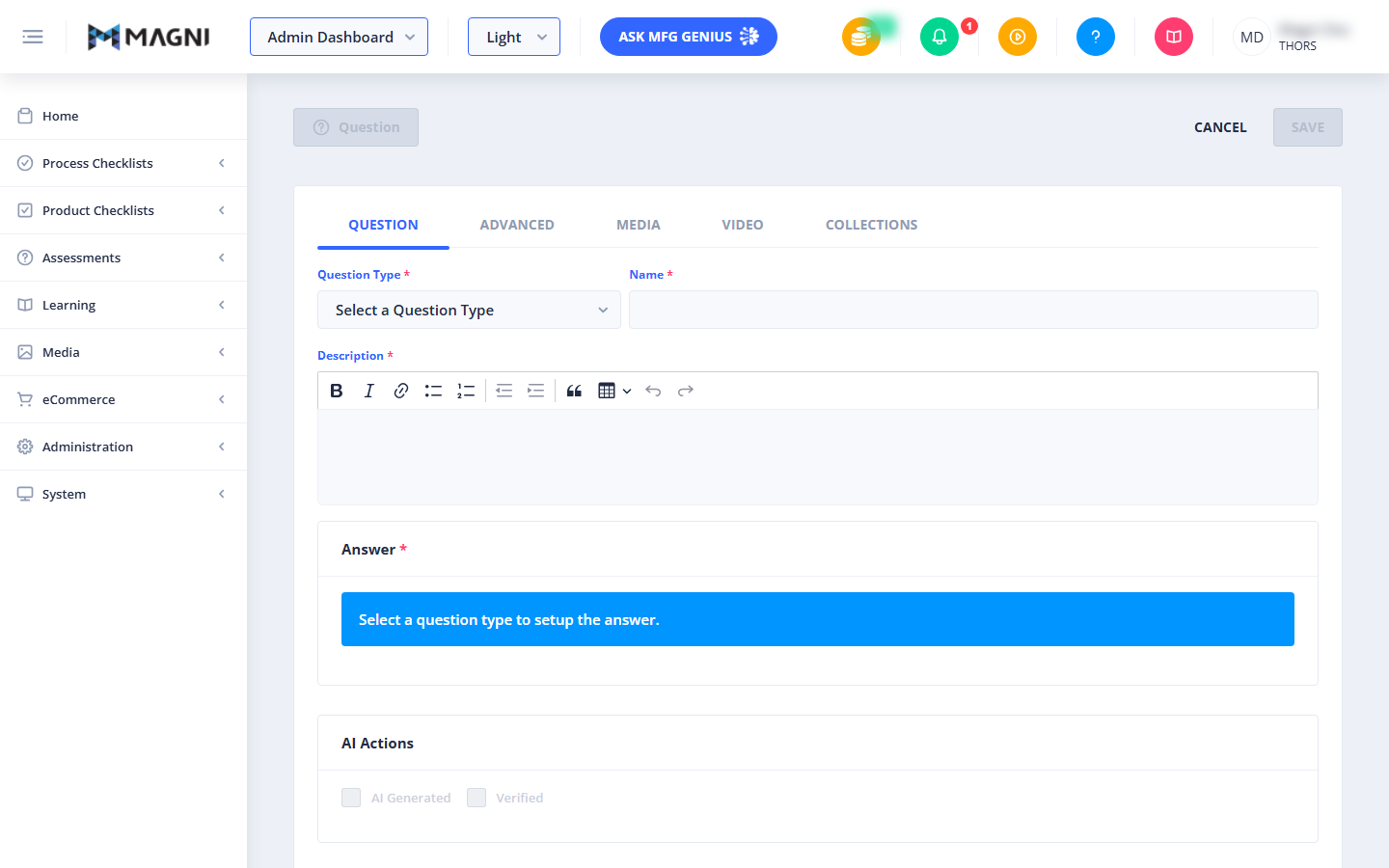
- Question Button: Displays "Question" by default, or the question's name once entered. This button is for display only and is disabled.
- Cancel Button: Discards any changes and returns to the previous page.
- Save Button: Saves the new question. This button is disabled until all required fields are filled and valid.
Alerts
Various alerts may appear at the top of the page to provide important information or warnings.
- Subjective Question Warning:
⚠️ This warning appears if you select a Subjective question type and your account does not have permission to create them. Contact sales@magni.ai to request access.
- Cloned Question Alert:
ℹ️ This alert appears when you are creating a question by cloning an existing one, reminding you that the question's name must be changed.
- Error Alert: Displays any error messages that occur during the creation process.
Question Tab
This tab is where you define the core properties of your question, including its type, name, description, and answer configuration.
- Question Type
- Purpose: Determines the format of the question and how the answer will be configured.
- Field Type: Dropdown menu.
- Required: Yes.
- Placeholder: "Select a Question Type"
- Action: Selecting a question type dynamically changes the answer configuration options displayed below.
- Available Question Types:
- Single Choice
- Multiple Choice
- Numerical Value
- Numerical Range
- Drag & Drop Single
- Matching References
- Matching Words
- List Sorting
- Bucket Sorting
- Complete Statement Single
- Complete Statement Multiple
- Sorting by Range
- Subjective
- Name
- Purpose: A concise title for your question.
- Field Type: Text input.
- Required: Yes.
- Warning: If the question is cloned, a "(Name must be changed)" warning appears next to the label until the name is modified.
- Description
- Purpose: The main body of the question, including any context, instructions, or scenarios.
- Field Type: Rich text editor (CKEditor).
- Required: Yes.
- Character Limit: 1024 characters.
- Answer Section
- Purpose: Configures the correct answer(s) based on the selected question type.
- Required: Yes.
- Initial State: When no question type is selected, an informational alert displays: "Select a question type to setup the answer."
- Hints: Depending on the selected question type, helpful hints or examples may appear in the header of this section:
- Complete Statement Single: "Hint: Use {{placeholderKeyword}} for the answer placeholder, e.g. The size of Moon is {{placeholderKeyword}} than the size of Earth."
- Complete Statement Multiple: "Example: The size of Moon is larger than (A) but smaller then (B)."
- Sorting By Range: "Example: (1) Arrange the answers in A ------------> Z order."
- Answer Type Configuration: Once a question type is selected, specific fields and tools appear to define the answer. The configuration varies greatly by question type:
- Single Choice: Allows defining multiple options, with only one correct answer.
- Multiple Choice: Allows defining multiple options, with one or more correct answers. Option Types (Single Choice and Multiple Choice): Each option can now be created in one of three formats. | Text | Text only | Select the correct option(s) from the text list. | | Image | Upload an image for each option | Select the correct image(s) while creating the question. | | Both | An image and text together in the same option | Select the correct option(s) the same way. | * Single Choice: Select only one option as correct, whichever option type you use. * Multiple Choice: Select one or more options as correct, whichever option type you use. * Learner Page: Learners see the options in the chosen format (text, images, or image with text) and select their answer(s) directly.
- Numerical Value: Requires a specific numerical input as the answer.
- Numerical Range: Requires a numerical input within a defined range as the answer.
- Drag & Drop Single: Configures items to be dragged and dropped into a single target area.
- Matching References: Configures items to be matched with corresponding references.
- Matching Words: Configures words or phrases to be matched.
- List Sorting: Allows defining a list of items that need to be sorted into a specific order.
- Bucket Sorting: Configures items to be sorted into different categories or "buckets."
- Complete Statement Single: Provides fields to define the missing word or phrase in a single blank.
- Complete Statement Multiple: Provides fields to define missing words or phrases in multiple blanks within a statement.
- Sorting by Range: Configures items to be sorted based on a defined range or order.
- Subjective: Provides fields for setting up how subjective answers will be evaluated (e.g., rubrics, keywords).
Advanced Tab
This tab is available but contains no configurable fields in the current version.
Media Tab
This tab is available but contains no configurable fields in the current version.
Video Tab
This tab is available but contains no configurable fields in the current version.
Collections Tab
This tab is available but contains no configurable fields in the current version.
AI Actions
This section allows you to manage the AI-generated status of the question.
- AI Generated: A checkbox indicating if the question was generated by AI.
- Verified: A checkbox indicating if the AI-generated question has been reviewed and verified by a human.
Common Actions
| Action | How to do it |
|---|---|
| Cancel Question Creation | Click the Cancel button in the top right corner. Any unsaved changes will be lost. |
| Save New Question | 1. Fill in all required fields (Question Type, Name, Description, and Answer). 2. Click the Save button in the top right corner. |
| Change Question Type | 1. Click the "Select a Question Type" dropdown. 2. Choose a new question type from the list. 3. The Answer section will update to reflect the configuration options for the new type. |
Tips
- Start with the Question Type: Always select your desired Question Type first, as this dictates the available options for configuring the answer.
- Use Descriptive Names: Give your questions clear and concise names so they are easy to identify when building assessments.
- Leverage Rich Text: Use the rich text editor for the question description to include formatting, images, or links that enhance clarity.