Questions — Clone
Last updated on: July 22, 2026 | Updated by: MAGNI Docs Team
The Questions — Clone page allows administrators and assessment creators to duplicate an existing assessment question. This feature helps you quickly create variations of questions without having to configure settings, tags, or descriptions from scratch.
👤 Visible to: Administrators and Assessment Creators
Page Sections
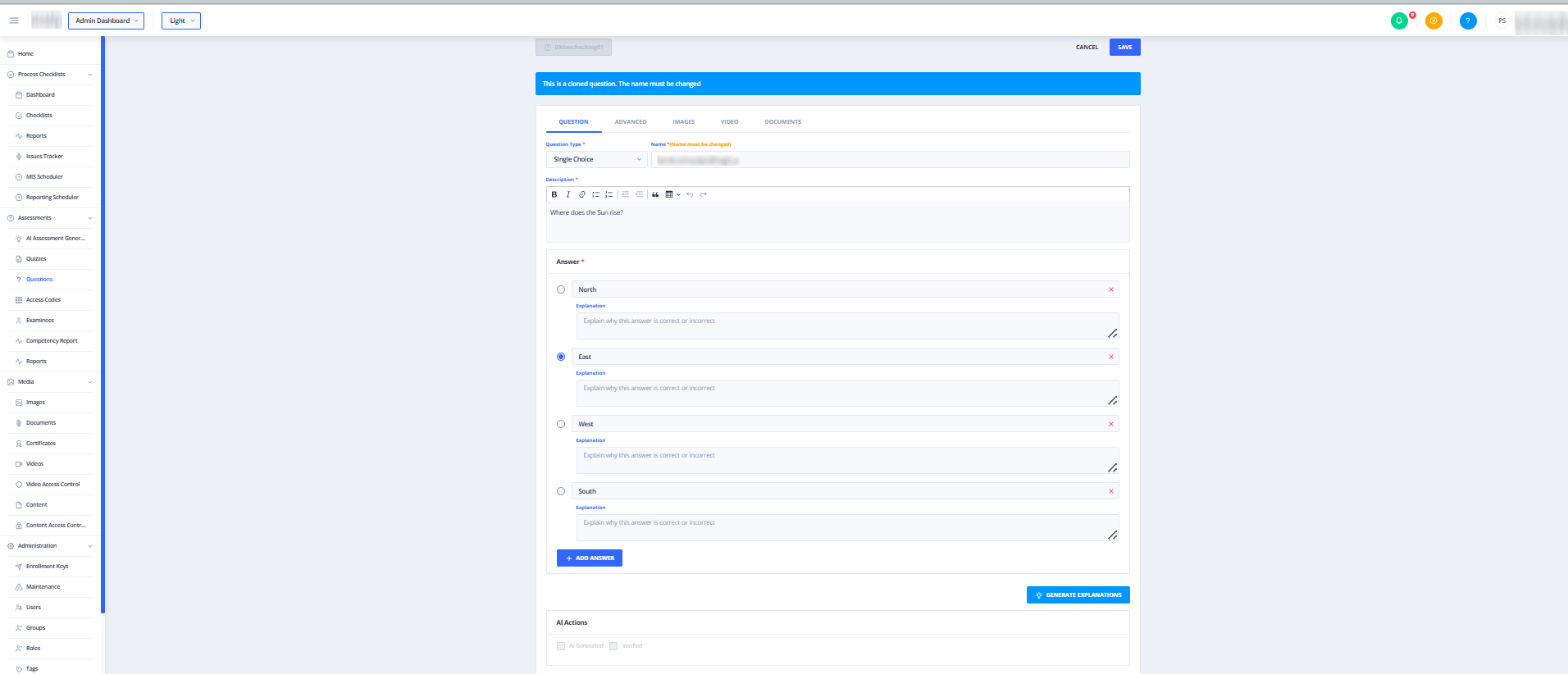
Header Actions
The top header provides quick navigation and saving controls:
- Original Question Indicator: A disabled button on the left displaying the name of the original question being cloned.
- Cancel: Discards all changes and returns you to the previous questions list page.
- Save: Saves the cloned question as a new entry. This button remains disabled until all required fields are valid and the question name has been modified.
Alert Banners
Dynamic alerts appear at the top of the form based on the state of the question:
- Clone Information Banner: A blue banner stating "This is a cloned question. The name must be changed." This serves as a reminder that you cannot save the cloned question with the exact same name as the original.
- Subjective Permission Warning: If the question being cloned is a subjective type and your organization does not have AI features enabled, a warning banner will display: "Insufficient permissions to create subjective questions. Contact sales@magni.ai to request access."
Question Tab
This tab contains the primary configuration fields for the question.
- Question Type (Required): A dropdown menu to select or change the format of the question. Available types include:
- Single Choice
- Multiple Choice
- Numerical Value
- Numerical Range
- Drag & Drop Single
- Matching References
- Matching Words
- List Sorting
- Bucket Sorting
- Complete Statement Single
- Complete Statement Multiple
- Sorting by Range
- Subjective
- Name (Required): The title of the question. You must modify this field so it does not match the original question's name. A yellow warning label reading "(Name must be changed)" will display next to the field label until a unique name is entered.
- Description (Required): A rich-text editor (CKEditor) used to write the main body of the question. This field has a maximum limit of 1024 characters.
- Answer Configuration (Required): The contents of this section change dynamically depending on the selected Question Type:
- Default: Displays an information alert asking you to select a question type to set up the answer.
- Complete Statement Single: Displays a hint on how to use the placeholder keyword (e.g., [answer]) in your description.
- Complete Statement Multiple: Displays an example of how to format multiple blanks (e.g., A, B).
- Sorting by Range: Displays an example of how to format range-based sorting questions.
- Dynamic Sub-forms: Once a question type is selected, the corresponding answer configuration form (such as choice inputs, range fields, or matching pairs) will load automatically.
Common Actions
| Action | How to do it |
|---|---|
| Clone a Question | 1. Navigate to the question you wish to clone. 2. Click the Clone action button. 3. On the clone page, enter a new Name for the question. 4. Modify the Description or Answers if necessary. 5. Click Save. |
| Change Question Type | 1. Click the Question Type dropdown. 2. Select a new question format. 3. Configure the updated answer fields that appear in the Answer section. |
| Cancel Cloning | Click the Cancel button in the top-right corner to return to the questions list without saving. |
Tips
- Rename First: Always update the Name field first. The Save button will remain disabled until the name is different from the original question.
- Check Character Limits: Keep your question description concise. The rich-text editor has a strict limit of 1024 characters.