Questions — Detail
%% %%
Last updated on: 2026-05-25 | Updated by: MAGNI Docs Team
This help page provides detailed information about viewing and managing individual questions within the Magni Learning Management System (LMS). As an administrator or content creator, you can review question details, associated answers, tags, media, and the quizzes where a question is used.
Overview
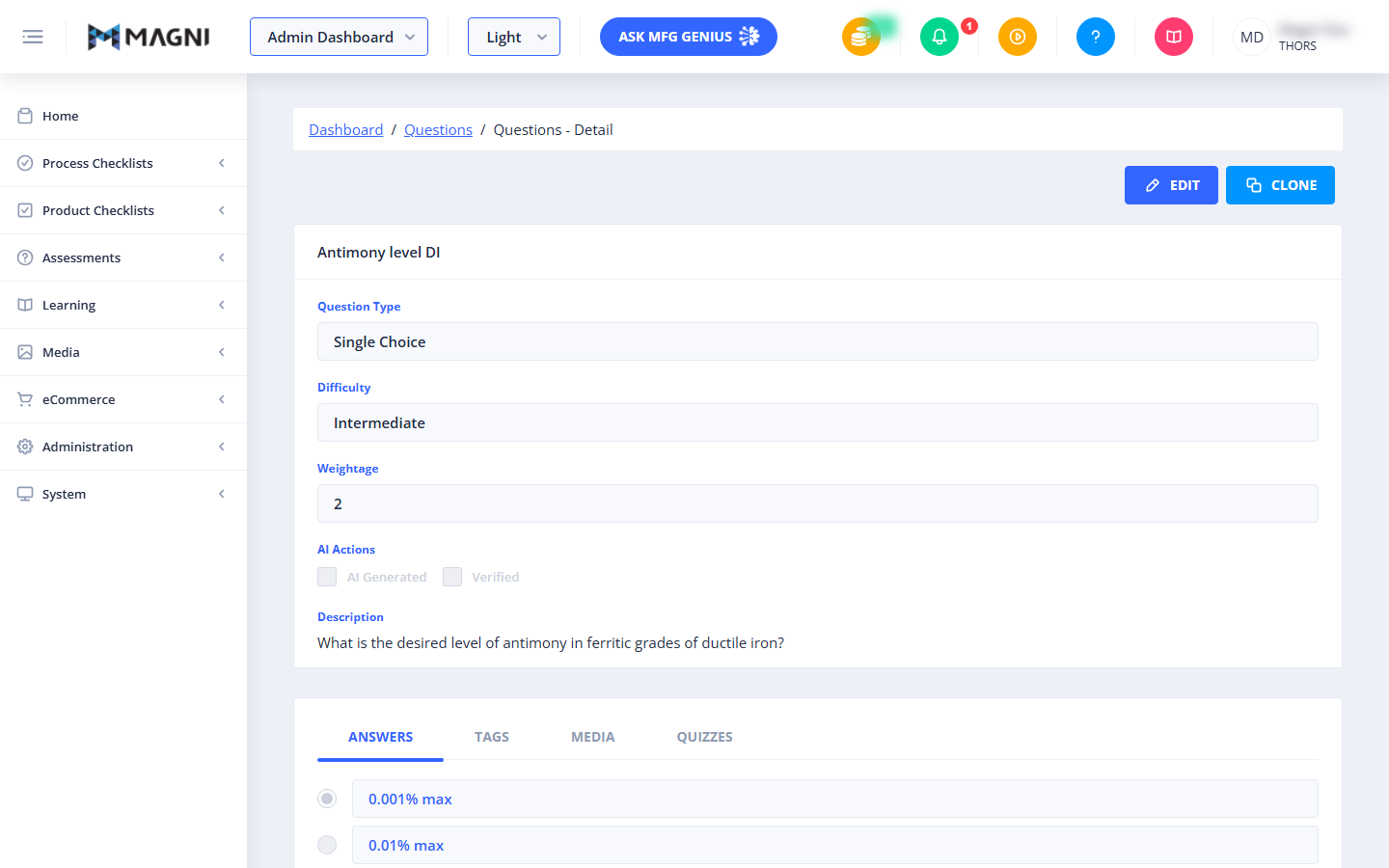
The Questions — Detail page allows you to examine all aspects of a specific question. This includes its type, difficulty, weightage, description, and the various answer options. You can also see if a question was generated or verified by AI, and manage its presence in quizzes and its associated media.
Page Sections
Breadcrumb Navigation
At the top of the page, a breadcrumb trail helps you navigate back to previous sections:
Dashboard > Questions > [Question Name]
This shows your current location and allows you to easily return to the main Dashboard or the Questions list.
Action Buttons
Located at the top right of the page, these buttons provide quick access to key actions related to the question.
- Edit:
Clicking this button takes you to the Question Edit page, where you can modify the question's details.
👤 Visible to: Users with 'Question Update' permission, provided the question is not locked and you have management rights over the question.
- Clone:
This button creates a duplicate of the current question, allowing you to quickly create new questions based on existing ones.
👤 Visible to: Users with 'Question Create' permission. Cloning is allowed for questions belonging to your customer, or for THORS questions if your customer is THORS.
- Delete: This button is not currently available for questions.
- Unlock:
If a question is locked, this button appears, allowing you to unlock it. Unlocking a question enables editing, but comes with a warning about potential impacts on learner report data.
👤 Visible to: Users with the 'Questions Lock' permission, only when the question is currently locked. ⚠️ Warning: Unlocking a question can have adverse effects on report data for learners. You may rename answer choices, but do not remove them. You will not be able to delete an unlocked question.
Question Details Card
This card displays the core information about the question.
- Question Name: Displayed prominently in the card header, this is the title of the question. A lock icon

- Lock icon will appear next to the name if the question is locked.
- Question Type: Indicates the format of the question (e.g., Single Choice, Multiple Choice, Numerical Value). This field is read-only.

- Difficulty: Shows the assigned difficulty level of the question (e.g., Intermediate). This field is read-only.
- Weightage: Displays the point value or weight assigned to the question. This field is read-only.
- AI Actions:
This section indicates if the question has been involved in AI processes.
- AI Generated: A checkbox indicating if the question was generated by an AI. This checkbox is disabled and read-only.
- Verified: A checkbox indicating if the question has been verified by an AI. This checkbox is disabled and read-only.
- Description: The full text or content of the question itself.
Tabs Card
This card contains several tabs that provide additional details and related information about the question.
Answers Tab
This tab displays the answer options and correct responses for the question. The specific layout and fields will vary depending on the question type.
- Single Choice: Presents a list of options, with one marked as correct.
- Multiple Choice: Presents a list of options, where multiple can be marked as correct.
- Numerical Value: Expects a specific numerical input as the answer.
- Numerical Range: Expects a numerical input within a defined range.
- Drag Drop Single: Involves dragging and dropping items to a single target.
- Matching References: Involves matching items to their corresponding references.
- Matching Words: Involves matching words or phrases.
- List Sorting: Requires sorting a list of items into a specific order.
- Bucket Sorting: Requires sorting items into different categories or "buckets."
- Complete Statement Single: Requires filling in a single blank in a statement.
- Complete Statement Multiple: Requires filling in multiple blanks in a statement.
- Sorting By Range: Involves sorting items based on numerical ranges.
- Subjective: For questions requiring free-form text answers that need manual grading.
Tags Tab
This tab lists all tags associated with the question. Tags help categorize and organize questions, making them easier to find and manage.
Media Tab
This tab displays any media (e.g., images) linked to the question.
- If media is attached, its name and the image itself will be displayed.
- If no media is attached, a message "No Media Selected" will be shown.
Quizzes Tab
This tab lists all quizzes that currently include this question.
- An informational alert states: "This question is on the following quizzes."
- A list of quizzes will be displayed, indicating where the question is being used.
Video Card
This card displays any video content associated with the question.
- Video:
If a video is linked to the question and your customer account allows video content, the video player will be embedded here.
👤 Visible to: All users, if
allowVideosis enabled for the customer and a video is linked to the question. - If no video is linked, the section will indicate "No Media Selected".
Common Actions
| Action | How to do it |
|---|---|
| Return to the Dashboard or Questions list | Click Dashboard or Questions in the breadcrumb trail |
| Edit the question | Click Edit (visible if you have 'Question Update' permission, the question isn't locked, and you have management rights over it) |
| Create a copy of the question | Click Clone (visible with 'Question Create' permission, for questions belonging to your customer, or THORS questions if your customer is THORS) |
| Unlock a locked question | Click Unlock (visible with the 'Questions Lock' permission, only when the question is currently locked) |
| View answer options and the correct answer(s) | Open the Answers tab |
| View tags applied to the question | Open the Tags tab |
| View or check for attached media | Open the Media tab — shows the media if attached, or "No Media Selected" if not |
| See which quizzes use this question | Open the Quizzes tab |
| Watch a linked video | Play it from the Video card, if a video is linked and video content is enabled for your customer account |
Tips
- Delete is not currently available for questions from this page — if a question needs to be removed, check whether Clone (to create a corrected version) or Unlock/Edit better fits your need.
- Before clicking Unlock, read the warning carefully: unlocking can affect learner report data. You can rename answer choices afterward, but you can't remove them, and you won't be able to delete the question once it's unlocked.
- Action button visibility depends on your permissions — if Edit, Clone, or Unlock aren't showing, it's likely a permissions or lock-state issue rather than a bug.
- Check the Quizzes tab before editing a question's answers — since it shows every quiz using this question, it's a quick way to gauge the impact of a change.
- Question Type, Difficulty, Weightage, and the AI Actions checkboxes are all read-only here; to change them, use Edit to open the Question Edit page.
- If a question shows "No Media Selected" in either the Media tab or the Video card, no additional visual/video content was attached — this is expected for text-only questions.