Quizzes — List
Last updated on: 2026-05-25 | Updated by: MAGNI Docs Team
This page allows administrators to manage all quizzes within the Magni Learning Management System. Here, you can create new quizzes, search for existing ones, filter them by tags, and view details such as the number of questions, attempts, and creation date.
👤 Visible to: Administrator
Overview
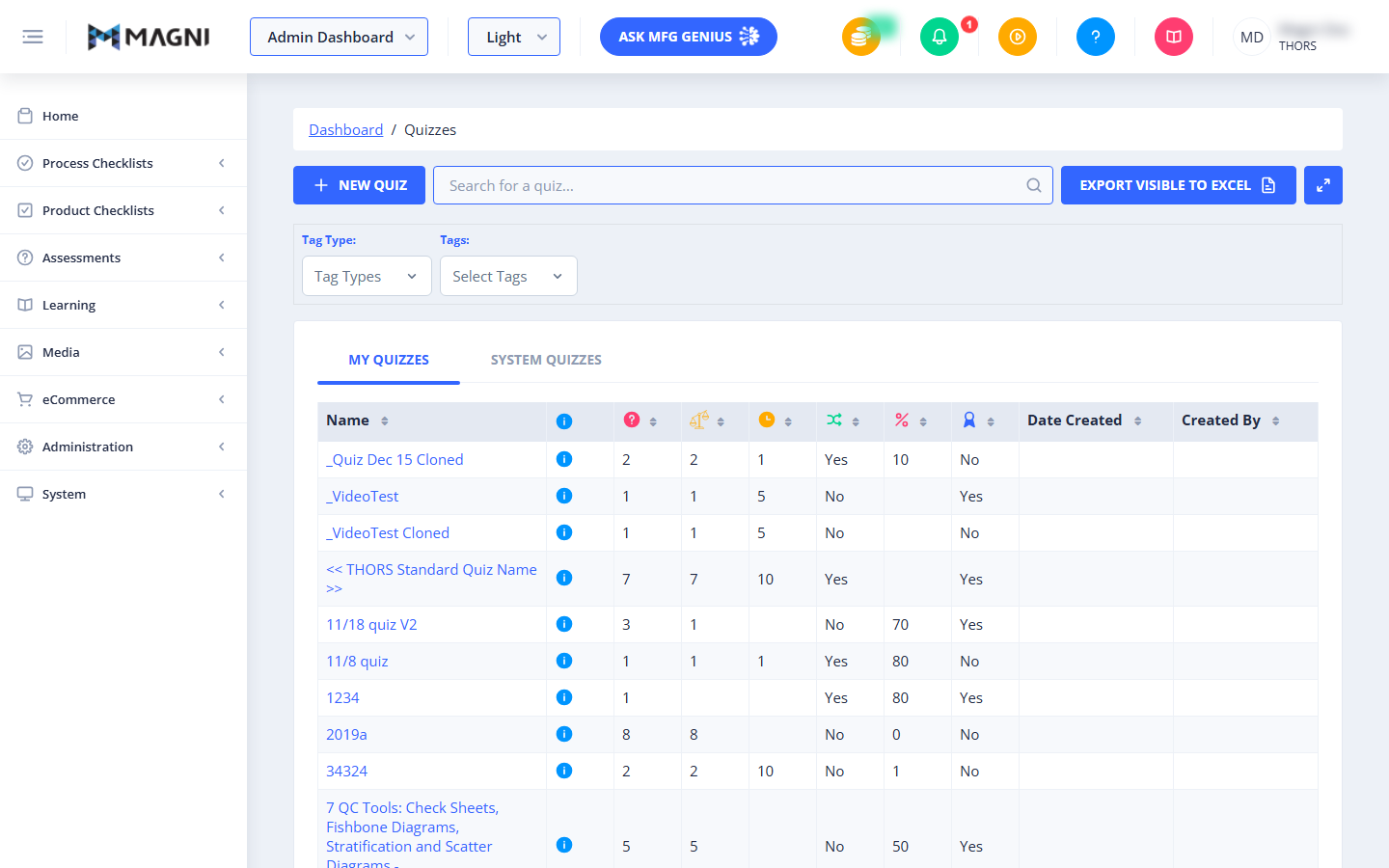
The Quizzes page provides a centralized hub for managing all assessment content. Administrators can easily organize, create, and modify quizzes, ensuring that learning materials are up-to-date and accessible. This page displays both quizzes you have created ("My Quizzes") and quizzes available system-wide ("System Quizzes").
Page Sections
Quiz Management Toolbar
At the top of the main content area, you'll find tools to create, search, and filter quizzes.
- NEW QUIZ Button: Click this button to open a new page or modal where you can design and create a new quiz from scratch.
- Search Bar: Use this field to quickly find quizzes by typing part of their name. The list will dynamically update as you type.

- Tag Type Dropdown: Select a specific tag category to refine your search.
- Tags Dropdown: After selecting a tag type, choose specific tags within that category to filter the quiz list.
- EXPORT VISIBLE TO EXCEL Button: Click this button to download the currently displayed quiz list (including any applied filters) as an Excel spreadsheet.
Quiz Tabs
The page is divided into two tabs to help you organize quizzes:
- MY QUIZZES: This tab displays all quizzes that you, as the current administrator, have created or have been assigned ownership of.
- SYSTEM QUIZZES: This tab shows all quizzes available across the entire Magni system, regardless of who created them.
Quiz List Table
This table displays a comprehensive list of quizzes based on your selected tab and filters.
- Name: The title of the quiz. Click on a quiz name to view or edit its details.
- Info Icon Column: Indicates general information or status about the quiz.
- Question Icon Column: Shows the total number of questions included in the quiz.
- User Icon Column: Displays the number of times the quiz has been attempted or the number of users who have taken it.
- Checkmark Icon Column: Indicates whether the quiz is currently published or active (Yes/No).
- Percentage Icon Column: Shows a percentage, likely representing the average pass rate or a similar metric for the quiz.
- Ribbon Icon Column: Indicates if the quiz is associated with a certification or award (Yes/No).
- Date Created: The date when the quiz was originally created.
- Created By: The name of the user who created the quiz.
Common Actions
| Action | How to do it |
|---|---|
| Create a new quiz | Click NEW QUIZ |
| Find a specific quiz | Type part of its name into the Search Bar — the list updates dynamically as you type |
| Filter quizzes by category | Select a value from the Tag Type dropdown |
| Further narrow quizzes by tag | After choosing a Tag Type, select specific values in the Tags dropdown |
| Export the current quiz list | Click EXPORT VISIBLE TO EXCEL to download the currently displayed (and filtered) list as a spreadsheet |
| View quizzes you created or own | Open the MY QUIZZES tab |
| View all quizzes across the system | Open the SYSTEM QUIZZES tab |
| Open or edit a quiz | Click the quiz's Name in the Quiz List table |
| Check how many questions are in a quiz | Review the Question Icon column |
| Check how many times a quiz has been taken | Review the User Icon column |
| Check if a quiz is published/active | Review the Checkmark Icon column (Yes/No) |
| Check a quiz's pass rate | Review the Percentage Icon column |
| Check if a quiz awards a certificate | Review the Ribbon Icon column (Yes/No) |
| See when a quiz was created, and by whom | Review the Date Created and Created By columns |
Tips
- Use MY QUIZZES to focus on quizzes you're responsible for, and switch to SYSTEM QUIZZES when you need to find or reference a quiz created by someone else.
- Combine the Search Bar with Tag Type/Tags filters to quickly narrow a large quiz list down to what you need.
- Select a Tag Type first — the Tags dropdown only shows relevant options once a tag type has been chosen.
- EXPORT VISIBLE TO EXCEL exports exactly what's on screen, so apply your search and filters first if you only want a specific subset of quizzes in the spreadsheet.
- The icon columns (Info, Question, User, Checkmark, Percentage, Ribbon) pack a lot of at-a-glance status into a small space — hover over an icon if you're unsure what a specific value represents.
- Clicking a quiz's Name takes you to its detail/edit view — this is the fastest way to jump from the list into a specific quiz.