Last updated on: 2026-05-25 | Updated by: MAGNI Docs Team
Quizzes — Detail
The Quizzes Detail page provides a comprehensive view of a specific quiz, including its general information, associated questions, performance balance, settings, certificates, assigned users, and groups. This page is primarily used by administrators and content managers to review and manage quiz content and configurations.
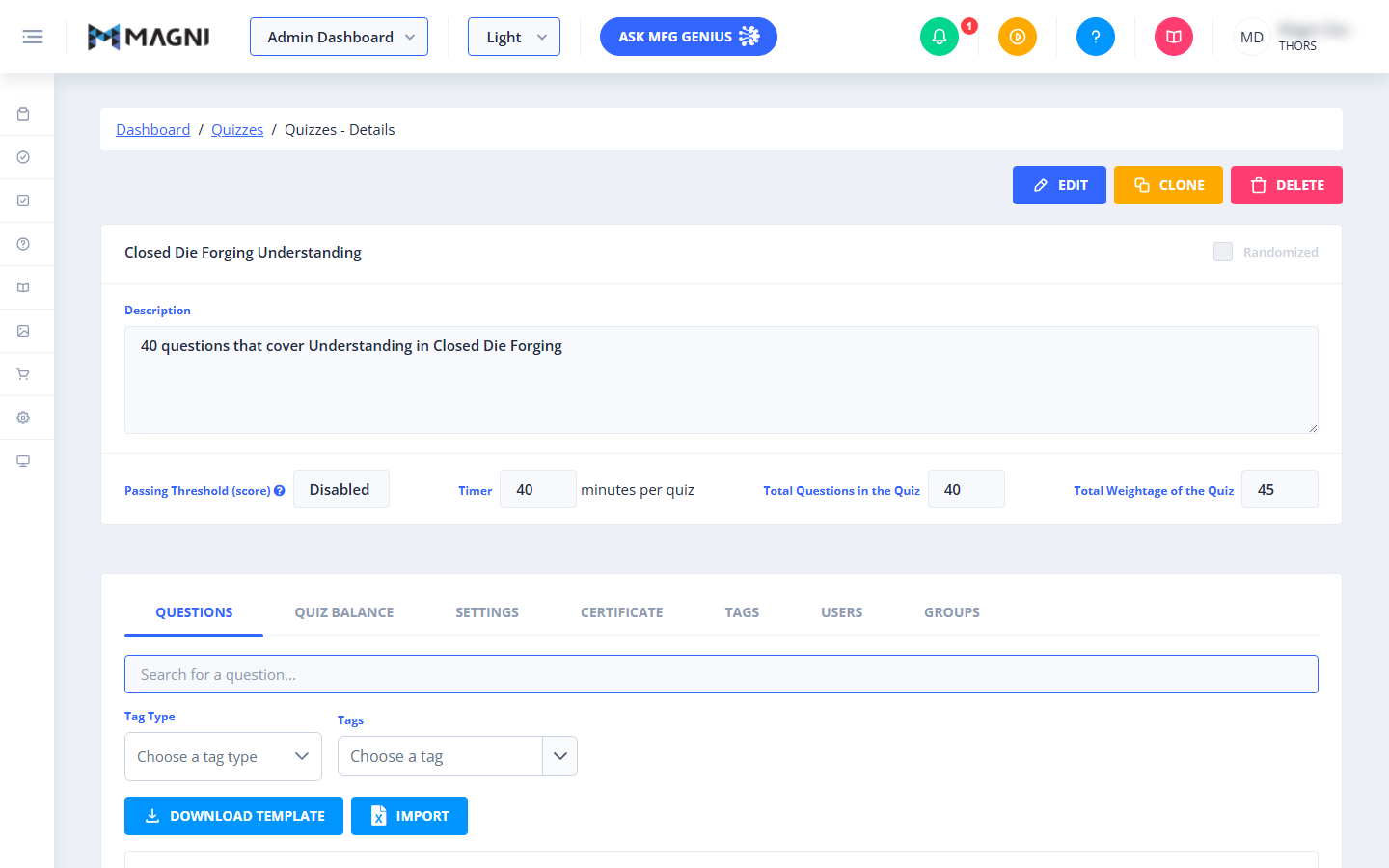
Overview
This page displays all the details of a selected quiz. From here, you can review the quiz's properties, examine the questions it contains, analyze the distribution of questions by concept and difficulty, manage certificate settings, and see which users and groups are associated with the quiz.
Page Sections
Header Actions
At the top right of the page, you'll find action buttons to manage the quiz.
- Edit Button:
- Purpose: Allows you to modify the quiz's details, questions, and settings.
- Visibility: This button is visible if you have the necessary permissions to manage quizzes and the quiz belongs to your active customer account (or if you are a THORS administrator managing a THORS quiz).
👤 Visible to: Users with
QuizUpdatepermissions. - Clone Button:
- Purpose: Creates a duplicate copy of the current quiz, which can then be modified independently. This is useful for creating new quizzes based on existing ones without starting from scratch.
- Visibility: This button is visible if you have the necessary permissions to create quizzes. THORS users can clone any quiz. Non-THORS users can only clone quizzes that do not belong to THORS.
👤 Visible to: Users with
QuizCreatepermissions. - Delete Button:
- Purpose: Permanently removes the quiz from the system.
- Visibility: This button is visible if you have the necessary permissions to manage quizzes and the quiz belongs to your active customer account (or if you are a THORS administrator managing a THORS quiz).
- Action: Clicking this button will typically trigger a confirmation dialog before deletion.
👤 Visible to: Users with
QuizDeletepermissions.
Quiz Information Card
This card displays the core details of the quiz.
- Quiz Name: The title of the quiz, displayed prominently in the header of the card.
- Randomized Checkbox:
- Purpose: Indicates whether the questions in the quiz are presented in a random order to users.
- State: This checkbox is disabled and shows the current randomization setting.
- Description: A read-only text area providing a detailed explanation of the quiz's content and purpose.
- Passing Threshold (score):
- Purpose: Shows the minimum score required to pass the quiz.
- State:
- If a threshold is set, it displays the percentage (e.g., "75").
- If no threshold is set, it displays "Disabled".
- Tooltip: A tooltip provides additional information about how passing thresholds are applied.
- Timer:
- Purpose: Displays the time limit for completing the quiz.
- State:
- If a timer is set (
quiz.time > 0), it shows the time value. - The unit of time (minutes per question or minutes per quiz) is displayed next to the value, depending on the quiz configuration.
- If no timer is set (
quiz.time <= 0), this field is not visible.
- If a timer is set (
- Total Questions in the Quiz: Shows the total number of questions included in the quiz.
- Total Weightage of the Quiz: Displays the cumulative weightage (points) of all questions in the quiz.
Tabs Section
Below the quiz information, a set of tabs allows you to explore different aspects of the quiz.
Questions Tab
This tab lists all the questions associated with the quiz.

- Search for a question...: Use this search bar to filter the list of questions by keyword.
- Tag Type Filter: A dropdown to filter questions by their assigned tag type.
- Tags Filter: A dropdown to filter questions by specific tags.
- Download Template Button: Allows you to download a template for importing questions.
- Import Button: Allows you to upload questions from a file.
- Question List: Displays a list of questions. If the quiz is not randomized, questions can be reordered.
Quiz Balance Tab
This tab provides insights into the distribution of questions within the quiz, helping to ensure a balanced assessment. It contains two sub-tabs:
By No. of Questions
This sub-tab shows the distribution of questions based on their technical concepts, Blooms categories, and difficulty levels.
- Quiz Questions Distribution Chart - Technical Concept vs Blooms Categories:
- A table showing how many questions fall into each combination of technical concept (e.g., Materials, Processes) and Blooms category (Identification, Understanding, Application).
- Includes a "Sub Total" column for each concept and a "Sub Total" row for each Blooms category.
- Quiz Questions Distribution Chart - Technical Concepts vs Difficulties:
- A table showing how many questions fall into each combination of technical concept and difficulty level (Beginner, Intermediate, Advanced).
- Includes a "Sub Total" column for each concept and a "Sub Total" row for each difficulty level.
By Questions Weightage
This sub-tab shows the distribution of question weightage (points) based on their technical concepts, Blooms categories, and difficulty levels.
- Quiz Weightage Distribution Chart - Technical Concept vs Blooms Categories:
- A table similar to the "By No. of Questions" tab, but displaying the total weightage of questions for each combination of technical concept and Blooms category.
- Quiz Weightage Distribution Chart - Technical Concepts vs Difficulties:
- A table similar to the "By No. of Questions" tab, but displaying the total weightage of questions for each combination of technical concept and difficulty level.
Settings Tab
This tab allows you to configure various settings for the quiz.
- The content for this tab is not available in the provided source.
Certificate Tab
This tab manages the certificate associated with the quiz.
- Certificate Preview: If a certificate is configured for the quiz and certificates are allowed for your customer account, a preview of the certificate will be displayed, often within an iframe.
- Download Certificate: A button to download the certificate template or the generated certificate for the quiz.
- No Certificate Message: If no certificate URL is set for the quiz, or if certificates are not allowed for your customer, a message indicating this will be displayed.
👤 Visible to: Users whose customer account
allowCertificatessetting is true.
Tags Tab
This tab allows you to view and manage tags associated with the quiz.
- The content for this tab is not available in the provided source.
Users Tab
This tab lists all users who have taken or are assigned to the quiz.
- User List: Displays a list of users, often including their names, scores, and completion status.
- Pagination: Controls to navigate through multiple pages of users if the list is extensive.
- Compare Report: Functionality to compare user performance on the quiz, potentially adding users to a comparison report.
Groups Tab
This tab shows which user groups are associated with the quiz.
- The content for this tab is not available in the provided source.
Common Actions
| Action | How to do it |
|---|---|
| Modify the quiz's details, questions, or settings | Click Edit (visible with QuizUpdate permissions, for quizzes in your active customer account or THORS quizzes if you're a THORS admin) |
| Create a duplicate of the quiz | Click Clone (visible with QuizCreate permissions; THORS users can clone any quiz, non-THORS users can clone non-THORS quizzes) |
| Permanently remove the quiz | Click Delete, then confirm in the dialog (visible with QuizDelete permissions, for quizzes in your active customer account or THORS quizzes if you're a THORS admin) |
| Check if questions are shown in random order | Review the Randomized checkbox in the Quiz Information card (read-only) |
| Check the minimum passing score | Review Passing Threshold (score) — shows a percentage if set, or "Disabled" if not |
| Check the quiz's time limit | Review Timer — only shown if a time limit is set, with its unit (per question or per quiz) |
| See how many questions and total points the quiz has | Review Total Questions in the Quiz and Total Weightage of the Quiz |
| Find a specific question in the quiz | Use Search for a question... on the Questions tab |
| Filter the quiz's questions by category or tag | Use the Tag Type and Tags filters on the Questions tab |
| Get a template for bulk-adding questions | Click Download Template on the Questions tab |
| Add multiple questions from a file | Click Import on the Questions tab |
| Reorder the quiz's questions | Drag/reorder items in the Question List (only available if the quiz is not randomized) |
| Review question distribution by concept, Blooms category, or difficulty | Open the Quiz Balance tab → By No. of Questions sub-tab |
| Review weightage distribution by concept, Blooms category, or difficulty | Open the Quiz Balance tab → By Questions Weightage sub-tab |
| View or download the quiz's certificate | Open the Certificate tab (visible if your customer account has allowCertificates enabled) |
| See who has taken or is assigned the quiz | Open the Users tab |
| Compare user performance on the quiz | Use Compare Report on the Users tab |
| View tags associated with the quiz | Open the Tags tab |
| View groups associated with the quiz | Open the Groups tab |
Tips
- Edit, Clone, and Delete all depend on your permissions and which customer account the quiz belongs to — if a button is missing, it's most likely a permissions or ownership issue rather than a bug.
- Delete is permanent and triggers a confirmation dialog — double-check you have the right quiz open before confirming.
- If Passing Threshold shows "Disabled," the quiz has no minimum score requirement — check the tooltip next to it for more on how thresholds are applied.
- The Timer field only appears when a time limit is actually set; if you don't see it, the quiz is untimed.
- You can only reorder questions in the Questions tab when the quiz isn't randomized — for a randomized quiz, order doesn't matter since it's shuffled per attempt anyway.
- Use the Quiz Balance tab before publishing a quiz to check that questions (and their weightage) are well distributed across concepts, Blooms categories, and difficulty levels rather than clustered in one area.
- The Certificate tab only shows a preview/download if a certificate URL is set and your customer account allows certificates — otherwise you'll see a "no certificate" message.
- The Settings, Tags, and Groups tabs weren't fully documented in the source material — verify their exact behavior in the live app before publishing this page, and update these Common Actions once confirmed.