Last updated on: 2026-05-25 | Updated by: MAGNI Docs Team
Quizzes — Create
This page allows you to create new quizzes for your Learning Management System (LMS). As an administrator, you can define quiz details, set time limits, manage passing thresholds, add instructions, select questions, assign tags, link certificates, and organize quizzes into collections.
Overview
The Create Quiz page is where you configure all aspects of a new assessment. You'll start by providing basic information like the quiz name and description, then proceed to define settings, add questions, and categorize your quiz.
Page Sections
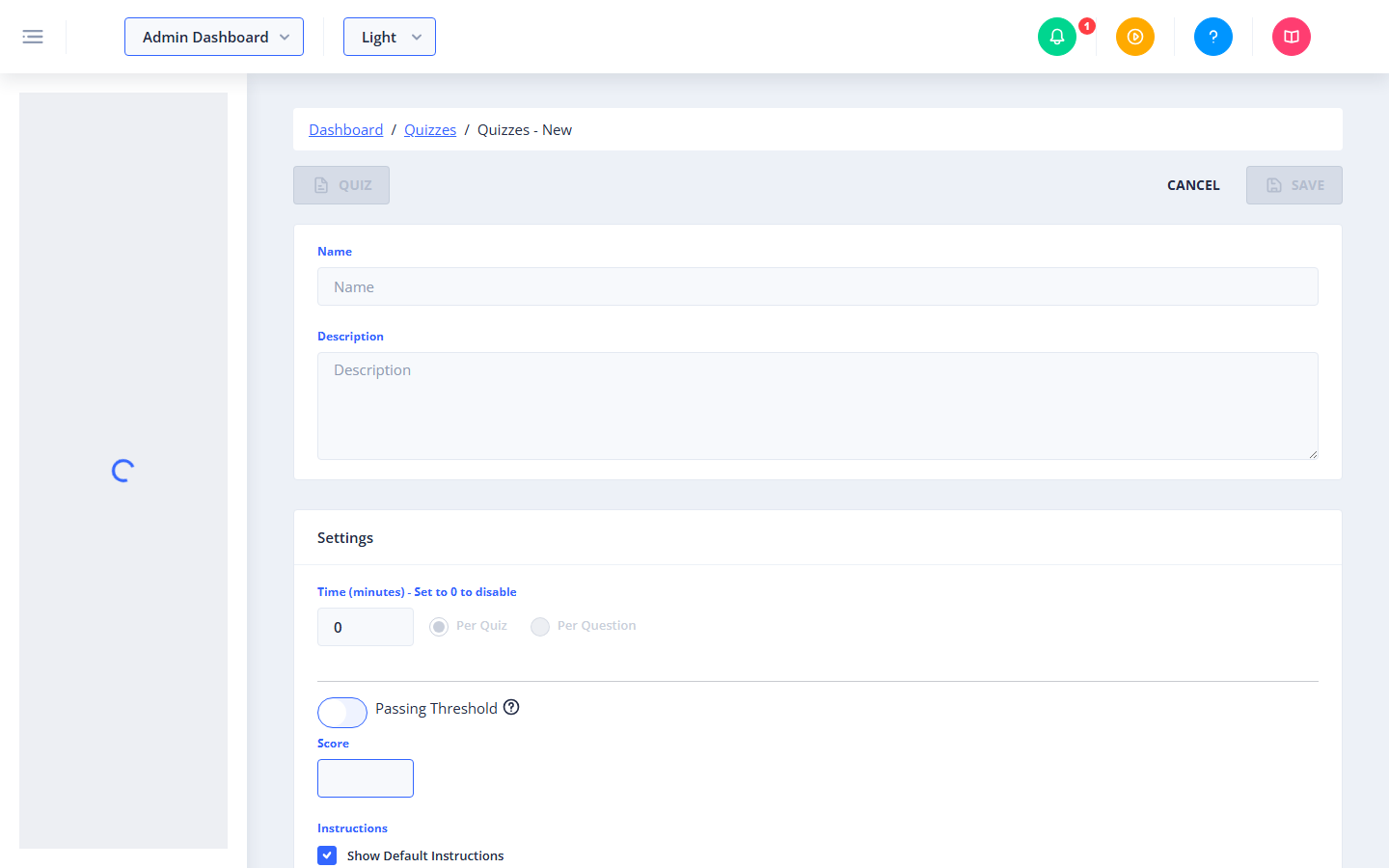
The quiz creation page is organized into several sections to help you configure your quiz comprehensively.
Quiz Details
This section covers the fundamental information about your quiz.
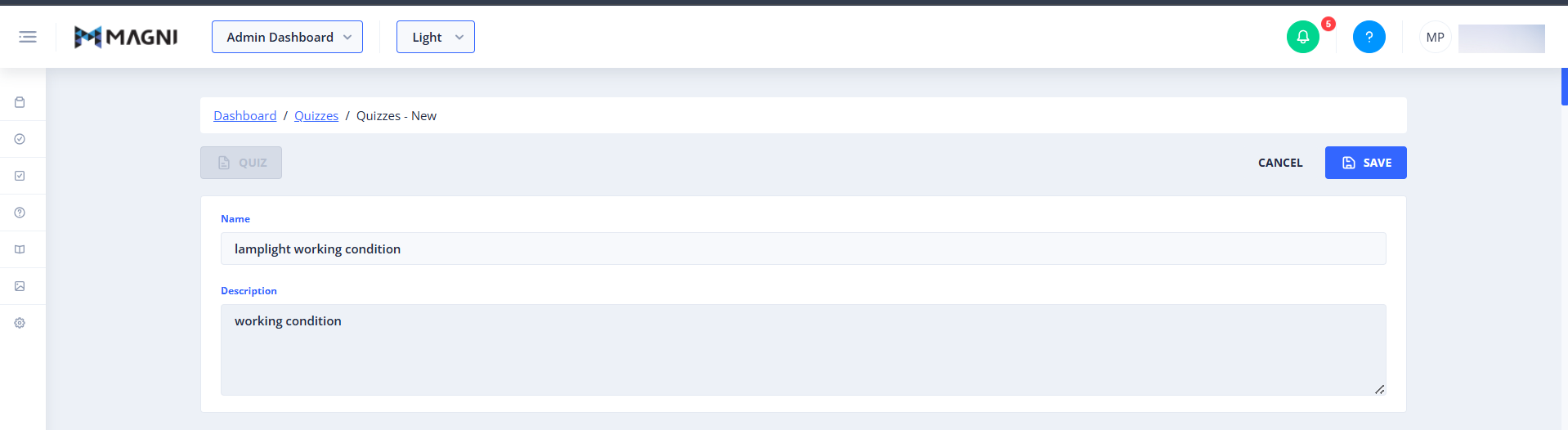
- Name: Enter a descriptive name for your quiz. This field is required.
- Description: Provide a detailed description of the quiz. This field is required.
Settings
Configure the operational parameters for your quiz in this section.
- Time (minutes) - Set to 0 to disable:
- Enter a numerical value for the quiz duration in minutes. Setting this to
0disables the time limit. - Per Quiz / Per Question: If a time limit is set (greater than 0), you can choose whether the time applies to the entire quiz (
Per Quiz) or to each individual question (Per Question). If the time is set to0, these options are disabled.
- Enter a numerical value for the quiz duration in minutes. Setting this to
- Passing Threshold:
- Toggle Passing Threshold: Use the toggle to enable or disable a specific passing threshold for this quiz.
- Score: If the passing threshold is enabled, enter the minimum score (as a percentage) required to pass the quiz. This value must be at least
1. -
ℹ️ Information: Passing thresholds set on quizzes will override any passing thresholds defined at the group or customer level.
- Instructions:
-
⚠️ Warning: If quiz instructions are disabled in your Company Settings, an alert will be displayed here with a link to enable them.
- Show Default Instructions: Check this box to include the default quiz instructions. A tooltip provides additional information about this option.
- Custom Instructions: Use the rich text editor to provide specific instructions for this quiz. This field has a maximum length of 2048 characters.
-
Tabs
The lower section of the page is organized into tabs, allowing you to manage different aspects of your quiz.
Questions Tab
This tab is where you add and manage the questions for your quiz.
- Selected Questions / Add Questions: The subtitle changes based on whether you are currently viewing selected questions or adding new ones.
- Randomize: Check this box to randomize the order of questions for participants.
- Manage Questions / Set Order Button:
- When viewing selected questions, this button says
Manage Questions. Clicking it switches to the "Add Questions" view. - When in the "Add Questions" view, this button says
Set Order. Clicking it switches back to the "Selected Questions" view, allowing you to reorder the questions. - This button is disabled if there are no questions currently added to the quiz.
- When viewing selected questions, this button says
- Selected Questions View: Displays the questions currently added to the quiz, allowing you to set their order.
- Add Questions View: Displays a list of available questions. You can select questions from this list to include in your quiz.
Tags Tab
Use this tab to associate tags with your quiz, making it easier to categorize and search for.
- Tag List: Displays a list of tags. You can select existing tags or create new ones to apply to this quiz.
Certificates Tab
This tab allows you to link a certificate that participants will receive upon successful completion of the quiz.
-
⚠️ Upgrade Account: If certificate features are not enabled for your account, an alert will be displayed with information on how to upgrade by contacting sales.
- Certificate Select: If certificates are enabled, you can select an existing certificate to be awarded for this quiz.
Collections Tab
👤 Visible to: Users with permission to update quiz collections.
This tab allows you to associate your quiz with existing quiz collections.
- Shared Quizzes Collections List: Displays a list of quiz collections. You can select collections to include this quiz in.
Common Actions
| Action | How to do it |
|---|---|
| Name the quiz | Enter a quiz name in the Name field under Quiz Details (required). |
| Describe the quiz | Enter details in the Description field under Quiz Details (required). |
| Set or disable a time limit | Enter minutes in the Time (minutes) field under Settings (0 disables it). |
| Add questions to the quiz | On the Questions tab, use the Add Questions view to select questions, then click Set Order to confirm and switch to the ordering view. |
| Save the quiz | Click SAVE (top right) once all required fields are complete. |
| Discard the quiz | Click CANCEL (top right) to exit without creating the quiz. |
Tips
- Name and Description are both required — you can't save a quiz without them.
- Set Time to
0if the quiz should be untimed; this also disables the Per Quiz/Per Question choice, since there's no time to split. - A Passing Threshold set on the quiz overrides any threshold defined at the group or customer level — only enable it here if you specifically want it to take priority.
- If the Instructions warning appears, the underlying setting lives in Company Settings, not on this page — enable it there first if you want to use quiz instructions.
- Custom Instructions has a hard limit of 2048 characters, so keep them concise if you're pasting in longer text.
- Use the Add Questions → Set Order flow in two steps: first select all the questions you want, then confirm to switch into the reorder view — trying to set order before adding questions won't work.
- Manage Questions/Set Order stays disabled until at least one question has been added.