Last updated on: July 22, 2026 | Updated by: MAGNI Docs Team
Quiz Edit
Overview
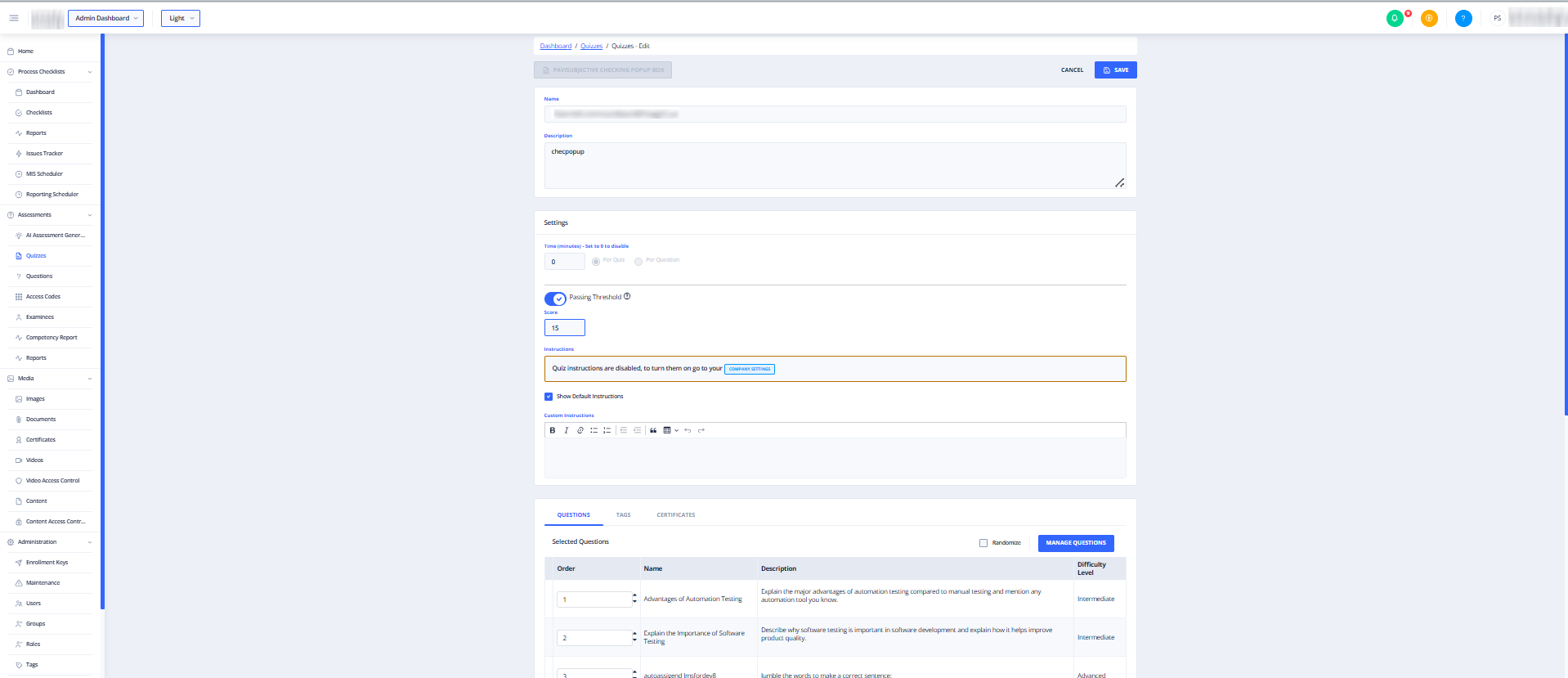
The Quiz Edit page lets an admin update an existing quiz's details, settings, and questions after it has been created. It reuses the same layout as Quiz Creation, but is pre-filled with the quiz's current data and accessed via breadcrumb navigation instead of a "create" action.
[!info] Where to find it
Navigate via Dashboard → Quizzes, then select the quiz you want to edit. The breadcrumb at the top of the page will read:
Dashboard / Quizzes / Quizzes - Edit
Page Sections
Header
-
Breadcrumb:
Dashboard / Quizzes / Quizzes - Edit— click Quizzes to return to the quiz list without saving. -
Title bar: Shows the current quiz name in a greyed, read-only bar for reference while you edit the fields below.
-
CANCEL: Discards any unsaved changes and exits the edit screen.
-
SAVE: Saves changes to the existing quiz.
Quiz Details
Same fields as Quiz Creation, pre-filled with the current quiz's data:
-
Name: Editable. Required.
-
Description: Editable. Required.
Settings
Same configuration options as Quiz Creation, pre-filled with the quiz's current values:
- Time (minutes) – Set to
0to disable the timer.
_ Per Quiz / Per Question — only selectable when Time is greater than 0.
- Passing Threshold - Toggle on/off.
- Score — minimum passing percentage, minimum value 1.
- ℹ️ Overrides any passing threshold set at the group or customer level.
- Instructions
- ⚠️ If quiz instructions are disabled in Company Settings, an alert with a link to enable them is shown.
- Show Default Instructions checkbox.
- Custom Instructions rich text editor — max 2048 characters.
Tabs
Same four tabs as Quiz Creation: Questions, Tags, Certificates, Collections. On the Edit page this tab opens directly into the Selected Questions view, listing every question already attached to the quiz:
- Randomize checkbox — randomizes question order for participants at quiz time.
- Manage Questions button — switches to the "Add Questions" view to add more questions to the quiz; becomes Set Order while in that view, letting you switch back to reorder the Selected Questions list.
Tags Tab
Shows tags already applied to the quiz; add or remove tags from the list.
Certificates Tab
Shows the certificate currently linked to the quiz (if any); change or assign one if certificate features are enabled for the account.
Collections Tab
👤 Visible to: users with permission to update quiz collections.
Shows which quiz collections the quiz currently belongs to; add or remove collections from the list.
Common Actions
| Action | How to do it |
|---|---|
| Edit Quiz Details | Update the Name and Description fields in the General Information section. |
| Set a Time Limit | Enter a value greater than 0 in the Time field, then select either Per Quiz or Per Question. |
| Add Questions to the Quiz | Go to the Questions tab, click Manage Questions, and select the checkboxes next to the questions you want to add. |
| Reorder Questions | Go to the Questions tab, click Set Order, and drag or swap questions into your preferred sequence. |
| Assign a Certificate | Go to the Certificates tab and select the desired certificate template from the list. |
| Save Changes | Click the Save button in the top-right corner of the page. |
| Discard your changes | Click CANCEL (top right), or navigate away via the breadcrumb |
Tips
- Changes are not saved until you click SAVE — navigating away or clicking CANCEL discards them.
- A quiz-level Passing Threshold always takes priority over thresholds set at the group or customer level, so double-check this before saving if the quiz should inherit defaults instead.
- If Instructions appear disabled with a warning, they need to be turned on in Company Settings first — this can't be done from the Quiz Edit page.
- Use Manage Questions → Set Order as a two-step flow: add/select questions first, then confirm to switch to the ordering view.
- The Collections tab only appears for users with the relevant permission — don't be alarmed if it's missing for your role.