Last updated on: 2026-05-25 | Updated by: MAGNI Docs Team
Documents
The Documents page is your central hub for managing all files uploaded to Magni. Here, you can upload new documents, search through existing ones, and monitor the processing status of documents, especially those integrated with Magni's AI capabilities. This page is primarily used by administrators and content managers to organize and prepare media for use within the LMS.
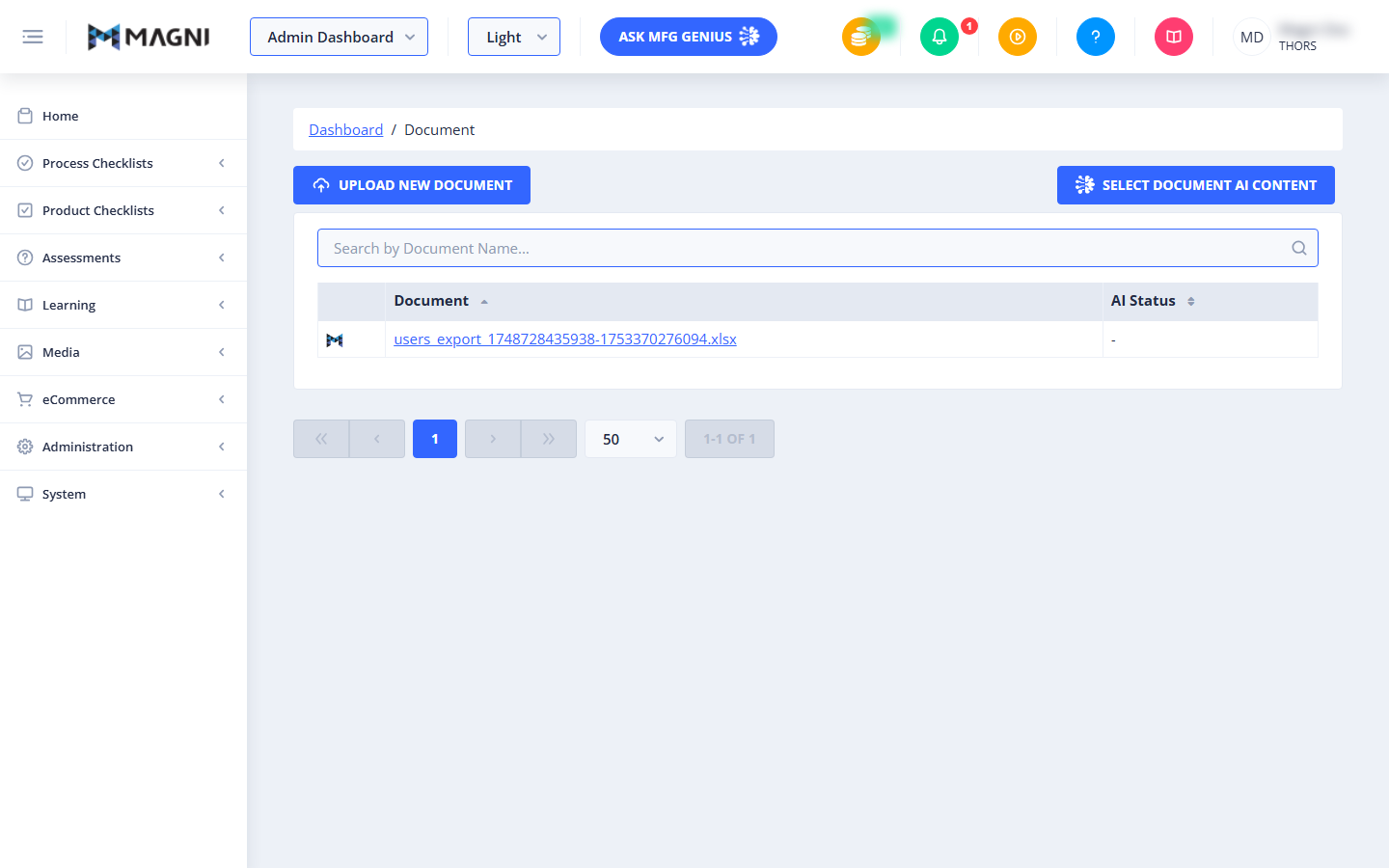
Page Sections
Breadcrumb Navigation
At the top of the page, the breadcrumb navigation shows your current location within the Magni platform. It displays "Dashboard / Documents", allowing you to easily navigate back to the Dashboard.
AI Content Selection
This section provides an option to manage content specifically for Magni's AI features.
- Select Document AI Content Button:
Clicking this button takes you to a dedicated page where you can select and manage documents for AI processing and content generation.
⚠️ This button is only visible if AI features are enabled for your Magni account. Your account's AI access is determined by your customer settings.
Document Management Area
This area contains the tools for uploading, searching, and viewing your documents.
-
Upload New Document Button: Click this button to open a dialog or navigate to a page where you can upload new files to your Magni account. This is the primary way to add new documents to your library.
-
Search Bar: Use the search bar to quickly find specific documents by their name. Type part or all of a document's name into the field, and the list below will filter automatically.

-
Document List Table: This table displays all your uploaded documents with key information.
- Document: Shows the name of the uploaded file.
- AI Status: Indicates the current processing status of the document related to Magni's AI features. This column will be empty if the document has not been submitted for AI processing or if AI features are not enabled.
-
Pagination Controls: Located at the bottom of the document list, these controls allow you to navigate through multiple pages of documents if you have a large number of files. You can also adjust the number of items displayed per page using the dropdown menu.
Common Actions
| Action | How to do it Document List Page is a standalone component that manages the display and interaction with documents. It includes functionalities like uploading new documents, searching, and viewing their AI processing status.
Tips
- Monitor AI Status: Regularly check the "AI Status" column to understand the processing stage of your documents, especially if you are relying on AI-generated content.
- Utilize Search: For quick access, use the search bar to filter your document list by name, especially as your document library grows.
- Ensure AI Access: If you expect to see or use AI features but don't, contact Magni sales or your account administrator to ensure AI capabilities are enabled for your account.