Last updated on: 2026-05-25 | Updated by: MAGNI Docs Team
Documents — Create
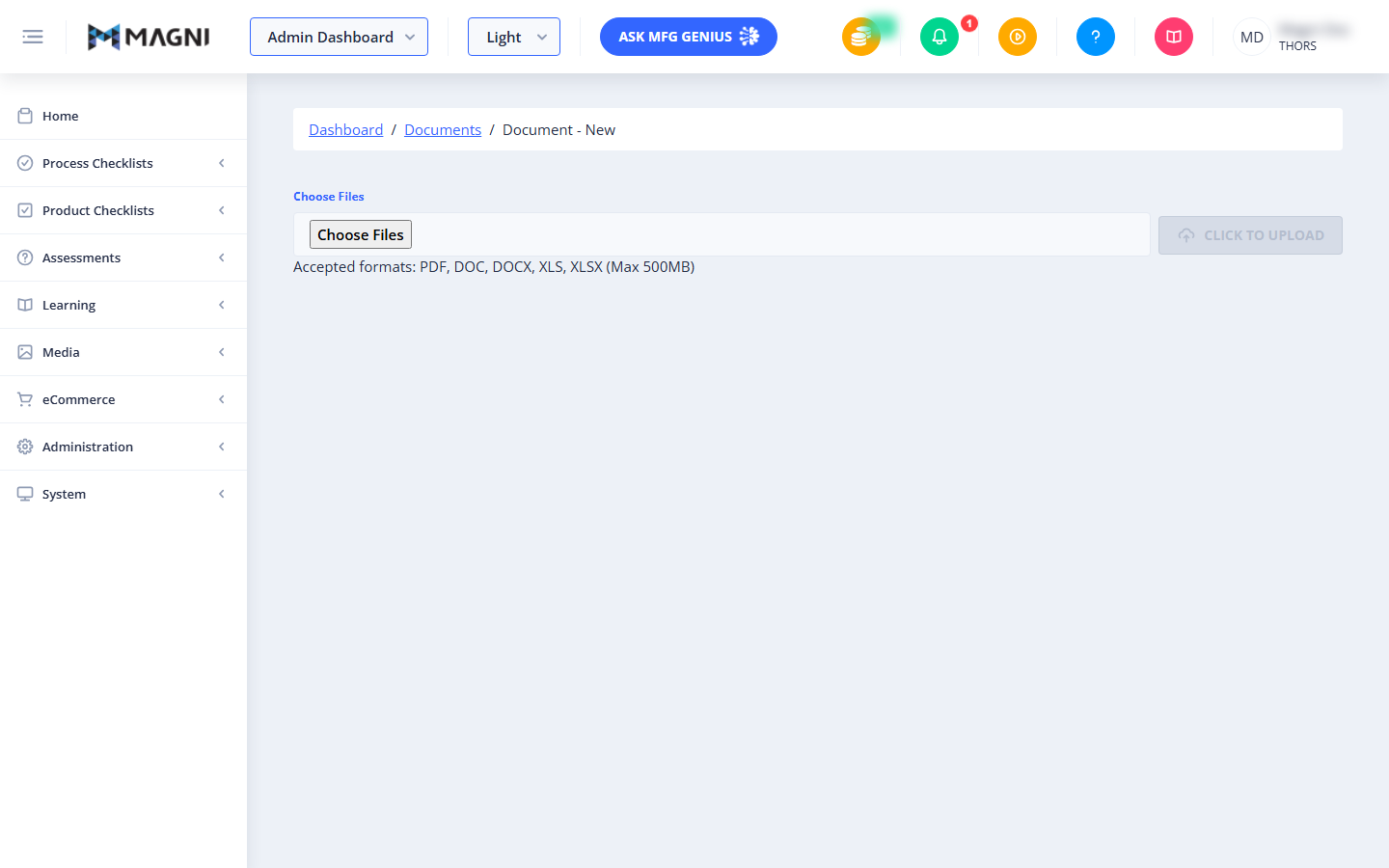
This page allows you to upload new documents to the Magni system. You can upload various file types, such as PDFs and spreadsheets, which can then be linked to other parts of the system, like learning modules or product checklists. This feature is primarily used by administrators or users with document management permissions.
Page Sections
Breadcrumbs
At the top of the page, a breadcrumb navigation trail shows your current location within the system: Dashboard > Documents > Document - New. This helps you understand your navigation path and provides quick links back to previous pages.
File Upload Area
This section is where you select and manage the files you wish to upload.
Choose Files: Clicking the Choose Files button opens your computer's file explorer, allowing you to select one or more documents for upload.
- Accepted Formats: You can upload files in PDF, DOC, DOCX, XLS, and XLSX formats.
- Maximum Size: Each file must not exceed 500MB in size.
- File Name Length: File names are limited to 250 characters. If a file name is too long, a warning will appear, and the file will not be added to the upload queue.
Upload Button: After selecting files, the Click to Upload button becomes active. Clicking this button initiates the upload process for all selected files.
Upload Progress: Once the upload begins, the display changes to show the progress of your files.
- Overall Progress: A message indicates how many files have been uploaded versus how many remain (e.g., "Files are being uploaded: 1 uploaded, 2 remaining").
- Individual File Progress: Each file listed will have a progress bar showing its upload status and a status message (e.g., "Uploading...", "Upload Complete").
- Remove File: Before the upload starts, each file in the list has an "X" button next to it. Clicking this button removes the file from the upload queue. This button is hidden once the upload process begins.
Upload Complete: When all files have been successfully uploaded, a message "All Files have been uploaded." appears.
- Clear Button: Click Clear to remove all uploaded files from the list and reset the upload area, allowing you to upload new files.
- Exit Button: Click Exit to return to the main Documents page.
Error Messages: If there are issues with the selected files (e.g., exceeding the maximum file size), an error message will appear below the upload area, detailing the problem.
Common Actions
| Action | How to do it