Documents AI
Last updated on: July 22, 2026 | Updated by: MAGNI Docs Team
The Documents AI page allows administrators to manage which documents are indexed and processed by Magni's AI features. From this page, you can select or deselect multiple documents to add to or remove from the AI content library, helping control which materials are accessible for AI-powered learning assistance.
Overview
This page provides a centralized interface for managing AI-enabled documents. Administrators can search through the document library, toggle the AI status for individual files, and save all changes in a single batch.
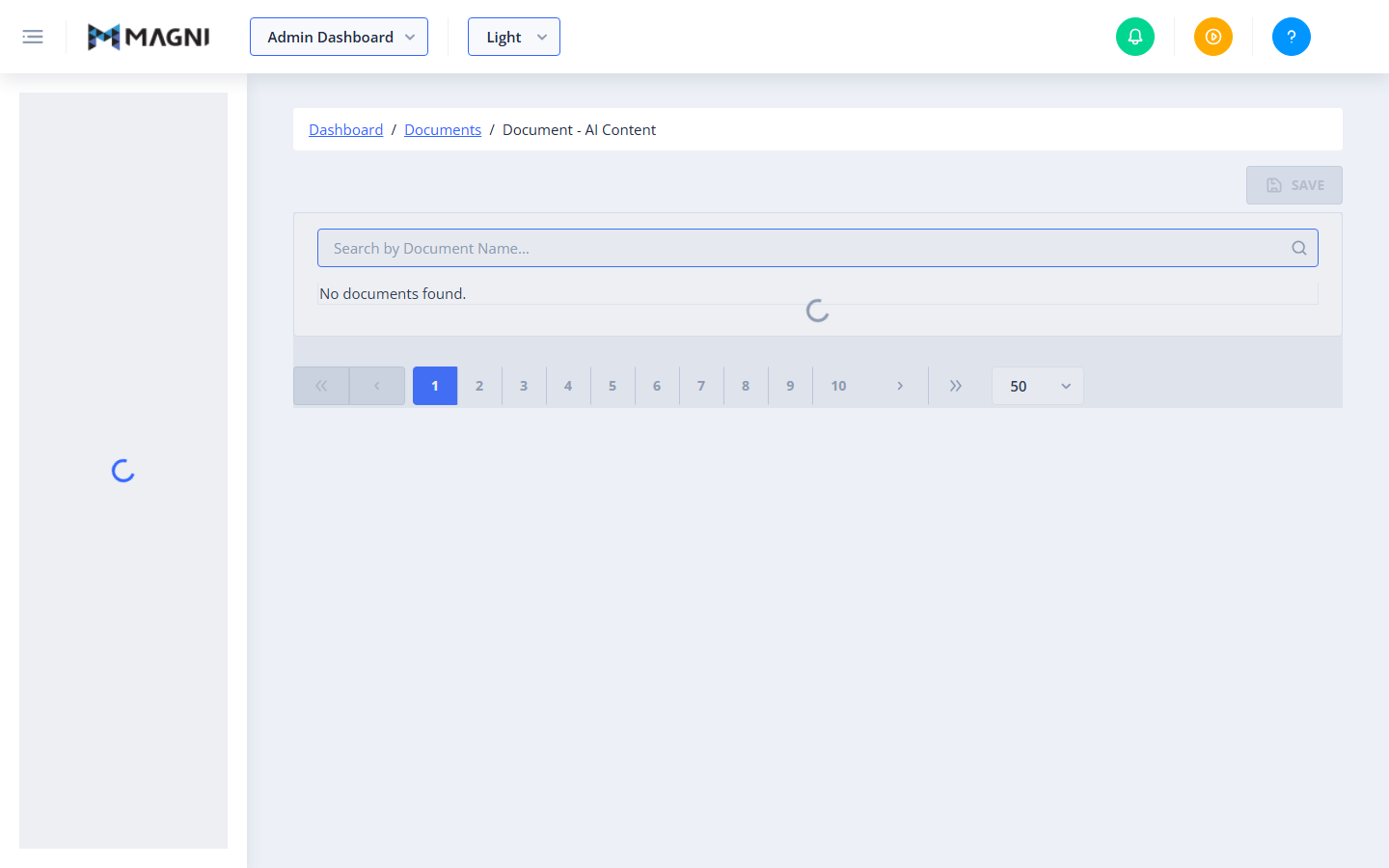
Page Sections
Breadcrumb Navigation
Located at the top-left of the page, this path helps you navigate back to the main Dashboard or the general Documents list:
- Dashboard » Documents » Document - AI Content
Action Bar
Located at the top-right of the page, this area contains the primary action button:
- Save Button: Saves all pending changes made to the documents' AI statuses.
- Note: This button remains disabled if the page is currently loading, if the document list has not loaded, or if you have not made any changes to any document's AI status.
Document Search and List
This section displays all documents available in the system.
- Search Bar: Allows you to filter the document list by typing a document's name.

- Document Table: Displays the documents along with their current AI status. You can toggle the selection to add or remove documents from the AI processing queue.
- Loading Indicator: A circular loading icon appears in the center of the list when the system is fetching data or processing your changes.
Pagination Controls
Located at the bottom of the document list, these controls help you navigate through large libraries:
- First Page («): Navigates to the very first page of documents.
- Previous Page (‹): Moves back one page.
- Page Numbers: Click a specific number to jump directly to that page.
- Next Page (›): Moves forward one page.
- Last Page (»): Navigates to the very last page of documents.
- Items Per Page Dropdown: Allows you to choose how many documents to display at once (e.g., 50 items per page).
Common Actions
| Action | How to do it |
|---|---|
| Search for a document | Type the document's name into the Search by Document Name... input field. The list will automatically filter to match your search. |
| Enable AI for a document | Locate the document in the list, toggle its selection checkbox to "Enabled" (or "Add"), and click the Save button in the top-right corner. |
| Disable AI for a document | Locate the document in the list, toggle its selection checkbox to "Disabled" (or "Remove"), and click the Save button in the top-right corner. |
| Save pending changes | Once you have toggled the AI status for one or more documents, click the Save button. The system will update the statuses and refresh your AI credits. |
Tips
- Batch Your Changes: You can toggle the AI status for multiple documents across different pages of the list before clicking Save. The system will track all your additions and removals and process them together.
- Automatic Error Recovery: If an error occurs while saving your changes, Magni will automatically roll back the document statuses to their previous states and display an error message. You do not need to manually undo your toggles.
- Monitor AI Credits: Enabling documents for AI processing utilizes your organization's AI credits. Be sure to only enable documents that are necessary for AI-assisted learning.