Last updated on: 2026-05-25 | Updated by: MAGNI Docs Team
Documents — Detail
The Documents — Detail page provides a comprehensive view of a specific document uploaded to Magni. This page is primarily used by administrators and other authorized users to review document properties, view document content, and manage the document's lifecycle, including editing its details or deleting it from the system.
Page Sections
Breadcrumbs: At the top of the page, a breadcrumb navigation trail helps you understand your current location within the system and navigate back to previous pages.
- Dashboard: Navigates to the main administrator dashboard.
- Documents: Navigates back to the list of all documents.
- Document - Details: Indicates the current page, displaying the details of a specific document.
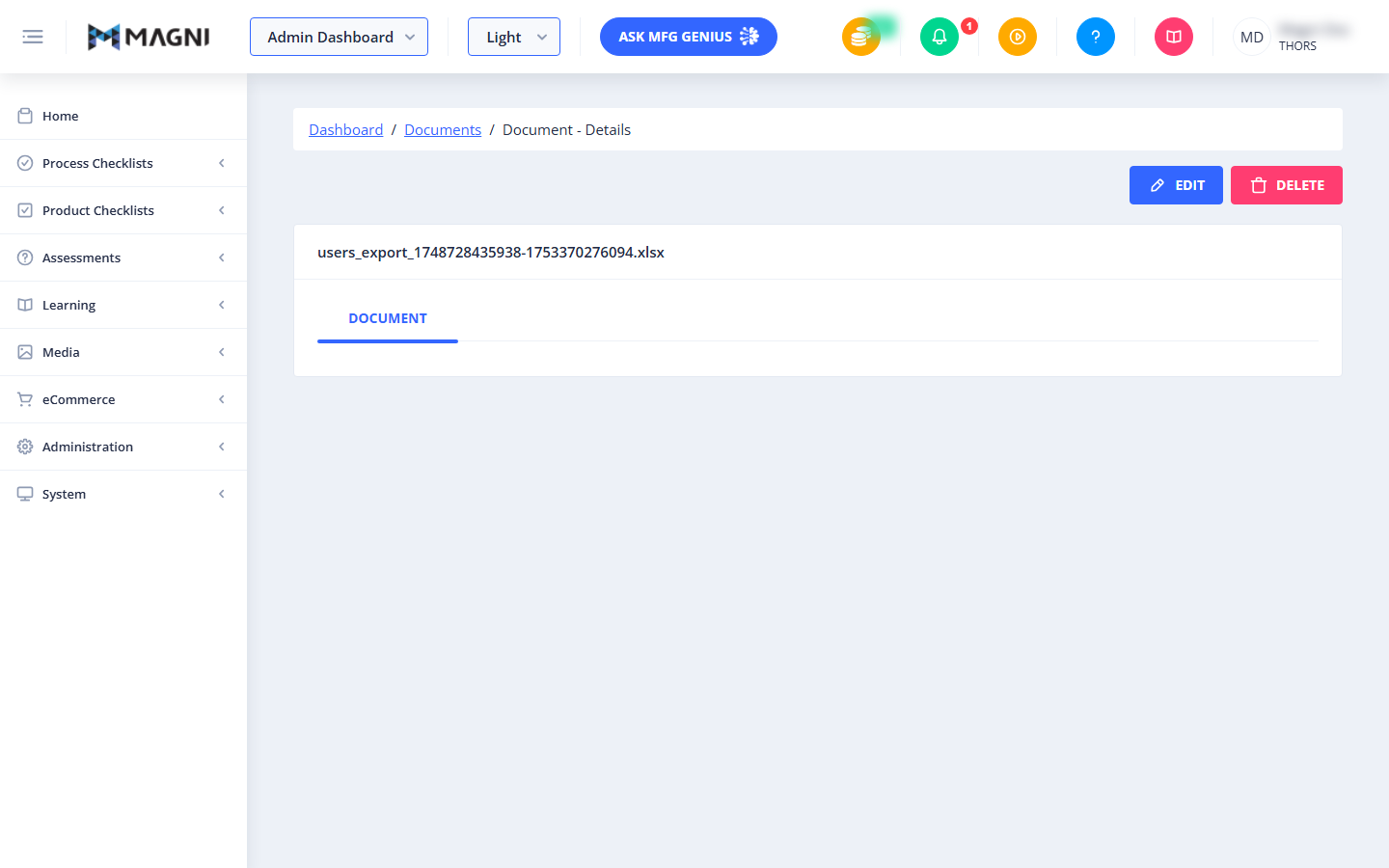
Action Buttons: Located in the top-right corner of the document details area, these buttons allow you to perform actions on the currently viewed document.
- Edit Button:
- Purpose: Opens the document in an edit form, allowing you to modify its properties.
- Visibility: This button is only visible to users with the necessary permissions to update documents.
👤 Visible to: Users with
documentUpdatepermissions. - Delete Button:
- Purpose: Initiates the process to delete the document from the system. A confirmation dialog will appear before deletion.
- Visibility: This button is only visible to users with the necessary permissions to update documents.
👤 Visible to: Users with
documentUpdatepermissions.
Document Details Card: This card displays the core information and content of the selected document.
-
Card Header:
- Displays the name of the document, such as
users_export_1748728435938-1753370276094.xlsx.
- Displays the name of the document, such as
-
Document Tab: This tab contains the primary content and status information related to the document.
-
AI Status:
- Purpose: If Artificial Intelligence (AI) features are enabled for your customer account and the document has been processed by AI, this section displays the current status of the AI processing.
- Visibility: This section is only visible if AI features are enabled for your customer account and the document has an associated AI status.
- Possible Statuses:
Submitting: The document is being submitted for AI processing.Processing: The document is currently being processed by the AI.Failed: AI processing for the document has failed.Complete: AI processing for the document is complete.N/A: AI status is not available or not found.
-
Document Content: This section displays the document content directly on the page or provides an option to download it, depending on the file type.
- PDF Viewer:
- Purpose: If the document is a PDF file, it will be embedded and displayed directly on the page, allowing you to view its content without leaving Magni.
- Visibility: This viewer is active only when the document is a PDF file.
- Word Document Download:
- Purpose: If the document is a Word file (.doc or .docx), a message will appear stating, "This is a Word document. Click below to download and view:". A "Download Document" button will be provided to download the file.
- Visibility: This download option is active only when the document is a Word file.
- Other File Types: For other file types (e.g., .xlsx, .txt), the document content will not be displayed directly on this page.
- PDF Viewer:
-
Common Actions
| Action | How to do it