Videos — List
Last updated on: 2026-05-25 | Updated by: MAGNI Docs Team
The Videos page allows administrators and content managers to upload, organize, and manage video assets within the Magni LMS. These videos can be integrated into courses, assessments, and other learning materials to create engaging multimedia experiences for learners.
Page Sections
Video Management Dashboard
If your organization's account has video features enabled, you will see the main video management dashboard. This interface provides tools to upload new files, search existing media, and track processing statuses.
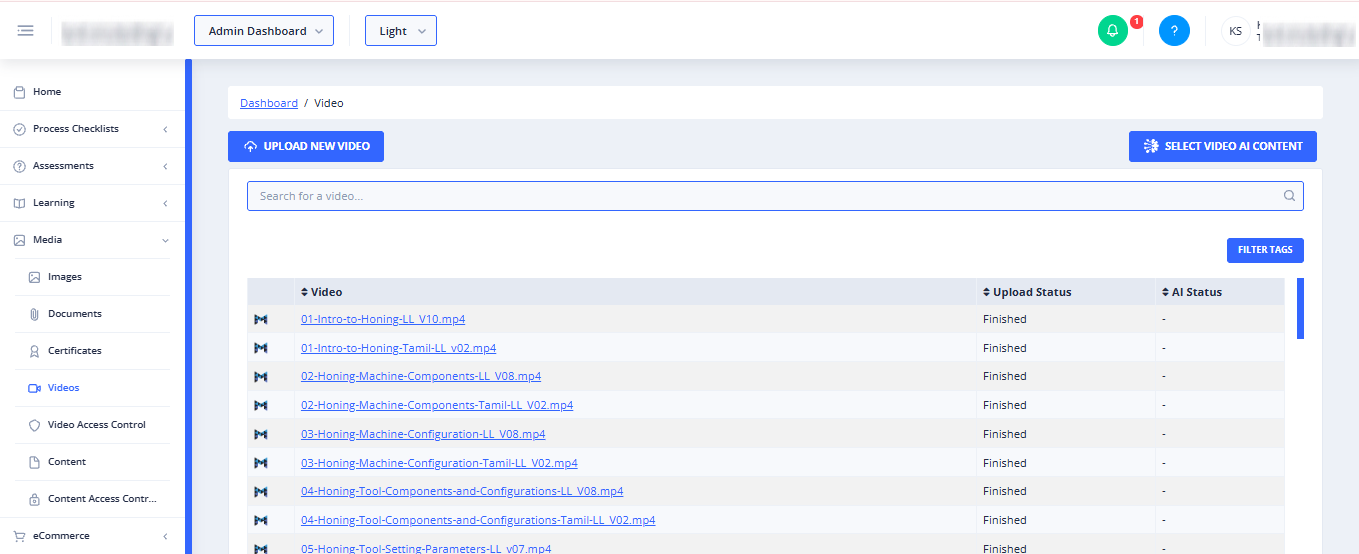
The dashboard contains the following key elements:
-
Upload New Video Button: Initiates the upload process to add new video files to your Magni media library.
-
Select Video AI Content Button:
ℹ️ This button is only visible if AI features are enabled for your account.
Clicking this button redirects you to the AI Video Content portal to manage and select AI-enhanced video materials.
-
Search Bar:

Allows you to quickly find a video by typing its name or keywords. The list filters automatically as you type.
- Filter Tags Button: Allows you to filter the video list using specific tags to locate assets associated with particular topics or categories.
- Video Table: A sortable list of your uploaded videos containing:
- Video: The filename of the video, which acts as a clickable link to view or manage the video asset.
- Upload Status: Indicates whether the video is ready for use (e.g., "Finished") or still being prepared (e.g., "Processing").
- AI Status: Displays the current status of AI processing or analysis for the video, if applicable.
Account Upgrade Alert
If video features are not enabled for your customer account, the video list and upload tools will be hidden. Instead, you will see a red notification banner.
⚠️ Access Restricted: "To enable Video features, please upgrade your account, contact sales@magni.ai"
If you see this message, please contact your system administrator or reach out to the Magni sales team at the provided email address to upgrade your subscription.
Common Actions
| Action | How to do it |
|---|---|
| Upload a new video | Click the blue Upload New Video button at the top left of the dashboard, then select the video file from your local device. |
| Search for a video | Click inside the Search for a video... input field and type the name of the file you are looking for. |
| Access AI video tools | Click the Select Video AI Content button (available only if AI features are enabled on your account) to navigate to the AI video management page. |
| View video details | Click on any blue video filename link in the Video column of the table. |
Tips
- Monitor Upload Status: Before adding a video to a course or assessment, always check the Upload Status column to ensure it is marked as Finished. Videos that are still "Processing" cannot be viewed by learners.
- Use Clear Filenames: Name your video files descriptively before uploading them. This makes it much easier to locate them later using the search bar.
- Upgrade for AI Features: If you do not see the "Select Video AI Content" button and would like to use AI-assisted video features, contact your account representative to discuss adding AI capabilities to your subscription.