Videos — Detail
Last updated on: 2026-05-25 | Updated by: MAGNI Docs Team
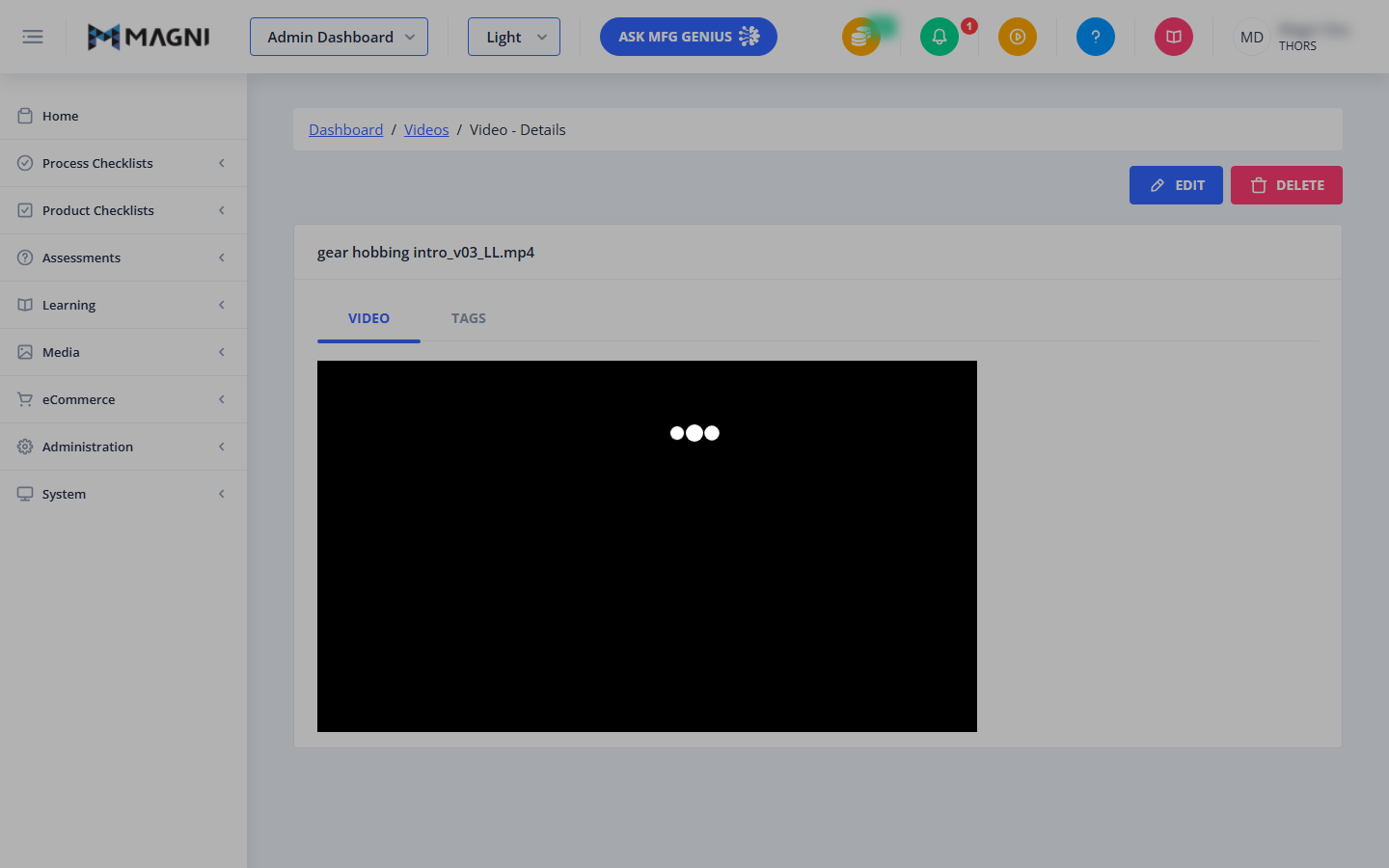
The Videos Detail page allows administrators to view, preview, and manage individual video assets uploaded to the Magni LMS. From this page, you can play the video, organize it using tags, edit its details, or remove it from the system.
Page Sections
The page is divided into the following key areas:
Breadcrumb Navigation
Located at the top of the page, this helper path allows you to quickly navigate back to the Admin Dashboard or the main Videos list.
Action Buttons
Depending on your user permissions, you will see action buttons in the top-right corner:
- Edit: Opens the video editing form to modify video details.
👤 Visible to: Users with video update permissions.
- Delete: Opens a confirmation prompt to permanently remove the video from the system.
👤 Visible to: Users with video deletion permissions.
Video Details Card
This central card displays the video's filename as the header and contains two main tabs:
- Video Tab: Features an integrated media player that allows you to preview the video file directly within the browser.
- Tags Tab: Displays a list of metadata tags associated with this video, which are used to categorize and filter media across the platform.
Feature Upgrade Alert
If video hosting features are not enabled for your organization's account, the video player and details will be hidden. Instead, a notification banner will display:
- "To enable Video features, please upgrade your account, contact sales@magni.ai"
Common Actions
| Action | How to do it |
|---|---|
| Preview Video | Click the Video tab and use the media player controls to play, pause, or adjust the volume. |
| Edit Video | Click the blue Edit button in the top-right corner of the page. |
| Delete Video | 1. Click the red Delete button. 2. Review the confirmation dialog, which displays any courses or lessons currently associated with this video. 3. Confirm the deletion to permanently remove the file. |
| Manage Tags | Click the Tags tab to view, add, or remove organizational tags linked to the video. |
Tips
- Check Associations Before Deleting: When you attempt to delete a video, the system automatically checks if it is currently being used in any active courses or lessons. Always review this list in the confirmation dialog to prevent breaking existing learning content.
- Organize with Tags: Use the Tags tab to assign descriptive keywords to your videos. This makes it significantly easier for content creators to find the right media when building courses.
- Enable Video Features: If you encounter the account upgrade banner, contact your system administrator or reach out directly to sales@magni.ai to enable video hosting capabilities for your portal.