Video AI
Last updated on: July 22, 2026 | Updated by: MAGNI Docs Team
The Admin Video AI page allows Administrators to manage which uploaded videos are submitted to the platform's AI engine. By enabling AI status for a video, the system can process the media to generate AI-driven content, metadata, or transcriptions.
👤 Visible to: Administrators
Overview
This page provides a centralized dashboard to search through your media library, view the upload status of your videos, and toggle their AI processing status. You can make multiple changes across your video library and save them all at once.
Page Sections
Header and Actions
The header contains the breadcrumb navigation path (Dashboard / Videos / Video - AI Content) and the primary action button.
- Save Button: Saves any pending changes made to the AI status of your videos. This button is disabled if there are no pending changes, if the video list is still loading, or if the system is currently busy processing.
Search and Filter Controls
Use these controls to quickly find the specific videos you want to manage.

- Search Bar: Type keywords to filter the video list by title or filename.
- Filter Tags Button: Click this button to filter the video list using tags associated with your media.
Video List Table
The main table displays your media library and the current status of each video.
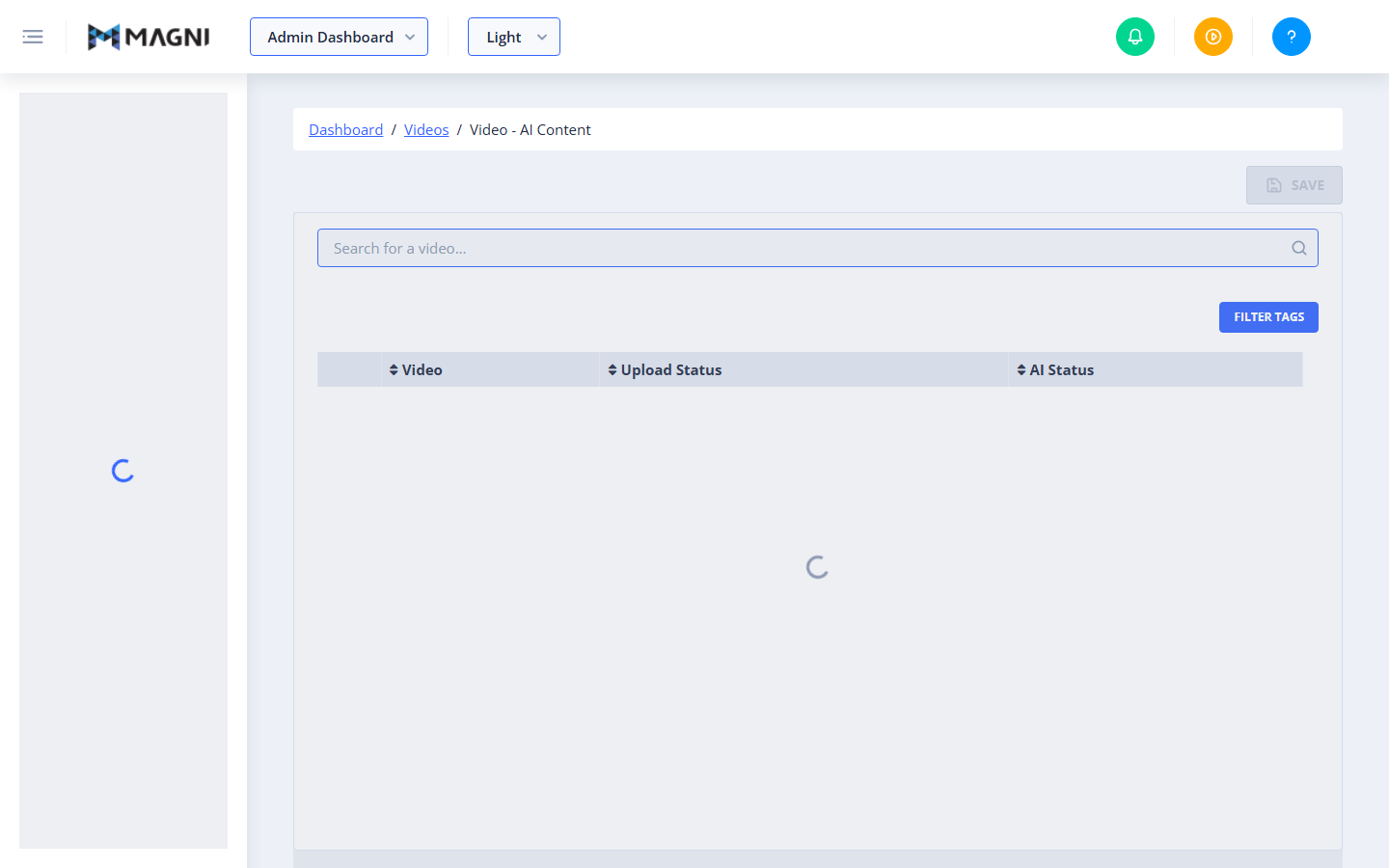
- Video: Displays the video details and title.
- Upload Status: Indicates whether the video has successfully finished uploading to the LMS.
- AI Status: Indicates whether the video is enabled for AI content processing. You can toggle this status to queue a video for AI processing or remove it.
Common Actions
| Action | How to do it |
|---|---|
| Search for a video | Type the video's name or keyword in the Search for a video... input field. |
| Filter by tags | Click the Filter Tags button and select the tags you want to filter by. |
| Toggle AI processing | Click the toggle or checkbox next to a video in the list to queue it for AI processing (Add) or remove it (Remove). |
| Save changes | Once you have made your selections, click the Save button in the top-right corner. The system will process the updates and display a success notification. |
Automatic Rollback
If the system encounters an error while saving your changes, it will automatically roll back your selections to their previous states and display an error notification to ensure your data remains accurate.
Tips
- Batch Your Updates: You can toggle the AI status for multiple videos at once and save them in a single action to save time.
- Check Upload Status First: Ensure a video's upload status is complete before attempting to enable AI processing for it.
- Wait for the Spinner: A loading spinner will appear while your changes are being saved. Avoid navigating away from the page or refreshing your browser until the spinner disappears and the success notification is displayed.