Videos — Edit
Last updated on: 2026-05-25 | Updated by: MAGNI Docs Team
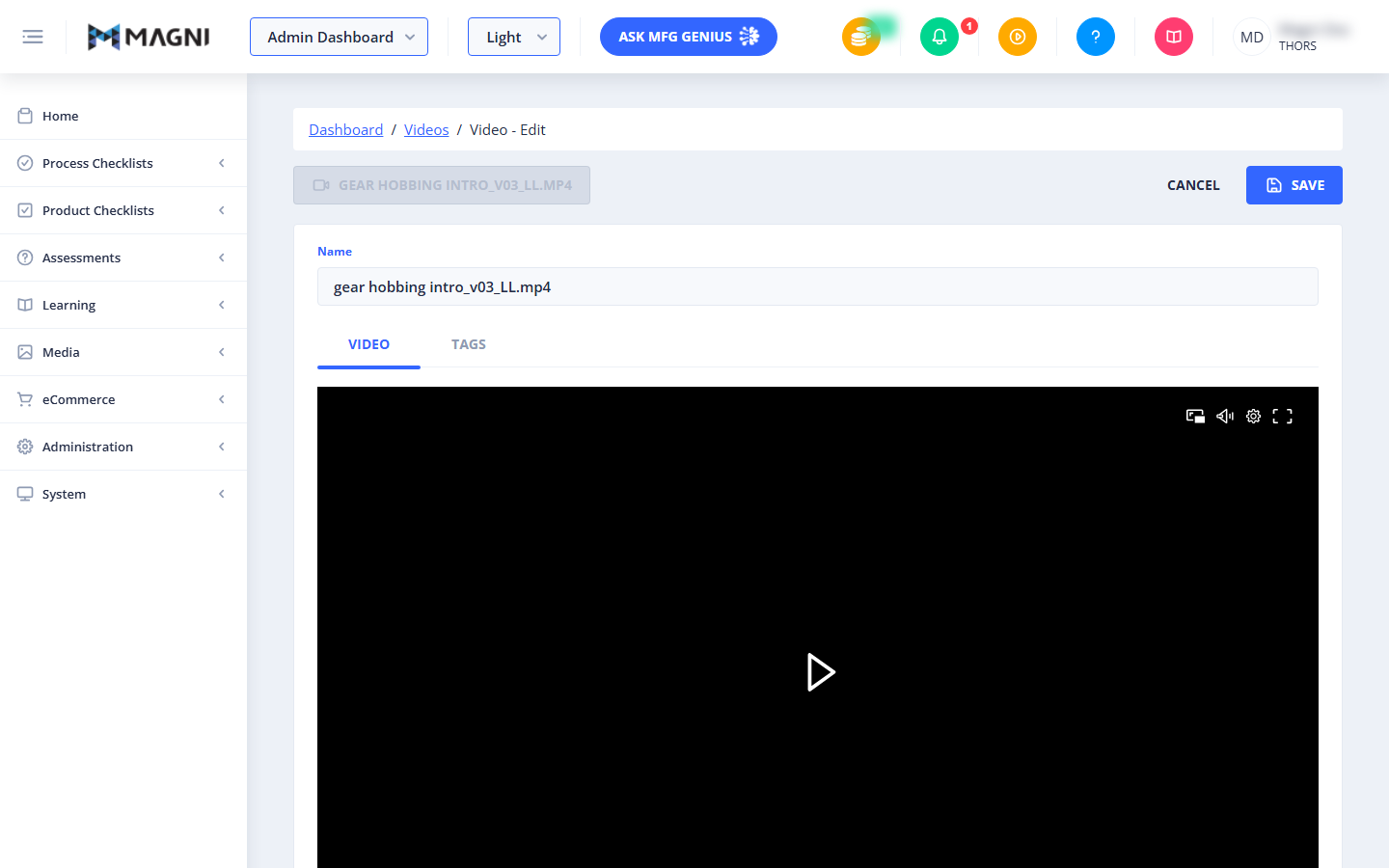
The Videos — Edit page allows administrators to manage video metadata, update video titles, and organize videos using tags. This page also provides a built-in media player to preview the video content directly within the Magni platform.
Page Sections
Action Header
The top header provides quick access to save your changes or exit the editing mode.
- Video Name Badge: A non-interactive button on the left that displays the current name of the video alongside a video icon.
- Cancel Button: Discards any unsaved changes and returns you to the main Videos list page.
- Save Button: Saves your updates. This button is disabled if the video name field is empty or if the form is currently submitting.
Video Details Form
This section contains the primary configurable fields for the video.
- Name (Required): The display name of the video file. This field is required and cannot be left blank.
Content Tabs
Below the name field, you can toggle between two tabs to manage the video file and its metadata.
Video Tab
This tab features an integrated media player that allows you to preview the video. You can play, pause, adjust the volume, toggle picture-in-picture, and enter full-screen mode to verify the video content.
Tags Tab
This tab allows you to assign or remove tags associated with the video. Use tags to categorize your media assets, making them easier to search and filter across the Magni platform.
⚠️ Video Feature Restriction
If your organization's subscription plan does not include video management capabilities, the editing interface will be hidden, and you will see the following notification:
To enable Video features, please upgrade your account, contact sales@magni.ai
If you encounter this message, please reach out to your system administrator or contact Magni sales to upgrade your account.
Common Actions
| Action | How to do it |
|---|---|
| Edit Video Name | 1. Click into the Name text field. 2. Type the new name for the video. 3. Click the Save button in the top right corner. |
| Preview Video | 1. Select the Video tab. 2. Click the Play icon in the center of the video player. |
| Manage Video Tags | 1. Select the Tags tab. 2. Use the tag selection tool to add new tags or remove existing ones. 3. Click Save to apply the changes. |
| Cancel Changes | 1. Click the Cancel button in the top right corner to return to the Videos list without saving. |
Tips
- Use Clear Naming Conventions: Give your videos descriptive names that reflect their content (e.g., "Gear Hobbing Introduction") rather than raw file names (e.g., "gear_hobbing_intro_v03_LL.mp4") to help other administrators and learners identify them easily.
- Leverage Tags for Organization: Consistently tag your videos by topic, department, or course module. This makes it much simpler to locate specific media assets when building process checklists or assessments later.
- Preview Before Saving: Always play a few seconds of the video in the Video tab to confirm that the correct file version was uploaded before finalizing your metadata changes.