Videos — Create
Last updated on: 2026-05-25 | Updated by: MAGNI Docs Team
The Videos — Create page allows administrators to upload video files to the Magni LMS media library. Once uploaded, these videos can be embedded into courses, assessments, and other learning materials.
👤 Visible to: Administrators and Content Creators
Overview
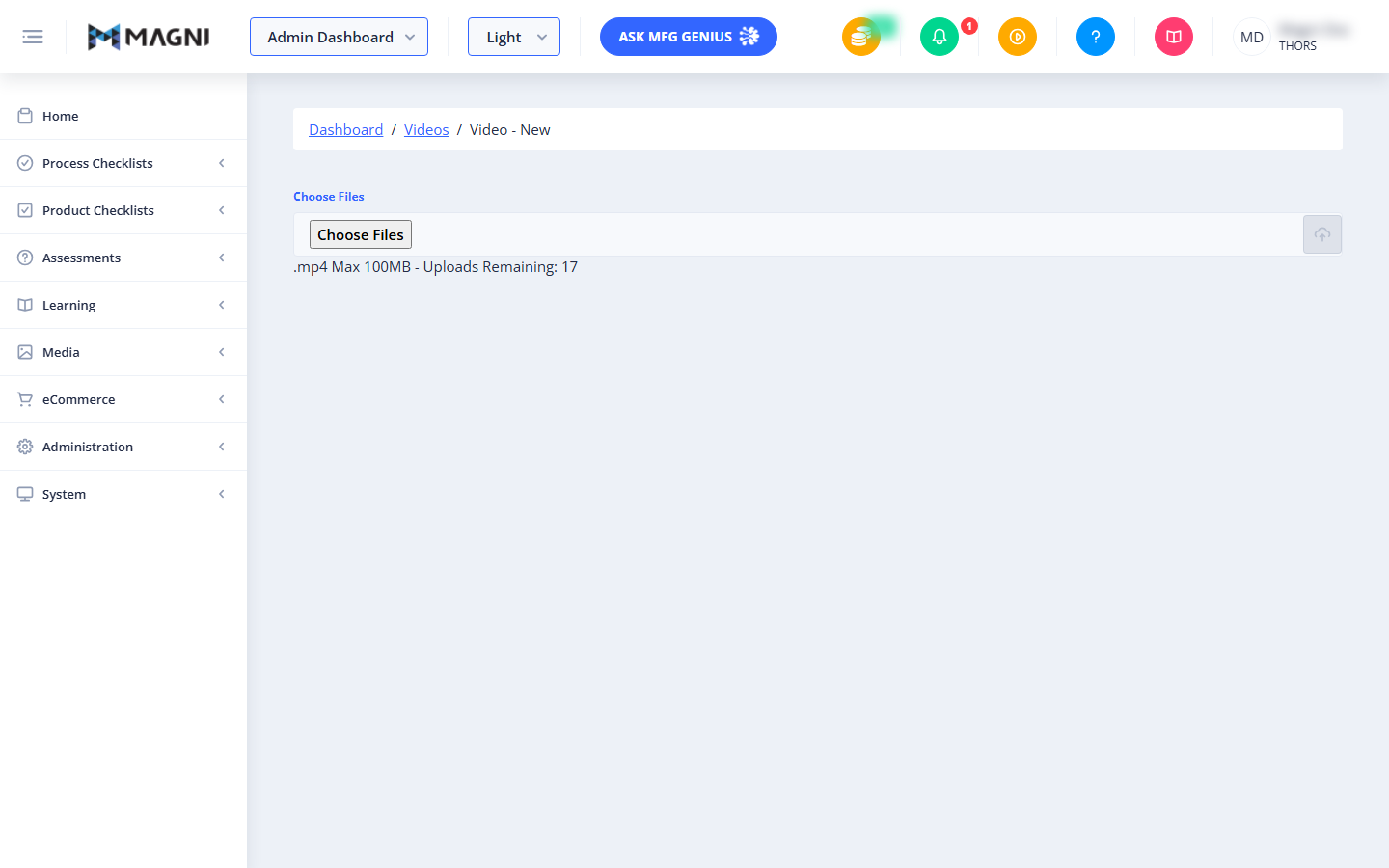
This page provides a simple drag-and-drop or file-selection interface for adding MP4 video files to your system. It also displays your organization's current video limits, including maximum file size and remaining upload capacity.
Page Sections
File Selection
This section allows you to select video files from your local device to prepare them for upload.

- Choose Files Button: Opens your device's file browser. You can select one or multiple files depending on your system configuration. Only
.mp4files are accepted. - Upload Button (Cloud Icon): Located on the far right of the selection bar. This button remains disabled until you have selected at least one valid file. Clicking it starts the upload process.
- Upload Limits Indicator: Located directly below the file selection box, this text shows the maximum allowed file size (e.g., Max 100MB) and the number of remaining video uploads available on your current subscription plan.
File Queue and Progress
Once files are selected, they appear in a list below the upload bar.
- File Details: Each queued file displays its filename and file size in kilobytes (KB).
- Remove Button (X): A red button next to each file allows you to remove it from the queue before starting the upload. This button is hidden once the upload process begins.
- Progress Bar: Shows the real-time upload progress for each individual file.
- Status Text: Displays the current state of each file:
- Ready to Upload: The file is queued and waiting for you to click the upload button.
- Uploading...: The file is currently being transferred to the server.
- Upload Complete: The file has successfully uploaded.
- Upload Failed: An error occurred during the upload process.
System Alerts and Conditions
The page dynamically displays different messages and restrictions based on your account status and upload results:
- File Validation Errors: If you attempt to select a file that is too large or is not a video format, a red error message will appear detailing which files were rejected and why.
- Active Upload Status: While files are uploading, a status message displays the number of completed and remaining uploads (e.g., "Files are being uploaded: 1 uploaded, 2 remaining").
- Upload Success: When all files upload successfully, a confirmation message appears along with a Clear button (to reset the queue) and an Exit button (to return to the main Videos list).
- Upload Failure: If an upload fails, a red warning banner states "Some files could not be uploaded" or "File could not be uploaded."
- Zero Uploads Remaining: If your organization has used all its allotted video slots, the upload interface is replaced by a red warning message: "No videos to upload remaining, please upgrade your account, contact sales@magni.ai".
- Video Feature Disabled: If video features are not enabled for your account, the entire upload interface is hidden, and a message prompts you to contact sales to upgrade your subscription.
Common Actions
| Action | How to do it |
|---|---|
| Select video files | Click Choose Files, select one or more .mp4 files from your device, and click Open. |
| Remove a file from the queue | Before starting the upload, click the red X button next to the file you want to remove. |
| Start the upload | Click the Cloud Upload button on the right side of the file selection bar. |
| Clear the upload queue | After an upload completes or fails, click the Clear button to reset the page. |
| Exit the page | Click the Exit button after an upload completes, or use the breadcrumbs at the top of the page to navigate back to the Dashboard or Videos list. |
Tips
- Check File Size Before Uploading: Ensure your video files do not exceed the maximum size limit displayed on the page. If a file is too large, compress it using a video editing tool before attempting to upload.
- Convert Non-MP4 Videos: The system only accepts
.mp4formats. If your video is in another format (such as.movor.avi), convert it to MP4 first. - Batch Uploading: You can select and upload multiple videos at the same time to save time, provided you have enough remaining uploads on your account plan.