Company Settings
Last updated on: 2026-05-26 | Updated by: MAGNI Docs Team
The Company Settings page allows administrators to configure global preferences for their organization's Magni LMS portal. Here, you can manage localization settings like timezones and languages, configure email preferences, and set up Microsoft Single Sign-On (SSO).
👤 Visible to: Administrators
Page Sections
Action Bar and Navigation
Located at the top of the page, this section allows you to navigate back to the dashboard or save your changes.
- Breadcrumbs: Click "Dashboard" to return to the main admin dashboard.
- Cancel Button: Discards any unsaved changes and returns you to the Admin Dashboard. This button is disabled while settings are being saved.
- Save Button: Saves your updated company settings. While saving is in progress, the button text changes to "Saving...please wait" and the button is disabled to prevent duplicate submissions.
Account Validity
This section displays the expiration date of your organization's Magni LMS account.
General Settings
This expandable section contains the core localization, email, and authentication preferences for your company.
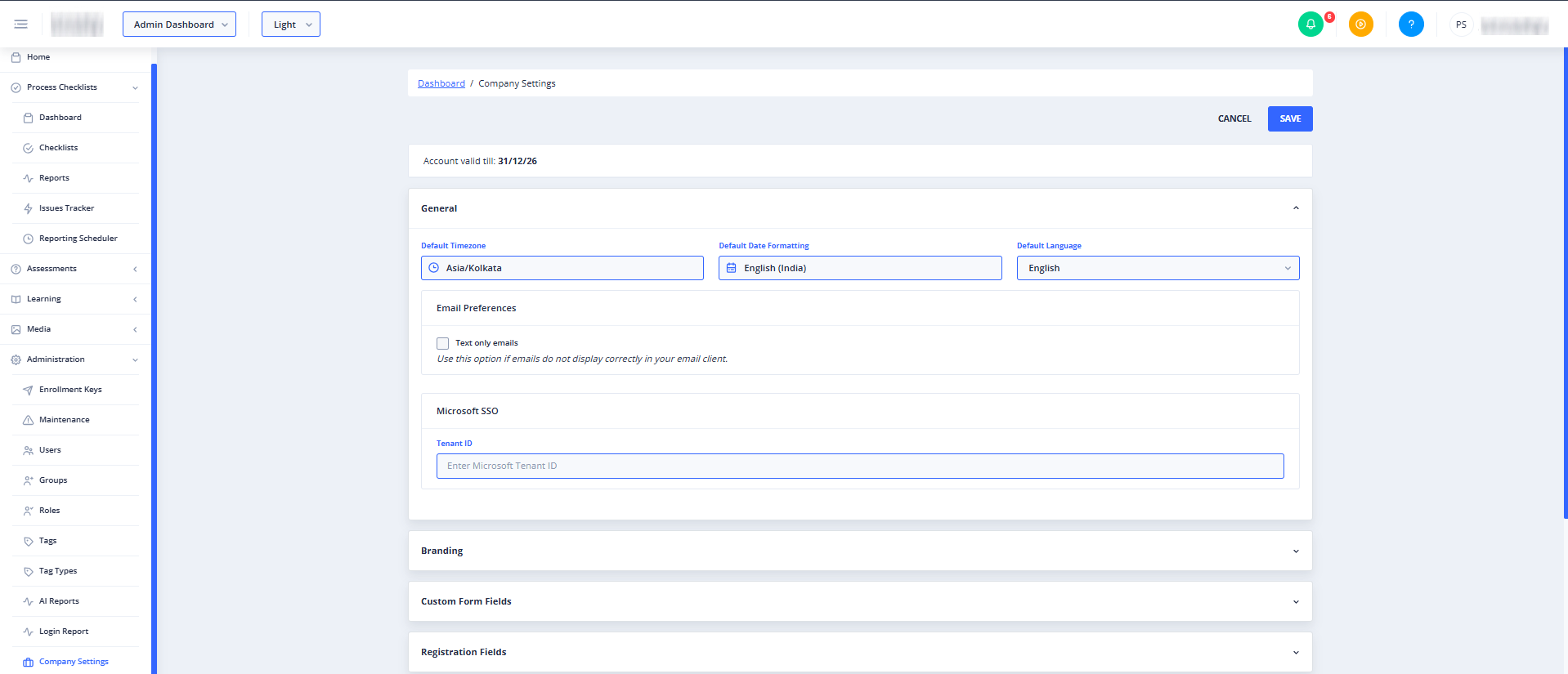
- Default Timezone: A dropdown menu to select the primary timezone for your organization. This ensures scheduled events and deadlines align with your local time.

- Default Date Formatting: A dropdown menu to select the preferred date display format (for example, English (India)) across the platform.
- Default Language: A dropdown menu to set the default system language for your users.
- Email Preferences:
- Text only emails (Checkbox): Check this box to send system emails in plain text format. Use this option if your users report that HTML emails are not displaying correctly in their email clients.
- Microsoft SSO:
- Tenant ID (Input Field): Enter your organization's Microsoft Tenant ID here to configure Single Sign-On (SSO) integration. This allows users to log in using their Microsoft corporate credentials.
Branding Settings
This expandable section at the bottom of the page allows you to customize the visual appearance of your LMS portal to match your company's brand. Click the section header to expand and configure branding options.
Loading State
If the system is still retrieving your company's account details, a loading spinner will display in the center of the page until the settings form is ready.
Common Actions
| Action | How to do it |
|---|---|
| Update Localization Settings | 1. Expand the General section. 2. Select your preferred timezone, date format, and language from their respective dropdowns. 3. Click Save in the top right corner. |
| Enable Plain Text Emails | 1. Expand the General section. 2. Locate the Email Preferences sub-section. 3. Check the box next to Text only emails. 4. Click Save in the top right corner. |
| Configure Microsoft SSO | 1. Expand the General section. 2. Scroll down to the Microsoft SSO sub-section. 3. Enter your corporate Microsoft Tenant ID into the Tenant ID text field. 4. Click Save in the top right corner. |
Tips
- Email Display Issues: If users complain about broken layouts or missing text in system notifications, try enabling the Text only emails option to maximize compatibility across older email clients.
- Verify Tenant ID: Double-check your Microsoft Tenant ID before saving. An incorrect ID can prevent your users from successfully logging in via Single Sign-On.