Last updated on: 2026-05-26 | Updated by: MAGNI Docs Team
Maintenance Utility
Overview
The Maintenance Utility page provides administrators with a centralized dashboard to monitor and manage the storage space consumed by various media assets within the Magni platform. This tool helps system administrators keep track of resource usage and perform necessary cleanup operations to ensure optimal system performance.
👤 Visible to: Administrators, System Administrators
Page Sections
The Maintenance Utility interface consists of a tabbed view that separates storage reporting from cleanup actions.
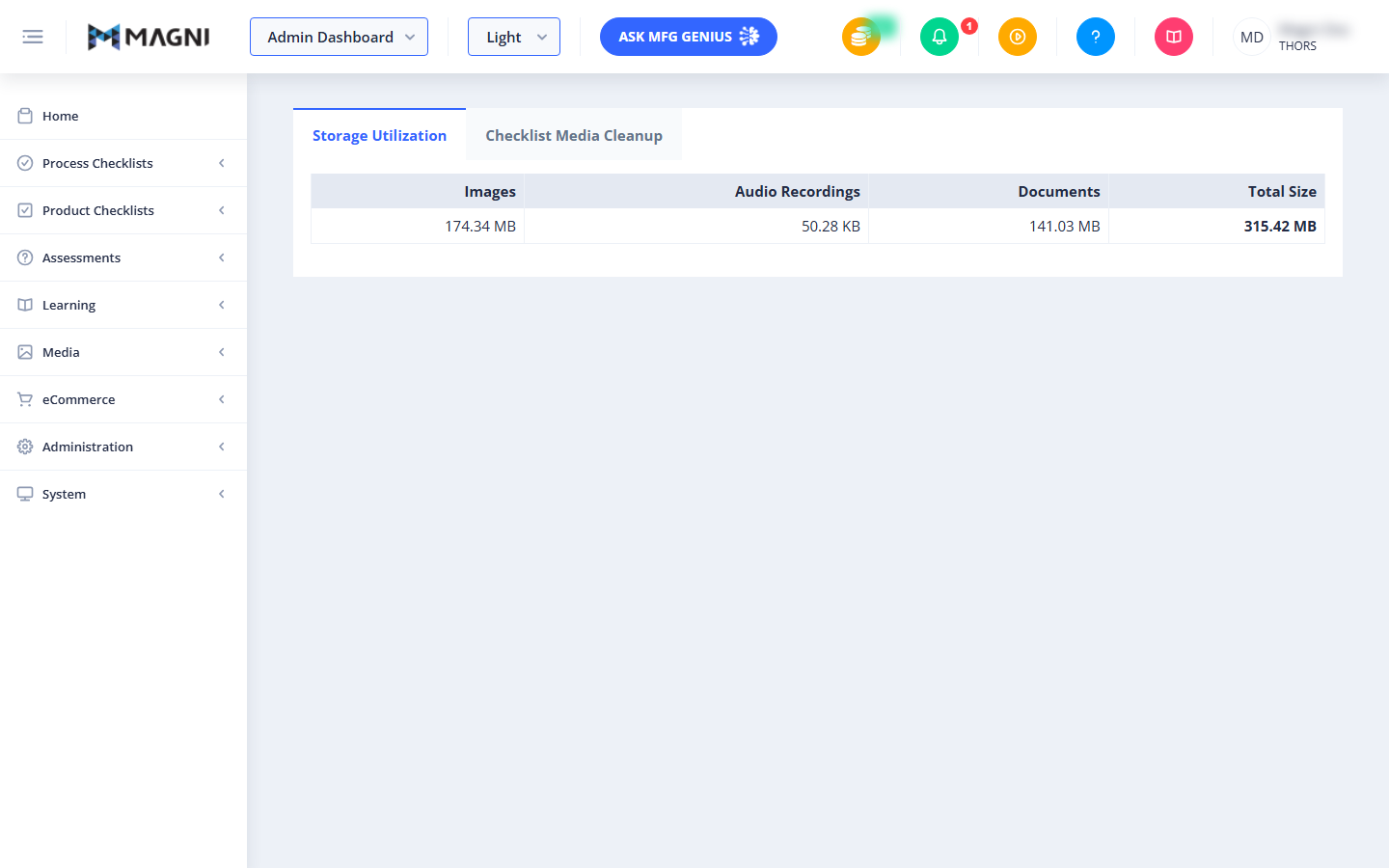
Storage Utilization Tab
This tab provides a detailed breakdown of the storage space used by different types of media files across the Magni platform. It helps you identify which content types are consuming the most space.
- Images: Displays the total storage size of all uploaded image files (such as PNG, JPEG, and GIF) used in courses, checklists, and user profiles.
- Audio Recordings: Displays the total storage size of all recorded or uploaded audio files.
- Documents: Displays the total storage size of all uploaded document files (such as PDFs, Word documents, and spreadsheets).
- Total Size: Displays the cumulative storage size of all media assets combined.
Checklist Media Cleanup Tab
This tab allows administrators to manage and clean up media files associated with checklists. Use this section to identify and remove redundant, unused, or orphaned media files to reclaim valuable storage space.
[!info] Where to find it
Administration → Maintenance → Checklist Media Cleanup tab (next to Storage Utilization).![[admin-ai-competency-checklist media cleanupfull.png|662]]
Common Actions
| Action | How to do it |
|---|---|
| View Storage Breakdown | Navigate to the Maintenance Utility page. The Storage Utilization tab displays automatically, showing the current storage consumption by file type. |
| Switch Between Maintenance Tools | Click on either the Storage Utilization or Checklist Media Cleanup tab at the top of the page to switch views. |
| Filter checklist media by process | Select a value in the Type field |
| Narrow results by category | Choose a value in the Category dropdown |
| Narrow results by tag | Choose a Tag type, then choose specific Tags. |
| Include specific checklists in the scan | Select one or more checklists in the Checklist field. |
| Set the date range to scan | Enter a Start date and End date. |
| Run the storage analysis | Click Analyse. |
| Select media types to delete | Check the box in the Select column next to Audio, Document, and/or Image. |
| Delete the selected media | Check the desired type(s), then click Delete. |
| Cancel without deleting | Click Cancel or the X in the Storage Usage modal. |
Tips
- Monitor regularly: Check the Storage Utilization tab periodically to prevent reaching subscription or server limits unexpectedly.
- Verify before deleting: Before performing any cleanup actions in the Checklist Media Cleanup tab, ensure that no active courses or checklists are referencing the files you plan to delete.
- Target large files first: Keep track of large document and audio uploads, as these typically consume the most storage space over time.
-
- Analyze stays disabled until all required fields (Type, Checklist, Start date, End date) are filled in.
- The Storage Usage modal only shows totals for the filters you set — narrow your Category/Tags/date range first if you want to target a smaller set of media.
- Deletion applies to entire media types you've checked (e.g., all Audio found by the scan) — there's no way to pick individual files from this screen, so double-check the Count/Size before deleting.
- Delete is permanent — there's no undo, so review the numbers in the modal carefully before confirming.
- If a type shows a Count of
0, there's nothing to delete for that type even if you check its box.