Roles — List
Last updated on: 2026-05-26 | Updated by: MAGNI Docs Team
The Roles page in Magni allows administrators to view, search, and manage user roles within the system. Roles define the permissions and access levels granted to different users, ensuring secure and organized access to LMS features.
Page Sections
Breadcrumbs and Navigation
The breadcrumb trail at the top of the page ("Dashboard / Roles") helps you keep track of your location within the administration portal. You can click Dashboard at any time to return to the main admin dashboard.
Search and Actions
This section contains tools to help you find specific roles or initiate the creation of a new role.

-
New Role Button:
👤 Visible to: Users with role creation permissions.
Click this button to open the role creation form and define a new set of permissions.
-
Search Bar: Type a role name or keyword into the "Search for a role..." field and press Enter to filter the list.
Roles Table
The main table displays all roles currently configured in your Magni LMS.
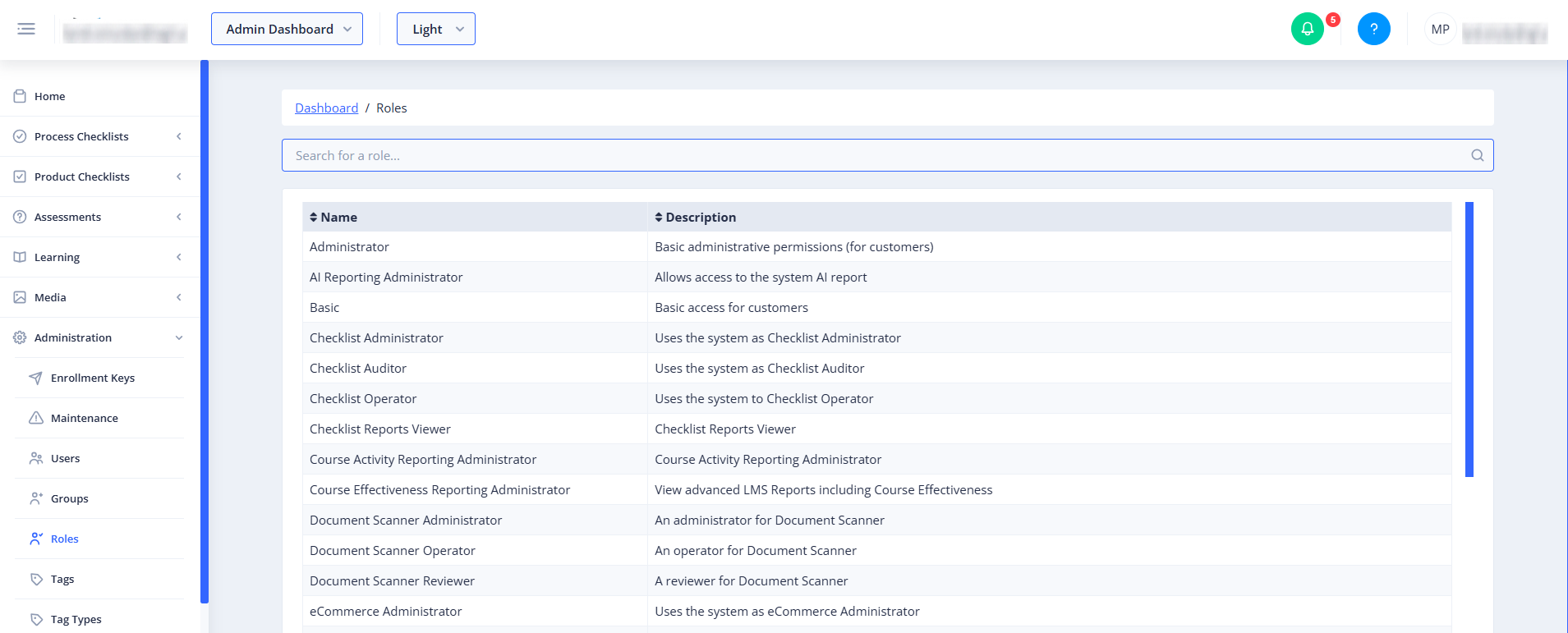
- Name: The unique identifier for the role (e.g., "Administrator", "Approver", "Basic"). Clicking this column header sorts the list alphabetically by name.
- Description: A short summary explaining what permissions the role grants to users. Clicking this column header sorts the list alphabetically by description.
- Row Selection: Clicking anywhere on a role's row will open the details page for that specific role, where you can view or edit its permissions.
Pagination
If your system has more than 50 roles, pagination controls will appear at the bottom of the page. Use these controls to navigate through different pages of roles or adjust the number of roles displayed per page.
Common Actions
| Action | How to do it |
|---|---|
| Create a new role | Click the blue New Role button at the top left of the page. |
| Search for a role | Type the name or description keywords into the search bar and press Enter. |
| Sort the roles list | Click the Name or Description column header to toggle between ascending and descending order. |
| View or edit a role | Click directly on the row of the role you wish to view or modify. |
| Navigate pages | Use the pagination controls at the bottom of the table to move between pages. |
Tips
- Check Existing Roles First: Before creating a new role, scroll through the list or use the search bar to see if an existing role already meets your needs. This helps keep your permissions structure clean and easy to manage.
- Clear Search to Reset: If you have filtered the list using the search bar and want to see all roles again, clear the text in the search box and press Enter.
- Quick Sorting: Click a column header once to sort from A to Z, and click it again to reverse the sort order from Z to A.