Roles — Detail
Last updated on: 2026-05-26 | Updated by: MAGNI Docs Team
The Roles — Detail page provides a comprehensive view of a specific user role within the Magni platform. It allows administrators to review the role's configuration, associated system features, assigned users, and the specific permissions granted by the role.
Overview
This page is primarily used by system administrators, user managers, and developers to audit and manage access control. From here, authorized users can view role details, modify or delete the role, and see exactly which users and permissions are linked to it.
Page Sections
Role Information
This section displays the core configuration details of the selected role.
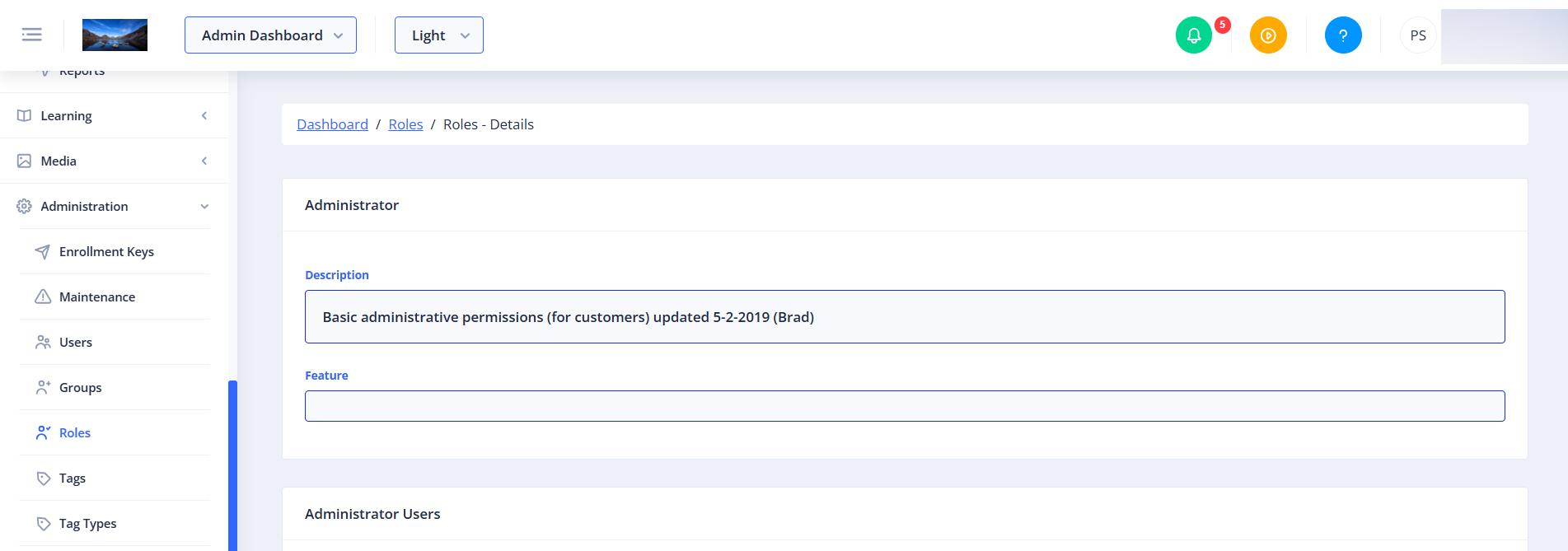
- Role Name (Header): The primary name of the role (e.g., "Administrator").
- Description: A detailed explanation of what permissions and access this role grants to users.
- Feature: The specific system module or feature set associated with this role.
- Hidden: Indicates whether the role is hidden from standard selection lists.
👤 Visible to: Users with permission to update hidden roles.
- Locked: Indicates whether the role is locked. Locked roles typically cannot be edited or deleted to prevent system instability.
👤 Visible to: Users with permission to update locked roles.
Role Users
This section lists all users who have been assigned this role.
👤 Visible to: System Administrator, System Administrator Read Only, Administrator, UserManager

- Customer Filter: A dropdown menu allowing you to filter the user list by a specific customer organization.
👤 Visible to: System Administrator Read Only
- Search Users: A search bar to quickly filter the user list by username, name, or email.
- Users Table: Displays the following columns:
- Username: The unique login username (sortable).
- Name: The full name of the user (sortable).
- Email: The user's email address (sortable).
- Customer: The organization the user belongs to (visible only to System Administrator Read Only).
If no users are assigned to the role, a message stating "No users found for this role" will be displayed.
Permissions
This section displays the specific system permissions associated with this role, defining exactly what actions assigned users can perform.
👤 Visible to: System Administrator, System Administrator Read Only, Administrator, UserManager
- Search Permissions: A search bar to filter the permissions list by name or description.
- Permissions Table: Displays the following columns:
- Name: The technical or friendly name of the permission (sortable). If you have Developer privileges, clicking this name will navigate you to the permission's detail page.
- Description: A detailed explanation of what actions this permission allows.
Common Actions
| Action | How to do it |
|---|---|
| Edit Role | Click the blue Edit button at the top right of the page to modify the role's details. |
| Delete Role | Click the red Delete button at the top right of the page. A confirmation dialog will appear showing any associated dependencies before you confirm deletion. |
| Search Users | Type a name, username, or email into the "Search users..." field in the Users section and press Enter or click the search icon. |
| Filter Users by Customer | Select a customer from the "All Customers" dropdown menu in the Users section. |
| Search Permissions | Type a permission name or keyword into the "Search permissions..." field in the Permissions section and press Enter. |
| Sort Tables | Click the column headers with the sort icon (such as Username, Name, or Email) to sort the lists in ascending or descending order. |
Tips
- Check Locked Status: Before attempting to edit or delete a role, check the "Locked" status. Locked roles are essential to system operations and should generally not be modified.
- Audit Access Regularly: Use the Users and Permissions tables on this page to perform security audits, ensuring that users only have the access required for their job functions.
- Multi-Page Navigation: If a role has many assigned users or permissions, use the pagination controls at the bottom of the respective tables to browse through the complete list.