Learner Courses — List
Last updated on: 2026-05-26 | Updated by: MAGNI Docs Team
The Learner Courses page provides learners with a centralized hub to view, search, and track their assigned training courses. From this page, learners can access courses they have already started, view newly assigned courses, and review completed training.
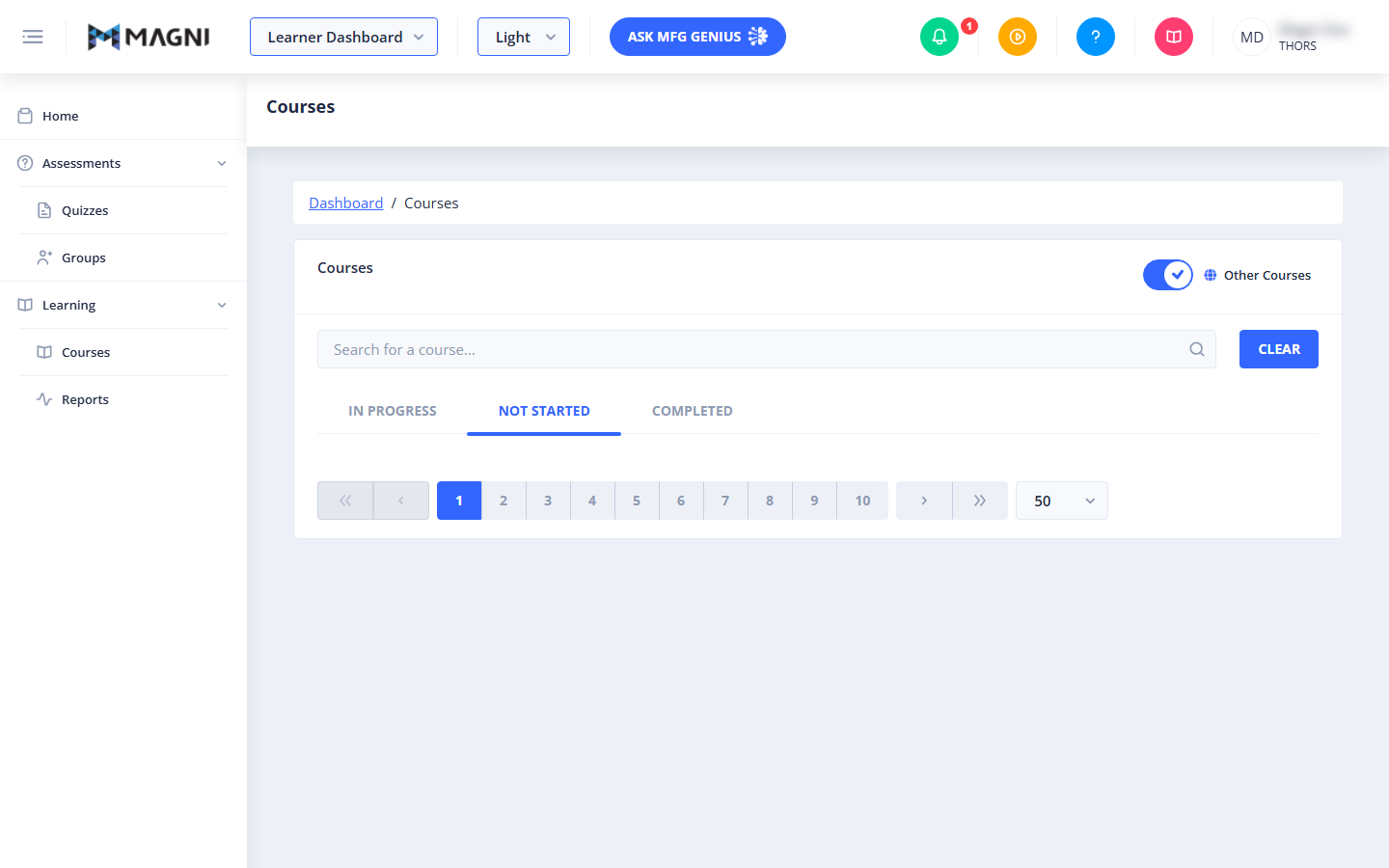
Page Sections
Last Accessed Course Card
This card only appears at the top of the page if you have a course currently in progress that you recently visited.
- Course Link: Displays the name of your most recently accessed course. Clicking this link takes you directly back into the course so you can resume your training.
- System Course Indicator: If the last accessed course is a system-provided course, a yellow lightbulb icon is displayed next to the course name.
Courses Card
This is the main area of the page where you can search, filter, and browse your assigned courses.
Filters and Search
-
System Courses Toggle:
👤 Visible to: Users who are not B2C users and are not system administrators.
Toggle this switch to show or hide system-provided courses. When enabled, system courses are marked with a yellow lightbulb icon.
-
Other Courses Toggle:
👤 Visible to: Users who are not B2C users.
Toggle this switch to show or hide courses provided by external partners or other organizations.
-
Search Bar: Type keywords or course names into this field to filter your course list.

- Clear Button: Click this button to clear any active search text and reset the course list.
Course Status Tabs
Courses are organized into tabs based on your enrollment and progress status.
-
In Progress: Displays courses that you have started but not yet completed. This is the default tab if you have active courses in progress.
-
Not Started: Displays assigned courses that you have not yet opened. If you have no courses in progress, this tab will be selected by default.
-
Completed: Displays all courses you have successfully finished.
-
Upcoming:
👤 Visible to: Learners with scheduled upcoming courses.
Displays courses that are scheduled for you but are not yet active or available to start.
-
Expired:
👤 Visible to: Learners with expired course enrollments.
Displays courses where the enrollment window has closed before you could complete them.
Pagination Controls
Located at the bottom of the course list, these controls help you navigate through your assigned courses:
- Navigation Arrows: Use the first «, previous ‹, next ›, and last » buttons to move between pages of courses.
- Page Numbers: Click a specific page number to jump directly to that page.
- Items Per Page Dropdown: Click the dropdown (e.g., showing "50") to change how many courses are displayed on a single page.
Common Actions
| Action | How to do it |
|---|---|
| Resume your last course | Click the course name link inside the Last Accessed Course card at the top of the page. |
| Search for a course | 1. Type the course name or keyword into the Search for a course... input field. 2. Press Enter or click the magnifying glass icon. |
| Reset search filters | Click the Clear button next to the search bar. |
| Filter by course origin | Use the System Courses or Other Courses toggles in the top-right corner of the Courses card to show or hide specific course types. |
| View completed courses | Click on the Completed tab in the course list. |
Tips
- Quick Resume: Always check the top of the page when logging in. The Last Accessed Course card is the fastest way to jump straight back into your active training without searching.
- Check "Not Started" first: If you do not see any courses on your dashboard when you log in, click the Not Started tab. Your active list defaults to "In Progress", which may appear empty if you haven't opened any courses yet.
- Expand Your View: If you have a large number of assigned courses, use the pagination dropdown at the bottom right to increase the number of courses shown per page. This reduces the need to click through multiple pages.