Learner Courses — Reports
Last updated on: 2026-05-26 | Updated by: MAGNI Docs Team
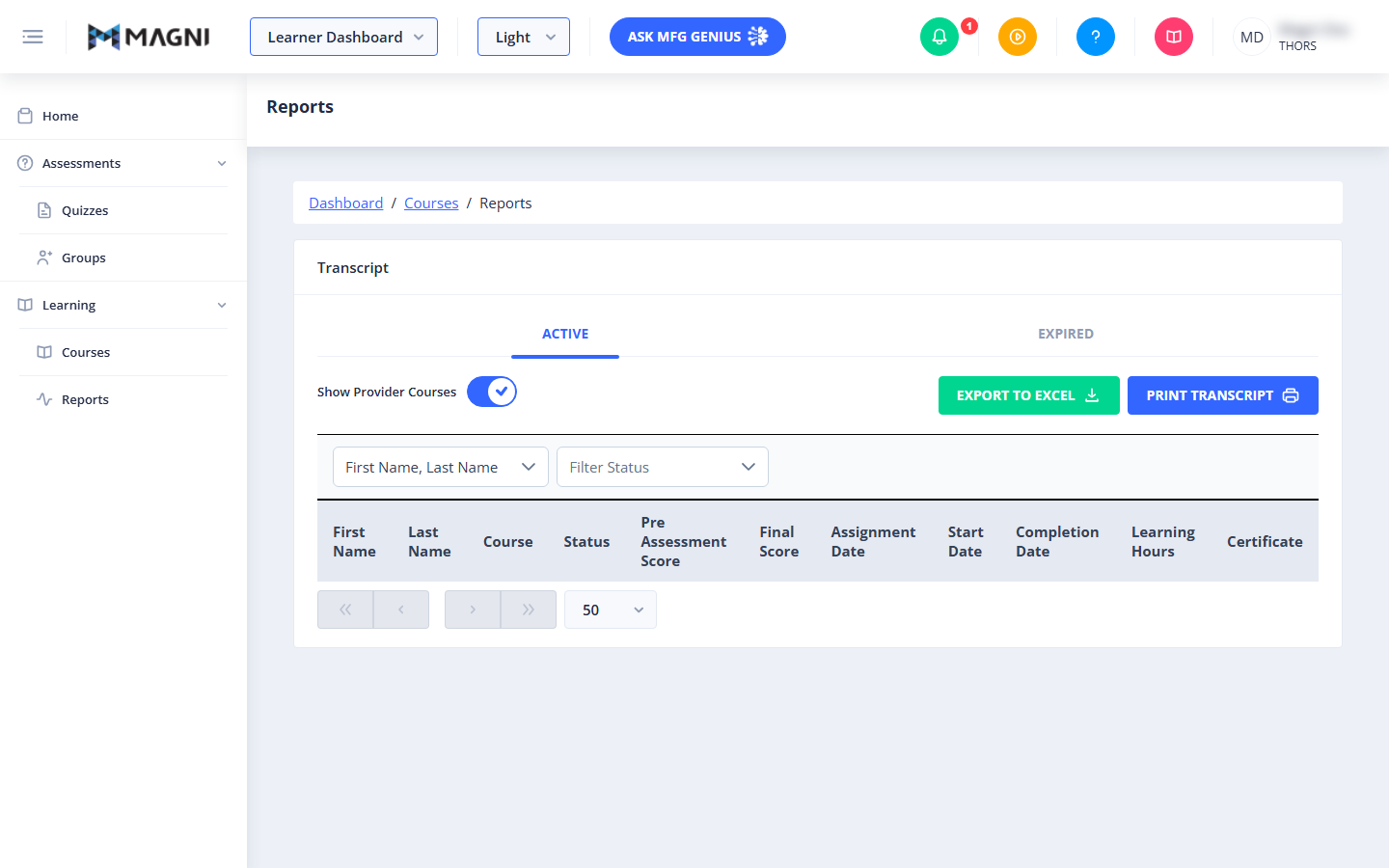
The Learner Courses Reports page provides a comprehensive view of your learning history and course progress within the Magni platform. Learners can use this page to view active and expired course transcripts, filter records, download completion certificates, and export their learning data.
Page Sections
Transcript Tabs
The transcript is divided into two primary tabs to help you organize your learning history:
- Active: Displays all currently active course enrollments, including courses that are not started, in progress, or completed.
- Expired: Displays courses that have expired or reached their end date.
Transcript Controls
Located above the transcript table, these controls allow you to customize and export your transcript data:
- Show Provider Courses Toggle: Switch this toggle on to include courses provided by external partners in your transcript. Switch it off to only display internal courses.
- Export to Excel Button: Downloads your entire transcript history as an Excel spreadsheet. Clicking this button opens a confirmation dialog warning that exporting large datasets may take a few moments.
- Print Transcript Button: Generates a printer-friendly version of your transcript. This button is temporarily disabled while the print layout is loading.
Filters and Column Selection
Use these dropdown menus to customize the table columns and filter the displayed records.

- Choose Columns Dropdown: A multi-select dropdown that allows you to show or hide profile columns (such as First Name and Last Name) in the table.
- Filter Status Dropdown: A multi-select dropdown to filter the table by course progress. You can select one or more of the following:
- Not Started
- In Progress
- Completed
Transcript Table
The main table displays detailed information about each of your course assignments:
- First Name / Last Name: Displays your profile name (can be toggled on or off via the column selector).
- Course: The name of the course. A yellow lightbulb icon appears next to courses provided directly by THORS.
- Status: The current progress status (Not Started, In Progress, or Completed).
- Pre Assessment Score: Your score on the pre-course assessment, displayed as a percentage. This remains blank if no pre-assessment was taken.
- Final Score: Your score on the final course assessment, displayed as a percentage.
- Assignment Date: The date the course was assigned to you.
- Start Date: The date you first launched and began the course.
- Completion Date: The date you successfully completed the course.
- Learning Hours: The total hours spent on the course. This value is only displayed for courses with a "Completed" status.
- Certificate: Displays a "Certificate" button with an award icon if you have completed the course and a certificate is available. This button is disabled if the course is still in progress or not started.
Pagination
Located at the bottom of the table, the pagination controls help you navigate through large lists of courses:
- Use the double left arrow « to jump to the first page.
- Use the single left arrow ‹ to go to the previous page.
- Use the single right arrow › to go to the next page.
- Use the double right arrow » to jump to the last page.
- Use the page size dropdown (e.g., 50) to change how many course records are displayed on a single page.
Common Actions
| Action | How to do it |
|---|---|
| Filter courses by status | Click the Filter Status dropdown, check the boxes next to the statuses you want to view (e.g., Completed), and click outside the dropdown to apply. |
| Export transcript to Excel | Click the green Export to Excel button. A dialog will appear; confirm the export to download the file. |
| Print your transcript | Click the blue Print Transcript button to open your browser's print preview window. |
| Download a certificate | Locate a completed course in the table and click the blue Certificate button in the Certificate column. |
| Hide or show profile columns | Click the Choose Columns dropdown and check or uncheck First Name or Last Name to customize your table view. |
Tips
- Verify Professional Development Hours: The "Learning Hours" column is a quick way to verify and document your professional development credits once a course is marked as Completed.
- Missing Partner Courses? If you cannot find a course assigned by an external provider, make sure the Show Provider Courses toggle is switched on.
- Clear Filters to See All Records: If your transcript table looks empty, check the Filter Status dropdown and clear any active selections to display all of your course records.