Learner Quiz — Attempt
Last updated on: 2026-05-27 | Updated by: MAGNI Docs Team
The Learner Exams page is where learners take quizzes, exams, and assessments assigned to them in the Magni platform. This interactive interface guides you through each question, supports various question formats, tracks your progress, and displays your results upon completion.
Page Sections
Exam Header and Controls
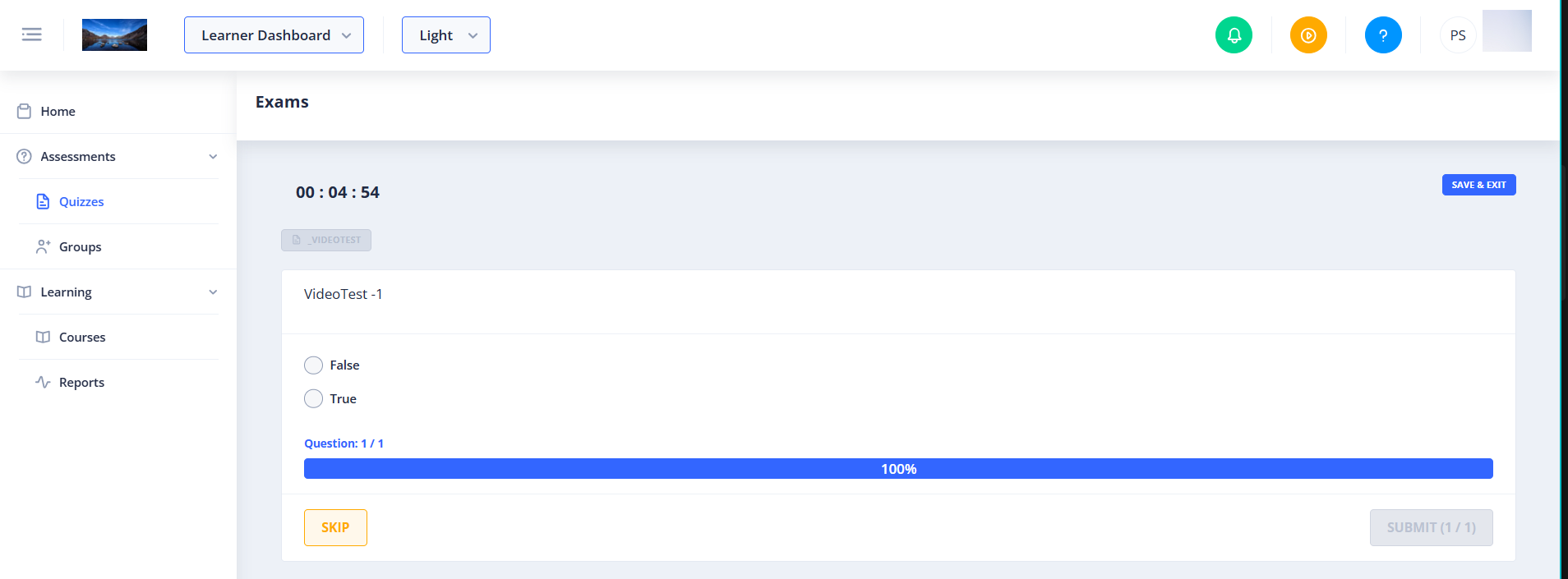
- Timer: If the exam has a time limit, a countdown timer is displayed at the top of the page to help you manage your time.
- Save & Exit Button: Allows you to save your current progress and safely exit the exam to resume it later.
- Quiz Title: Displays the name of the active quiz or exam next to a document icon.
Question Card
This is the main area where exam questions are displayed. It dynamically adjusts based on the question type and contains the following elements:
- Question Text: The description or prompt for the current question.
- Media and Video: If a question requires you to review an image or video, it will appear directly above the answer choices. Images can be zoomed for closer inspection.
- Answer Inputs: The input method changes depending on the question type:
- Single Choice / Multiple Choice: Select one or more checkboxes or radio buttons.
- Numerical Value / Numerical Range: Enter a specific number or range.
- Drag & Drop / Sorting: Drag items into the correct order or buckets.
- Matching: Match words or references.
- Complete Statement: Fill in the blanks to complete a sentence.
- Subjective: Provide a written response (requires grading).
- Progress Indicator: Displays your current progress (e.g., "Question: 3 / 10") alongside a visual progress bar.
- Submit Button: Appears at the bottom of the card to submit your answer and proceed to the next question.
System Alerts and Warnings
- Multiple Tabs Warning: If you attempt to open the same quiz in another browser tab, a warning message states: "This quiz has been started in another tab."
- AI Credit Warning: If the exam contains subjective questions that require AI grading and your organization has insufficient AI credits, a warning dialog will appear ("Insufficient AI credits to start this quiz") and redirect you back to the dashboard.
Completion and Processing Modal
Once you submit the final question, a pop-up window appears to process your results:
- Processing State: Displays "Processing..." and a loading spinner while your score is calculated. If processing takes longer than 2 minutes, a warning message appears ("Processing is taking longer than expected. You may close and continue") and enables the Close button.
- Congratulations / Results State: Once processed, the modal displays your completion status.
- Notification Instructions: If enabled for the quiz, instructions will guide you to whitelist
donotreply@magni.aiand expect text notifications from+1-218-396-2464to ensure you receive your exam results. - Assigned Courses Section: If completing this exam automatically unlocks or assigns new courses to you, they will be listed here with a note that they can now be accessed from your Learner Dashboard.
Common Actions
| Action | How to do it |
|---|---|
| Save and pause an exam | Click the Save & Exit button in the top-right corner. Your progress is saved, and you are returned to the dashboard. |
| Answer a question | Select or enter your answer using the provided inputs, then click the Submit button at the bottom of the question card to load the next question. |
| View exam progress | Look at the progress bar and question counter (e.g., "Question: 5 / 12") located at the bottom of the question card. |
| Close the completion modal | Once processing is complete, or if the 2-minute processing timeout is reached, click the Close button at the bottom of the pop-up. |
Tips
- Check the Timer: Keep an eye on the countdown timer at the top of the page if your exam is timed. The exam will automatically submit when the timer reaches zero.
- Whitelist Notification Contacts: To guarantee you receive your exam completion emails and text alerts, add
donotreply@magni.aito your safe senders list and note that SMS updates will come from+1-218-396-2464. - Resume Anytime: If you need to step away, use the Save & Exit button. Do not simply close the browser tab, as using "Save & Exit" ensures your latest progress is securely synchronized.