Last updated on: 2026-05-27 | Updated by: MAGNI Docs Team
Learner Report — Detail
The Learner Report Detail page provides a comprehensive breakdown of a learner's performance on a specific quiz attempt. Learners can use this page to review their scores, track their progress across multiple attempts, view recommended study materials, and analyze their performance across different concepts, cognitive levels, and question difficulties.
Overview
This page is designed for Learners to self-assess their understanding after completing a quiz. It serves as a diagnostic tool, highlighting areas of strength and identifying specific topics or concepts that require further study.
Page Sections
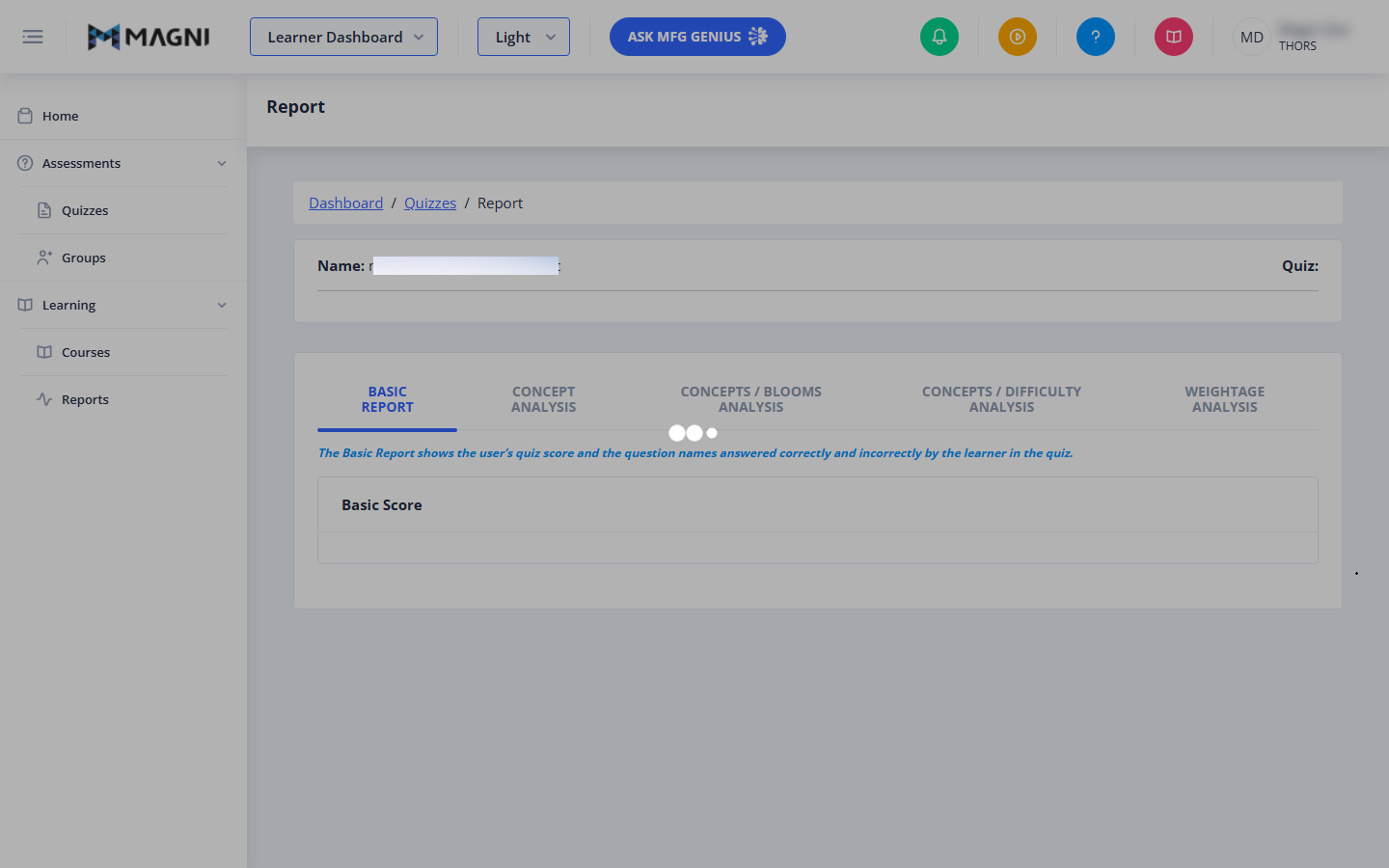
1. Breadcrumb Navigation
Located at the top-left of the page, the breadcrumb trail allows you to easily navigate back to your Dashboard or the Quizzes list.
2. Attempt Selector and Action Toolbar
Located at the top-right of the page, this toolbar provides options to manage and export your report data:
- Attempt Dropdown: If you have taken the quiz multiple times, use this dropdown to select and load the report for a specific attempt. Each option displays the attempt number and the completion date. If you have more than 10 attempts, a More... option will appear at the bottom of the list to load older attempts.
- Print Button (Printer Icon): Click this button to print your quiz report or save it as a PDF. This button is temporarily disabled while the print layout is loading.
- Certificate Button (Award Icon): Click this button to open the Certificate Viewer and view or download your certificate of completion for this quiz.
3. Quiz Summary Card
This card displays the high-level details of the selected quiz attempt:
- Name: The name of the learner who took the quiz.
- Quiz: The title of the quiz.
- Date: The start and end date/time of the quiz attempt.
- Duration: The total time spent on the attempt.
- Score: The score achieved on this attempt.
- Passing Threshold Message: If your score meets or exceeds the passing threshold, a green congratulatory message appears at the bottom of the card: "Congratulations! You have reached a passing threshold on this quiz attempt."
4. Recommendations Card
This section only appears if there are recommended materials or related learning content based on your quiz results. It contains up to five tabs, depending on what recommendations are available:
- Suggested Courses: Displays a list of courses recommended for you based on the questions you answered incorrectly. It includes the course name (which links directly to the course player or an external link) and the number of incorrect questions associated with that course topic.
- Suggested Documents: Displays a list of reference documents that can help you study the topics you missed. Clicking a document name opens it. A loading spinner will appear next to the document name while it is opening.
- Related Courses: Displays other courses related to the quiz topic that may interest you, even if they aren't directly tied to incorrect answers.
- Related Contents: Displays additional learning materials and modules related to the quiz topic.
- Suggested Contents: Displays specific content modules recommended to help you improve on the topics you struggled with during the quiz.
5. Analysis Tabs
The bottom portion of the page features five analytical tabs to help you dive deeper into your performance:
- Basic Report: Shows your overall quiz score and lists the names of the questions you answered correctly and incorrectly.
- Concept Analysis: Breaks down your performance by specific learning concepts or competencies, helping you pinpoint exact areas of weakness.
- Concepts / Blooms Analysis: Analyzes your scores based on cognitive levels (such as remembering, understanding, applying, or analyzing) mapped against quiz concepts.
- Concepts / Difficulty Analysis: Displays how you performed on different concepts relative to the difficulty level of the questions (Easy, Medium, Hard).
- Weightage Analysis: Shows your performance based on the weight or importance assigned to different categories and concepts within the quiz.
Common Actions
| Action | How to do it |
|---|---|
| Switch Quiz Attempts | Click the Attempt dropdown in the top-right toolbar, then select the attempt number and date you wish to view. |
| Print or Save Report | Click the Printer icon in the top-right toolbar to open your browser's print dialog. |
| View Certificate | Click the Award icon in the top-right toolbar to view your certificate of completion. |
| Access Recommended Course | Under the Recommendations card, click the Suggested Courses tab, then click on any course name to open it. |
| Open Recommended Document | Under the Recommendations card, click the Suggested Documents tab, then click on a document row to open the file. |
Tips
- Target Your Weaknesses First: Before retaking a quiz, always check the Suggested Courses and Suggested Documents tabs in the Recommendations section. These are dynamically generated based on the exact questions you missed.
- Track Your Progress: Use the Attempt dropdown to compare your latest score against previous attempts. This helps you visualize your learning curve and see if your study efforts are paying off.
- Analyze Your Cognitive Strengths: Check the Concepts / Blooms Analysis tab to see if you struggle more with factual recall questions versus application-based scenario questions. This can help you adjust how you study the material.