Learner Quizzes
Last updated on: 2026-05-26 | Updated by: MAGNI Docs Team
The My Quizzes page allows learners to view, search, and access all quizzes assigned to them within the Magni platform. It serves as a central hub for tracking quiz progress, checking upcoming deadlines, and reviewing completed assessments.
👤 Visible to: Learner
Overview
This page helps you stay on top of your assessments by organizing quizzes into clear categories based on their completion status and availability.
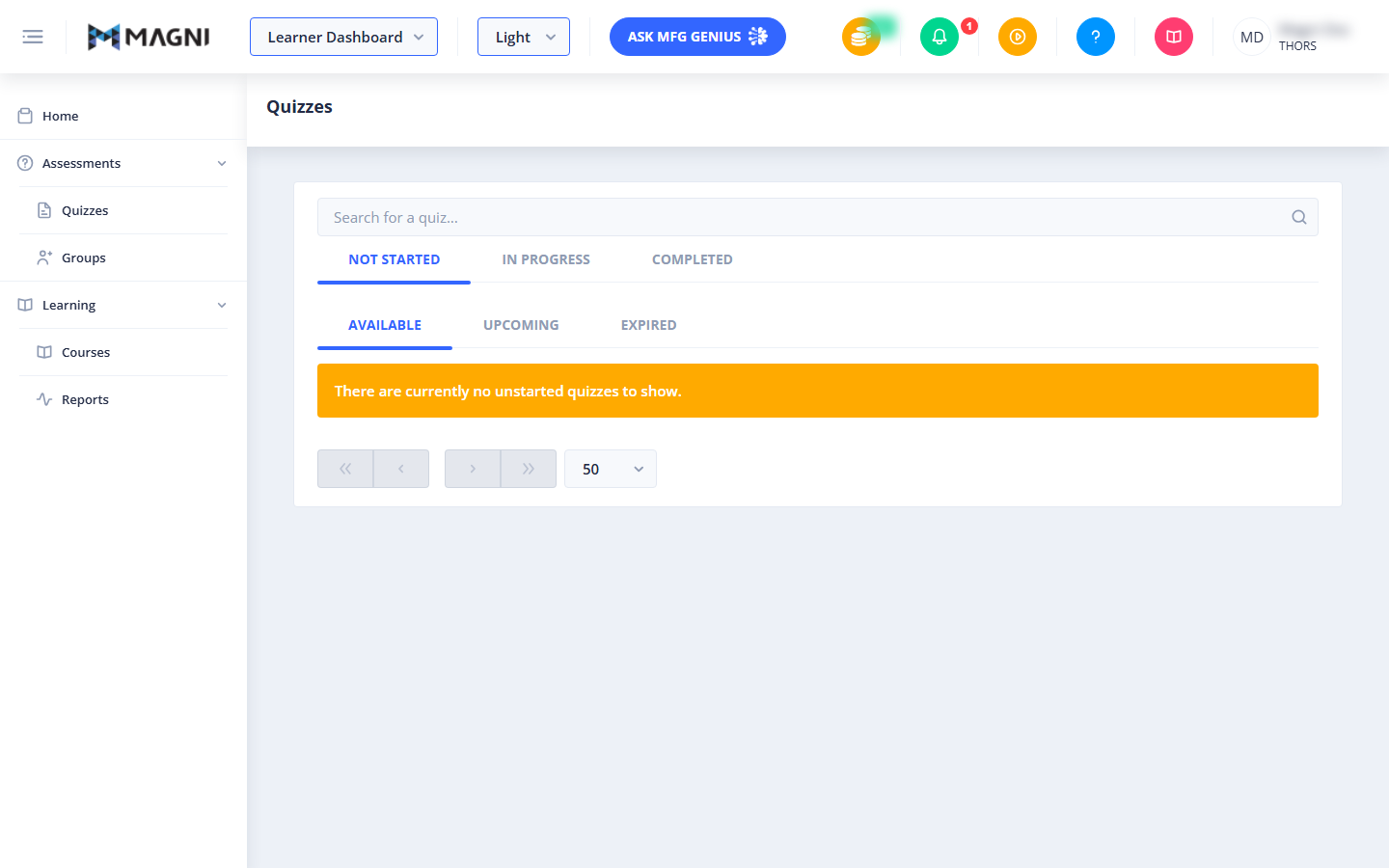
Page Sections
The Quizzes page is divided into several key areas to help you quickly find and manage your assessments.
Search Bar
Use the search bar at the top of the quiz list to quickly find a specific quiz by its title. As you type, the list automatically filters to show matching results.

Status Tabs
The primary tabs allow you to filter your quizzes based on your progress:
- Not Started: Quizzes that have been assigned to you but have not yet been opened or attempted.
- In Progress: Quizzes that you have started but have not yet completed or submitted.
- Completed: Quizzes that you have successfully finished and submitted.
Availability Sub-Tabs
When you are viewing the Not Started tab, you can further filter quizzes using the following sub-tabs:
- Available: Quizzes that are currently open and ready for you to take.
- Upcoming: Quizzes that have been scheduled by your instructor but are not yet open for attempts.
- Expired: Quizzes that you did not start before their scheduled deadline passed.
Quiz List and Empty State
The main body of the page displays your quizzes in a list format based on your selected tabs and search criteria.
If there are no quizzes that match your current filters, an orange notification banner will appear indicating that no quizzes are available (for example, "There are currently no unstarted quizzes to show.").
Pagination Controls
Located at the bottom of the quiz list, these controls help you navigate through multiple pages of quizzes:
- First Page («) and Previous Page (←): Navigate backward through the pages of quizzes.
- Next Page (→) and Last Page (»): Navigate forward through the pages of quizzes.
- Page Size Dropdown: Change the number of quizzes displayed on a single page (defaults to 50).
Common Actions
| Action | How to do it |
|---|---|
| Search for a quiz | Click inside the "Search for a quiz..." bar, type the name of the quiz, and press Enter or wait for the list to filter. |
| View in-progress quizzes | Click on the In Progress tab at the top of the quiz list. |
| Check upcoming quizzes | Click on the Not Started tab, then click on the Upcoming sub-tab. |
| Change the number of quizzes shown | Click the dropdown menu at the bottom right (currently showing "50") and select your preferred number of items per page. |
Tips
- Check the Expired Tab: If a quiz you were expecting to take is missing from your "Available" list, check the "Expired" tab to see if the deadline has already passed.
- Plan Ahead: Regularly check the "Upcoming" tab under "Not Started" to stay aware of future assessments and plan your study schedule accordingly.
- Resume Quizzes: If you get interrupted during a quiz, you can easily find it and resume your attempt by navigating to the "In Progress" tab.