Last updated on: 2026-05-27 | Updated by: MAGNI Docs Team
Learner Courses — Detail
This page provides learners with a comprehensive view of a specific course in the Magni platform. From this page, you can view course details, track your progress and scores, download completion certificates, organize courses into personal vaults, and access the individual lessons required to complete the course.
Page Sections
Breadcrumb Navigation
Located at the top of the page, this helper path allows you to easily navigate back to your Learner Dashboard or the main Courses list.
Course Header and Status Controls
The header bar displays the course title and contains several interactive status badges and management tools.
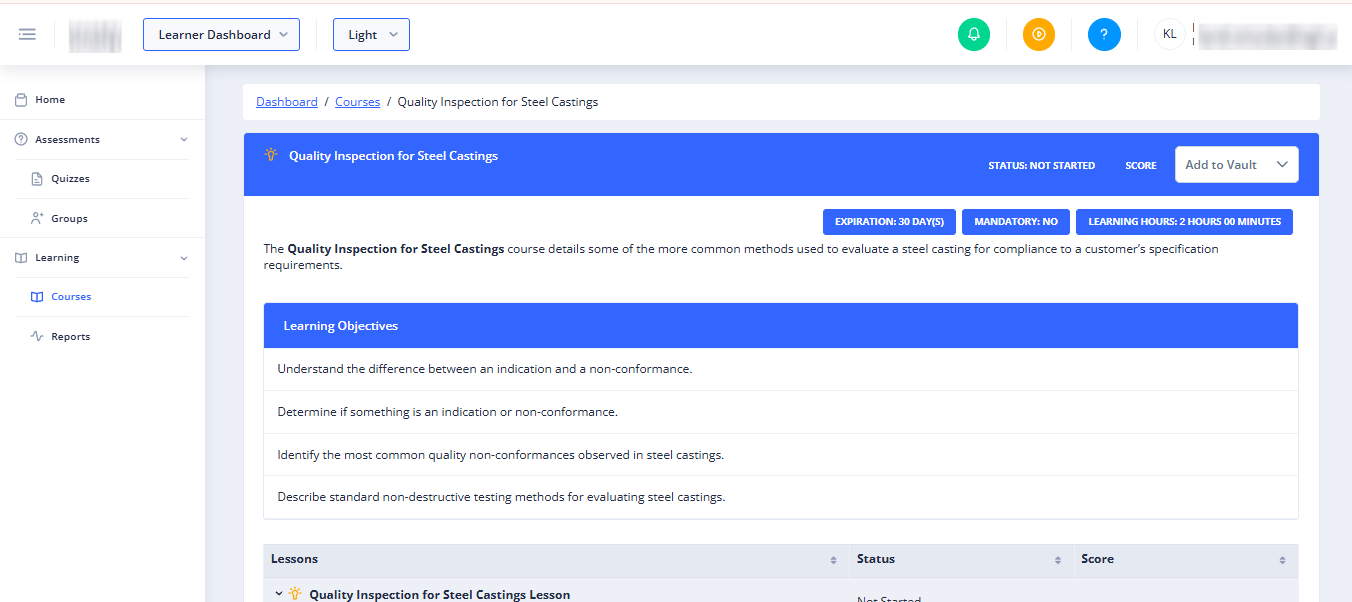
- Course Title: Displays the name of the course. A yellow lightbulb icon appears next to the title if the course is provided directly by your primary organization.
- Status Badge: Displays your current progress in the course (e.g., Not Started, In Progress, Completed).
- Score Badge: Displays your final score percentage once you have completed the post-course assessments.
- Certificate Button: This button becomes active once you have successfully completed the course. Clicking it allows you to view and download your official course certificate.
- Note: This button is only visible if the course offers a certificate, and remains disabled until your course status is "Completed".
- Add to Vault Dropdown: A multi-select dropdown menu that allows you to add or remove this course from your personal learning vaults. You can select multiple vaults to organize your learning paths.
Course Metadata & Details
Directly below the header, a row of metadata badges provides key administrative and scheduling information about the course:
- Cannot Start Until: If the course has a restricted start date, this badge displays the earliest date you are allowed to begin.
- Expiration: Displays when your access to the course expires. The system calculates this date dynamically based on one of the following rules:
- Assigned Date: Calculated from the date the course was assigned to you.
- Assigned Start Date: Calculated from your scheduled start date.
- Started Date (In Progress): Displays the exact expiration date once you begin the course.
- Started Date (Not Started): Displays the total number of days you will have to complete the course once you eventually start it (e.g., "30 day(s)").
- Fixed Date: Displays a specific calendar expiration date.
- Mandatory Status: Displays "Yes" or "No" to indicate if the course is required by your organization.
👤 Note: This badge is hidden for B2C (Business-to-Consumer) learners.
- Learning Hours: Displays the estimated number of hours required to complete the course.
Course Description
A text section providing a detailed overview, summary, and expectations for the course.
Learning Objectives
This section lists the key learning outcomes and goals you are expected to achieve by completing the course.
- Note: This section only appears if the course creator has defined specific objectives for the course.
Lesson List
Located at the bottom of the page, this section lists all the individual lessons, modules, or activities included in the course. You can click on lessons in this list to launch and complete them.
Common Actions
| Action | How to do it |
|---|---|
| Organize Course into Vaults | Click the Add to Vault dropdown in the header, then check or uncheck the vaults where you want to store this course. |
| Download Certificate | Once your course status is "Completed", click the Certificate button in the header to view and download your certificate. |
| Start or Resume a Lesson | Scroll down to the Lesson List at the bottom of the page and click on the lesson you wish to launch. |
Tips
- Watch the Expiration Date: Keep an eye on the Expiration badge. If a course is configured to expire a set number of days after you start, the exact expiration date will lock in the moment you launch your first lesson.
- Use Vaults for Goal Setting: Use the "Add to Vault" feature to group related courses together (e.g., "Q3 Goals", "Technical Skills", or "Leadership Prep") to keep your dashboard organized.