Learner Groups
Last updated on: 2026-05-26 | Updated by: MAGNI Docs Team
This page allows learners to view and manage their assigned learning groups. Within each group, you can track your progress, start or resume assigned quizzes, and access performance reports.
Page Sections
Search Bar
Use the search bar at the top of the page to quickly find a specific learning group by its name.

- Search Input: Type the name of the group you are looking for and press Enter or click the search icon to filter the list.
Groups List
The main area of the page displays all learning groups currently assigned to you.
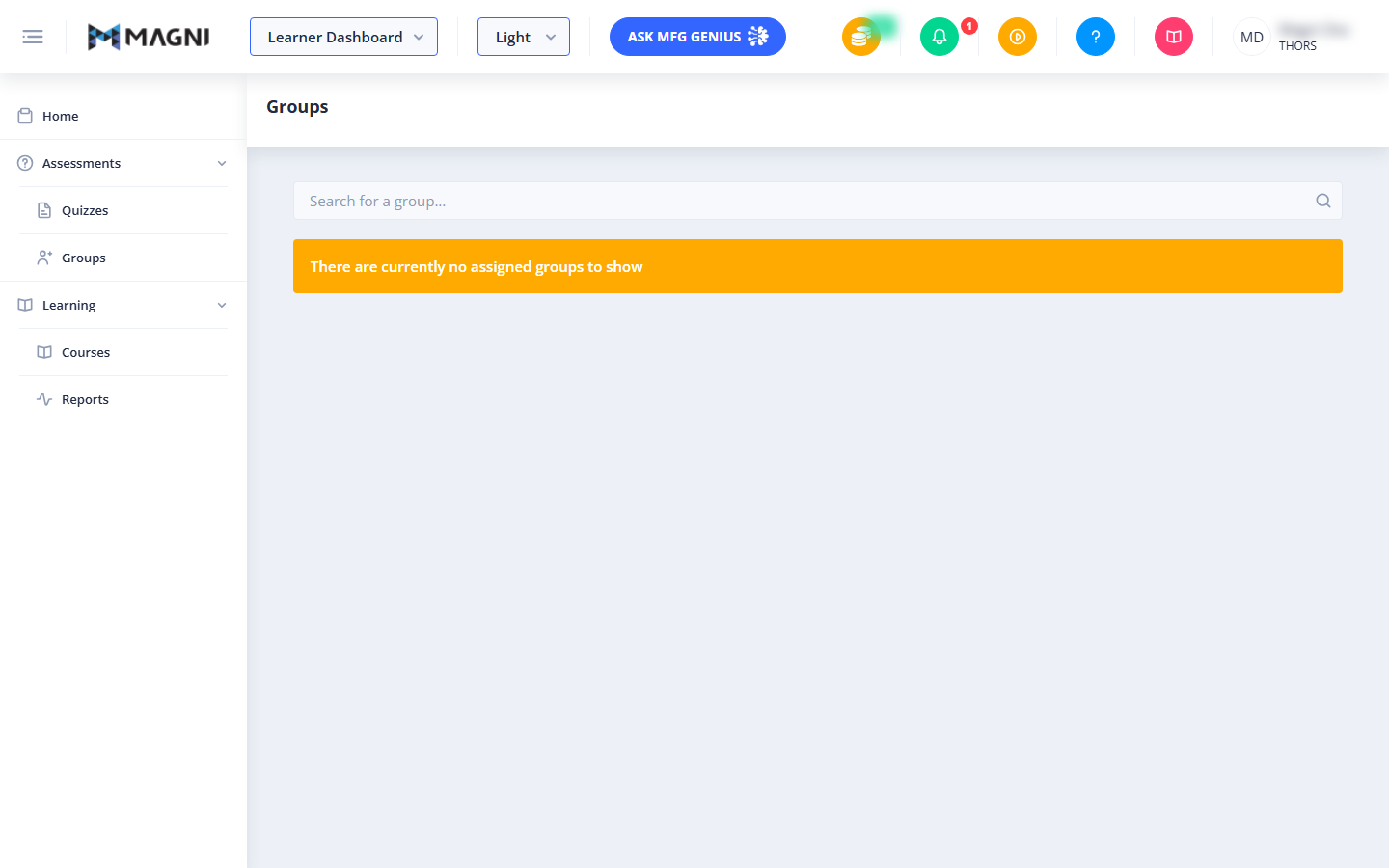
- Empty State: If you are not currently assigned to any learning groups, an orange warning banner displays the message: "There are currently no assigned groups to show".
- Groups Table: When groups are assigned, they are listed in a table with the following columns:
- Group Name: The name of the learning group. Clicking the group name or the arrow icon next to it expands the row to show the quizzes assigned to that group. You can sort this column alphabetically.
- # Quizzes: The total number of quizzes assigned to the group. You can sort this column numerically.
Expanded Group Quizzes
When you expand a group row, a nested table displays all the quizzes associated with that group.
- Quiz Table Columns:
- Quiz Name: The title of the quiz. This column also contains the action button to start or resume the quiz.
- Attempt: Displays which attempt number this quiz represents.
- Questions: The total number of questions in the quiz.
- Assigned Date: The date and time the quiz was assigned to you.
- Report: Provides access to your quiz results once an attempt is completed.
- Quiz Action Buttons:
- Start Quiz (Green Arrow Button): Appears if the quiz status is "Not Started". Clicking this button opens a confirmation modal. If your organization has configured quiz instructions, they will display here before you begin.
- Resume Quiz (Blue Arrow Button): Appears if the quiz status is "In Progress". Clicking this button allows you to jump back into your active quiz session.
- Report Button: Appears if you have completed the quiz or have at least one previous attempt. Clicking this button opens your detailed quiz performance report.
Common Actions
| Action | How to do it |
|---|---|
| Search for a group | Type the group name into the search bar and press Enter. |
| Expand a group to view quizzes | Click the chevron arrow icon or the group name in the Groups table. |
| Start a new quiz | Expand the group, locate a quiz marked "Not Started", click the green arrow button, review any instructions, and confirm to begin. |
| Resume an in-progress quiz | Expand the group, locate a quiz marked "In Progress", and click the blue arrow button. |
| View quiz results | Expand the group, locate the quiz, and click the Report button in the Report column. |
| Sort groups or quizzes | Click the column headers (such as Group Name, # Quizzes, Quiz Name, Attempt, Questions, or Assigned Date) to toggle ascending or descending order. |
Tips
- Review Instructions Carefully: When starting a new quiz, pay close attention to the pop-up modal. It displays important details such as the total number of questions, whether questions are randomized, the time limit, and whether the timer is set per question.
- Resume Anytime: If you get interrupted during a quiz, your progress is saved. You can return to this page at any time and click the blue arrow button to resume right where you left off.
- Analyze Your Performance: Always check your completed quiz reports. They provide valuable insights into your strengths and areas that may need more review before your next attempt.