Last updated on: 2026-05-26 | Updated by: MAGNI Docs Team
Learner Dashboard
The Learner Dashboard is the central hub for learners using the Magni platform. It provides quick access to your assigned courses, quizzes grouped by category, all available assessments, and your learning vaults.
Overview
This page serves as your personalized homepage where you can quickly see your learning path, track your progress, and jump directly into your coursework or assessments. Depending on your organization's settings, some sections may be hidden if those specific features are not enabled for your account.
Page Sections
The dashboard is divided into several key areas to help you navigate your learning materials efficiently.
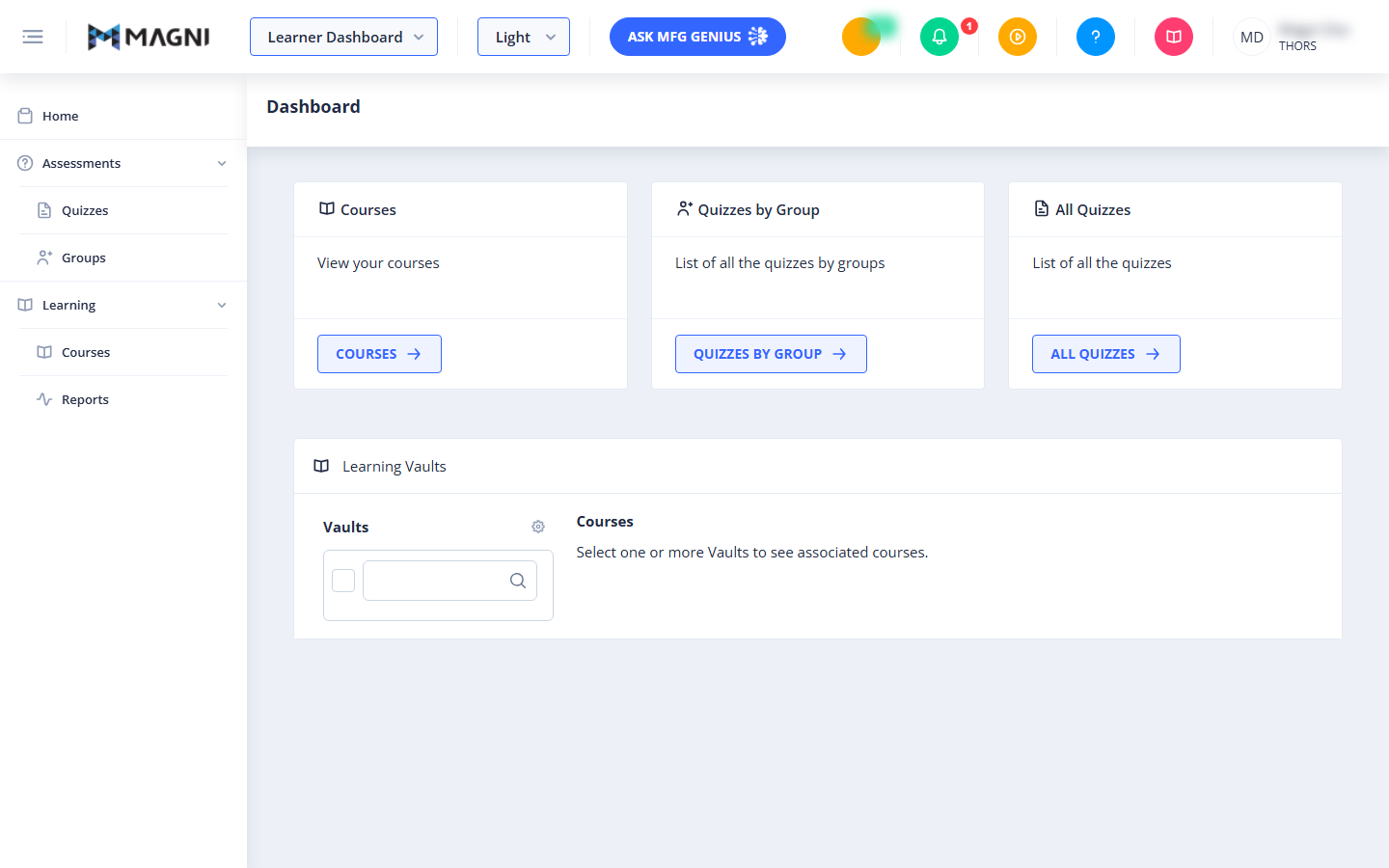
Dashboard Cards
At the top of the dashboard, you will find quick-access cards that link directly to your learning activities:
- Courses Card: Provides a direct link to view and resume your enrolled courses.
👤 Visible to: Learners with LMS access enabled for their organization and permission to view courses.
- Quizzes by Group Card: Displays a link to view quizzes organized by specific groups or categories.
👤 Visible to: Learners with Assessment features enabled for their organization.
- All Quizzes Card: Provides a link to view a complete list of all quizzes available to you.
👤 Visible to: Learners with Assessment features enabled and quiz review permissions.
Learning Vaults
The Learning Vaults widget is located at the bottom of the dashboard. This section helps you organize and browse your learning content.
👤 Visible to: Learners with LMS access enabled for their organization.
- Vaults List: Displays your available content vaults. You can check the box next to one or more vaults to filter and view the courses associated with them.
- Search Bar: Use the search input inside the Vaults box to quickly find a specific vault by name.
- Courses Area: Displays the courses associated with your selected vaults. If no vaults are selected, this area displays a message prompting you to select a vault.
Common Actions
| Action | How to do it |
|---|---|
| View Your Courses | Click the Courses button on the Courses card, or select Courses under the Learning section in the left sidebar. |
| View Quizzes by Group | Click the Quizzes by Group button on the Quizzes by Group card, or select Groups under the Assessments section in the left sidebar. |
| View All Quizzes | Click the All Quizzes button on the All Quizzes card, or select Quizzes under the Assessments section in the left sidebar. |
| Filter Courses by Vault | Check the box next to one or more vaults in the Learning Vaults section. The associated courses will automatically load in the right-hand panel. |
| Search for a Vault | Type the name of the vault in the search input box inside the Vaults list. |
Tips
- Missing Cards? If you do not see the Courses card or the Quizzes cards, your organization may not have those features enabled, or your user account may lack the necessary permissions. Contact your system administrator for assistance.
- Quick Navigation: You can always return to this dashboard at any time by clicking Home at the top of the left sidebar navigation.
- Use Vaults for Organization: If you have access to a large number of courses, use the Learning Vaults section to filter your view and focus on specific topics or training tracks.