Groups — List
Last updated on: 2026-05-26 | Updated by: MAGNI Docs Team
The Groups page in Magni allows administrators to manage and organize learner groups within the system. From this page, you can view existing groups, search and sort through them, create new groups, and perform bulk import operations to quickly set up or populate groups using Excel templates.
Page Sections
Header Actions
The header area contains tools for creating new groups, searching existing groups, and accessing bulk import/export templates.

- New Group Button: Click this button to manually create a single new group.
⚠️ This button is only visible to users with group creation permissions.
- Search Bar: Type a group name into the search field to filter the list in real time.
- Imports & Templates Dropdown: Click this button to access bulk actions. It contains two sections:
-
Imports:
- Create Groups: Upload a completed Excel template to create multiple groups at once.
- Populate Groups: Upload a completed Excel template to assign users, courses, and quizzes to existing groups.
-
Download Templates:
- Create Groups Template: Downloads the Excel template required for bulk group creation.
- Populate Groups Template: Downloads the Excel template required for bulk group population.
👤 System Administrators (THORS): Downloading the Populate Groups Template will automatically provide a system-admin-specific version of the template.
-
Groups Table
The main table displays all groups configured for your organization.
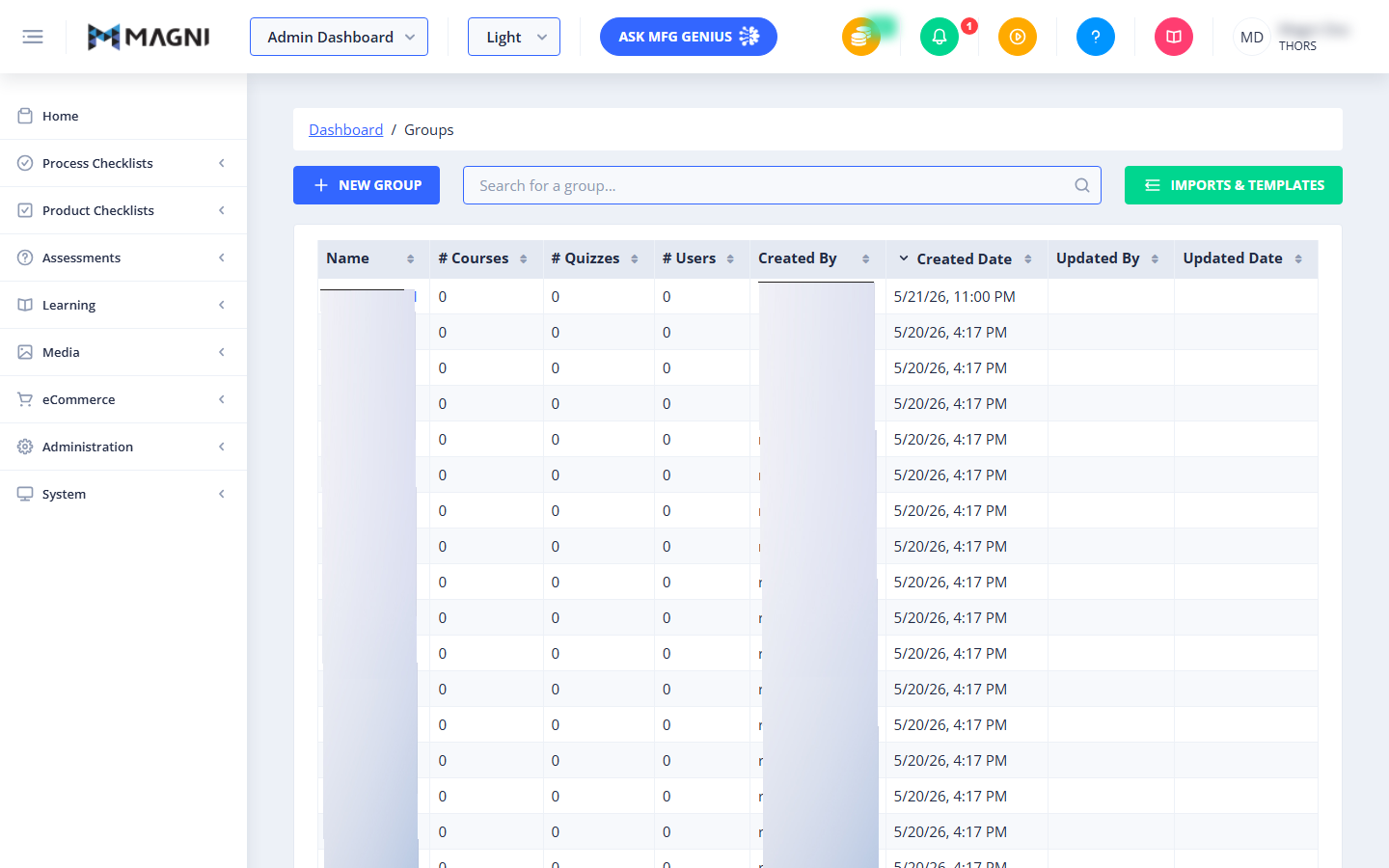
The table includes the following columns:
- Name: The name of the group. Clicking this column header sorts the groups alphabetically.
- # Courses: The total number of courses assigned to the group.
ℹ️ This column is only visible if Learning Management System (LMS) features are enabled for your organization.
- # Quizzes: The total number of quizzes assigned to the group.
ℹ️ This column is only visible if Assessment features are enabled for your organization.
- # Users: The total number of users currently assigned to the group.
- Created By: The username of the administrator who created the group.
- Created Date: The date and time when the group was created.
- Updated By: The username of the administrator who last modified the group.
- Updated Date: The date and time when the group was last modified.
Common Actions
| Action | How to do it |
|---|---|
| Create a New Group Manually | 1. Click the New Group button in the top left. 2. Fill in the required group details on the creation form. 3. Save your changes. |
| Search for a Group | Type the group's name into the Search for a group... search bar. The table updates automatically. |
| Sort the Groups List | Click any column header with a sort icon (such as Name, Created Date, or # Users) to toggle between ascending and descending order. |
| Download Import Templates | 1. Click the Imports & Templates button. 2. Under the Download Templates section, select either Create Groups Template or Populate Groups Template to download the Excel file. |
| Bulk Create Groups | 1. Download and open the Create Groups Template Excel file. 2. Fill in the required columns: group_name and notify_learner_on_quiz_completion (must be "yes" or "no"). 3. Save the file in a supported Excel format (.xlsx or .xls). 4. Click Imports & Templates on the Groups page, select Create Groups, and upload your file. |
| Bulk Populate Groups | 1. Download and open the Populate Groups Template Excel file. 2. Fill in the required group_name column, along with the user, quiz, or course names you want to associate with each group. 3. Save the file in a supported Excel format (.xlsx or .xls). 4. Click Imports & Templates on the Groups page, select Populate Groups, and upload your file. |
Tips
- Check Template Requirements: When preparing Excel files for bulk import, ensure that all required fields are filled out. For group creation, group_name and notify_learner_on_quiz_completion are mandatory. For populating groups, group_name is mandatory.
- Use Yes/No Fields Correctly: In the import templates, fields that require a yes/no response must contain exactly "yes" or "no" (case-insensitive) to prevent import errors.
- Quickly Find Recent Changes: Click the Updated Date column header to sort the table and bring the most recently modified groups to the top of the list.