Groups — Create
Last updated on: 2026-05-26 | Updated by: MAGNI Docs Team
The Groups — Create page allows administrators to create and configure new learner groups within the Magni platform. By grouping users, administrators can efficiently assign courses, manage quiz thresholds, configure notification preferences, and organize learners by department, team, or customer account.
Overview
This page is primarily used by Administrators and System Administrators to set up structured learning cohorts. When creating a group, you can define its name, assign specific courses and quizzes, set custom passing thresholds, and configure automated notification rules for both learners and administrators.
Page Sections
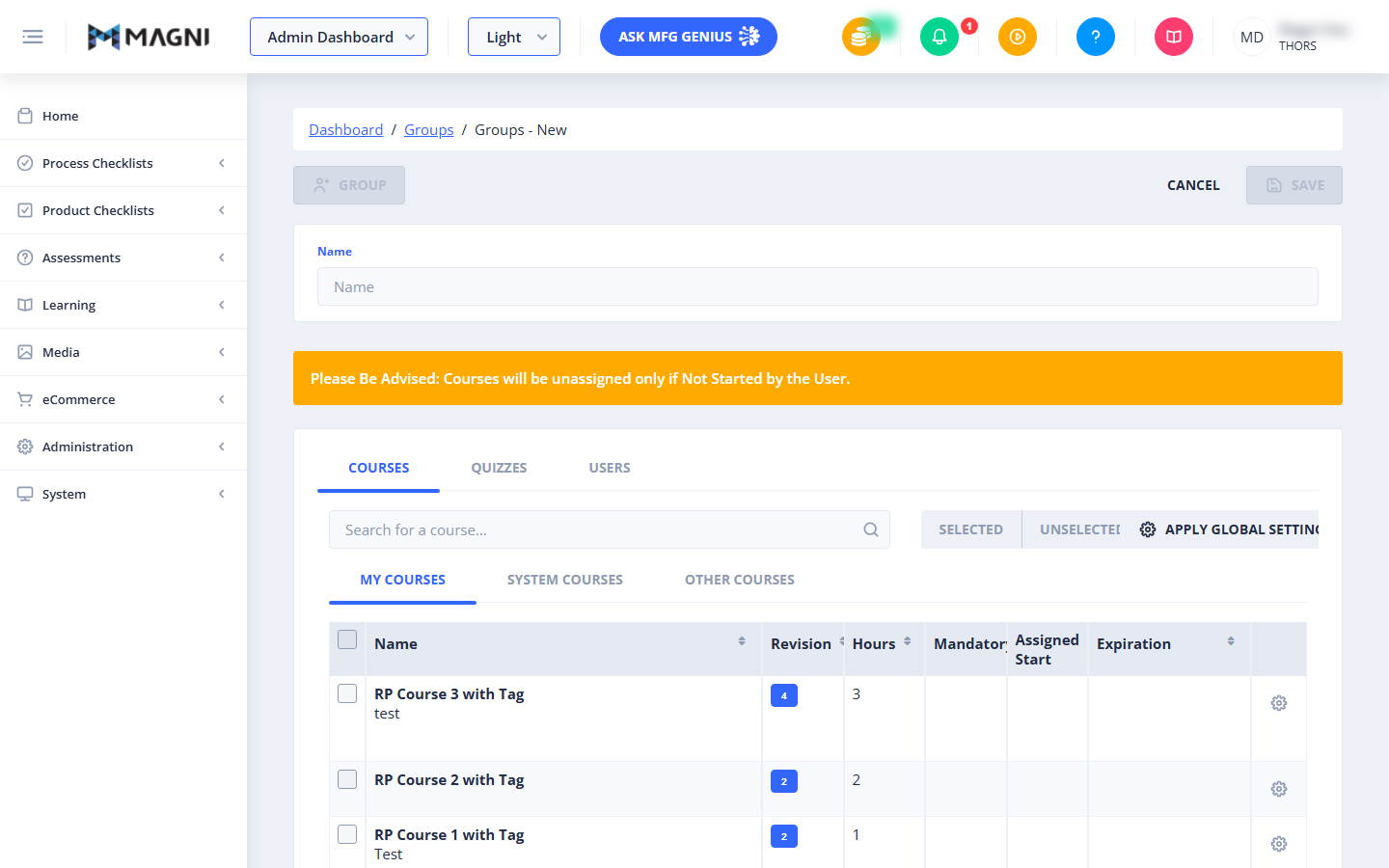
Header Actions
The header area provides breadcrumb navigation to return to the Dashboard or the main Groups list, along with primary action buttons:
- Cancel: Discards any unsaved changes and returns you to the Groups list.
- Save: Saves the new group configuration. This button is only enabled once all required fields (such as the Group Name) are validly filled out.
Group Details
This section contains the basic identifying information for the group.

- Name (Required): Enter a unique, descriptive name for the group. This field cannot be left blank or contain only spaces.
Important LMS Notice
⚠️ This notice is only visible if Learning Management System (LMS) features are enabled for your account.
An orange warning banner displays the following message: "Please Be Advised: Courses will be unassigned only if Not Started by the User." This serves as a reminder that if you remove a course from a group later on, users who have already begun progress on that course will retain their assignment to prevent loss of training records.
Courses Tab
👤 Visible to: Administrators (Only when LMS features are enabled for the customer account)
Under this tab, you can search for and select the courses that should be automatically assigned to all members of this group.
- Search Bar: Search for specific courses by name.
- Course Tabs: Filter courses by My Courses, System Courses, and Other Courses.
- Course Table: Select courses using the checkboxes on the left. You can view the course name, revision number, estimated hours, and configure specific assignment settings (such as mandatory status, assigned start dates, and expiration rules) by clicking the gear icon next to each course.
Quizzes Tab
👤 Visible to: Administrators (Only when Assessment features are enabled for the customer account)
This tab allows you to manage quiz assignments, passing thresholds, auto-assignment rules, and notification templates for the group.
Threshold Settings
- Passing Threshold Toggle: Enable or disable a group-level passing threshold.
- Threshold Value: If enabled, set a default passing percentage for quizzes assigned to this group.
-
⚠️ Note: A warning banner will appear reminding you that passing thresholds set on individual quizzes will override this group-level threshold.
Auto-Assign Settings
👤 Visible to: Administrators (Only when Auto-Assign Courses is enabled for the customer account)
If your organization utilizes automated course assignments based on quiz performance, you will see these options:
- Group-level auto-assign threshold per course: Enter a percentage score (0 to 100). If a learner scores below this threshold on a quiz question related to a course, that course will be automatically assigned to them.
- Company-level auto-assign threshold: Displays the read-only default threshold set at the company account level.
-
⚠️ Note: If both the group-level and company-level thresholds are set to 0 or left blank, a warning banner will notify you that all courses associated with any incorrectly answered quiz question will be automatically assigned.
Select Quizzes Sub-Tab
Use this list to select which quizzes are assigned to the group. You can search, filter, and check the boxes next to the quizzes you want to include.
Quiz Notifications Sub-Tab
Configure how and when notifications are sent when group members interact with quizzes.
- Common Settings:
- Email Template: Choose Default to use the system-standard email template, or Custom to write a tailored email.
- Message Template (SMS): (Only visible if SMS features are enabled) Choose Default or Custom for text message notifications.
- For Admin Settings:
- Notify me every time someone starts a quiz: Check this box to receive an email notification when a group member begins an assessment.
- Notify me of reports when quizzes are completed: Check this box to receive performance reports upon quiz completion.
- For Learner Settings:
- Notify learner of their results: Check this box to automatically send quiz results directly to the learner.
- Notify learner of their quiz assignment: Check this box to send quiz assignment notification to the learner.
- Mailing List (Emails Sub-Tab):
- View and manage the list of administrative email addresses that should receive group notifications. You can add new emails or remove existing ones using the Remove button next to each address.
Users Tab
Use this tab to search for, select, and associate individual user accounts with this group. Any courses or quizzes assigned to the group will automatically be assigned to the users added here.
Common Actions
| Action | How to do it |
|---|---|
| Create a Group | 1. Enter a name in the Name field. 2. Select the Courses tab to assign training modules. 3. Select the Quizzes tab to assign assessments and configure passing thresholds. 4. Select the Users tab to add learners to the group. 5. Click Save in the top right corner. |
| Set Group-Level Passing Threshold | 1. Go to the Quizzes tab. 2. Toggle the passing threshold option to active. 3. Enter the desired passing percentage in the threshold input field. |
| Configure Custom Admin Notifications | 1. Go to the Quizzes tab and select the Quiz Notifications sub-tab. 2. Under For Admin, check the boxes for starting or completing quizzes. 3. Under the Emails sub-tab, add the email addresses that should receive these alerts. |
| Disable Auto-Course Assignment | To ensure courses are only assigned manually, set the Group-level auto-assign threshold per course to your preferred percentage, or coordinate with your system administrator to adjust company-level settings. |
Tips
- Keep Names Consistent: Use a clear naming convention for your groups (e.g., "Q3 Welding Cohort" or "Chicago Sales Team") to make them easy to find and manage as your organization grows.
- Verify Course Statuses Before Unassigning: Remember that if a learner has already clicked "Start" on a course, removing that course from the group will not unassign it from their personal dashboard. Always check user progress if you are attempting to clean up active curriculums.
- Utilize Custom Templates for Better Engagement: When using custom email templates under the Quiz Notifications tab, make use of the supported placeholder variables (such as learner name, quiz name, and score) to provide personalized, automated feedback to your learners.