Groups — Edit
Last updated on: 2026-05-26 | Updated by: MAGNI Docs Team
The Groups — Edit page allows Administrators to manage and configure a specific user group within the Magni LMS. From this page, you can update the group's name, assign courses and quizzes, configure automated training paths based on quiz performance, manage notification preferences, and assign users to the group.
Page Sections
Header Actions
The top of the page contains breadcrumb navigation and primary action buttons.
- Group Indicator: A disabled button displaying the current group's name (or "Group" if unnamed) alongside a user icon.
- Cancel Button: Discards any unsaved changes and returns you to the Groups list.
- Save Button: Saves all updates made to the group. This button is disabled if required fields (such as the Group Name) are empty or invalid.
👤 Visible to: Administrators with group update permissions.
Group Details
This section contains the core identity settings for the group.
- Name: (Required) The name of the group. This field must contain at least one non-whitespace character to be valid.

LMS Assignment Warning
This warning banner appears only when LMS features are active for your organization.
- Warning Message: "Please Be Advised: Courses will be unassigned only if Not Started by the User." This serves as a reminder that active progress cannot be overridden by group unassignment.
Courses Tab
👤 Visible to: Users with LMS features enabled.
This tab allows you to manage the courses assigned to the group.
- Course List: A searchable, selectable list of published courses.
- Default Course Settings: Configure default settings that apply to all courses assigned to this group.
Quizzes Tab
👤 Visible to: Users with Assessment features enabled.
This tab manages quiz assignments, passing standards, auto-assignment rules, and notifications.
Thresholds & Auto-Assignment
- Passing Threshold: Set a group-level passing threshold percentage.
- Note: A warning banner will appear indicating that passing thresholds set on individual quizzes will override this group-level threshold.
- Group-level auto-assign threshold per course: (Visible only if auto-assign courses is enabled for your company) A numeric field (0 to 100) to set the threshold for automatic course assignment based on quiz performance.
- Company-level auto-assign threshold: Displays the read-only company-wide threshold for reference.
- Warning Alert: If both the group-level and company-level thresholds are unset or set to 0, a warning alert displays: "All courses with any incorrectly answered question in a quiz will be auto-assigned."
Select Quizzes Sub-Tab
- Contains a searchable list of quizzes that can be selected and assigned to the group.
Quiz Notifications Sub-Tab
Configure who receives notifications and what templates are used.
- Common Settings:
- Email Template: Choose between "Default" or "Custom" email templates.
- Message Template: (Visible only if SMS features are enabled) Choose between "Default" or "Custom" SMS templates.
- For Admin:
- Notify me every time someone starts a quiz: Checkbox to receive start notifications.
- Notify me of reports when quizzes are completed: Checkbox to receive completion reports.
- For Learner:
- Notify learner of their results: Checkbox to send results directly to learners.
- Emails Sub-Tab:
- Manage the mailing list of administrators or stakeholders who should receive notifications. Includes a list of emails with a "Remove" button next to each entry.
Users Tab
This tab displays and manages the users assigned to the group.
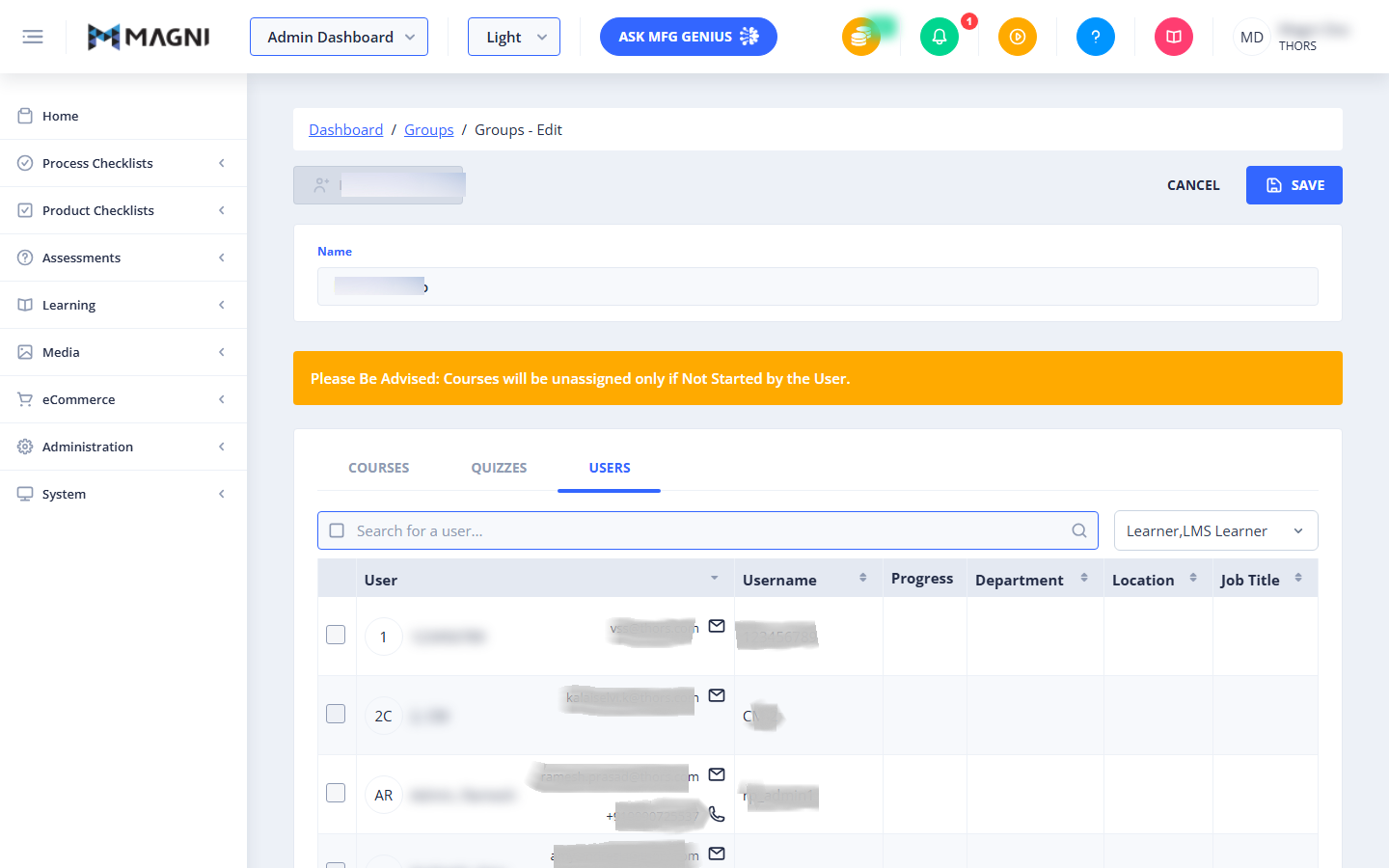
- Search Bar: Filter the user list by typing a user's name or email.
- Role Filter Dropdown: Filter the list by roles (e.g., "Learner, LMS Learner").
- Users Table:
- Selection Checkbox: Select users to add or remove from the group.
- User: Displays the user's avatar, name, email, and phone number.
- Username: Displays the user's unique system username.
- Progress: Shows the user's training progress.
- Department: Displays the user's assigned department.
- Location: Displays the user's physical or organizational location.
- Job Title: Displays the user's job title.
Common Actions
| Action | How to do it |
|---|---|
| Edit Group Name | Type the new name in the Name field and click Save. |
| Assign/Unassign Courses | Navigate to the Courses tab, select or deselect the checkboxes next to the courses, and click Save. |
| Set Group Passing Threshold | Navigate to the Quizzes tab, enter a percentage in the threshold field, and click Save. |
| Configure Auto-Assignment | Navigate to the Quizzes tab, enter a percentage in the Group-level auto-assign threshold per course field, and click Save. |
| Add Notification Email | Navigate to Quizzes > Quiz Notifications > Emails, enter the email address, and click add. |
| Remove Notification Email | Navigate to Quizzes > Quiz Notifications > Emails, locate the email in the list, and click Remove. |
Tips
- Verify Course Progress Before Unassigning: Remember that courses can only be unassigned from users if they have not yet started them. Check user progress in the Users tab before making changes.
- Understand Threshold Priority: Group-level passing thresholds are a convenient baseline, but quiz-level passing thresholds will always override them. Set thresholds at the individual quiz level for precise control.
- Leverage Auto-Assignment: Use the group-level auto-assign threshold to automatically assign remedial courses to learners who struggle with specific quiz topics, ensuring targeted learning paths.