Tags — List
Last updated on: 2026-05-26 | Updated by: MAGNI Docs Team
The Tags page allows administrators to manage and organize the taxonomy used across the Magni LMS platform. By creating and managing tags, you can categorize courses, assessments, and other learning assets, making them easier to search, filter, and report on.
👤 Visible to: Administrators
Overview
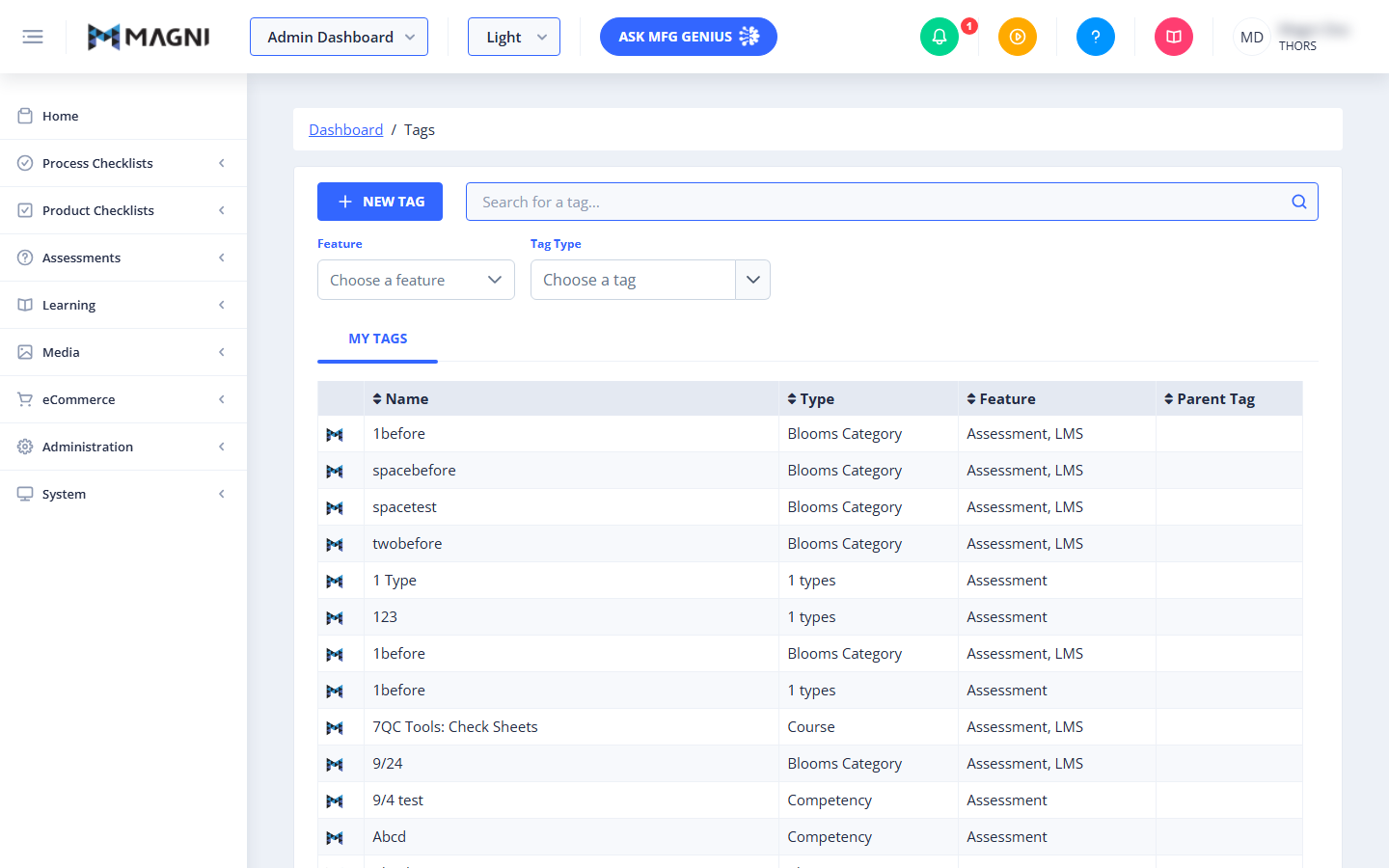
The Tags page provides a centralized interface to view, search, filter, and create tags. Organized tags help maintain a clean structure for your learning content and assessments.
Page Sections
The Tags page is divided into three main functional areas: the Action Bar, the Filters, and the Tags Table.
Action Bar
The top section of the page contains tools to create and search for tags.
- + NEW TAG Button: Click this button to open the creation form and add a new tag to the system.
- Search Bar: Allows you to quickly find specific tags by typing their name.

Filters
Use the dropdown filters to narrow down the list of displayed tags based on specific criteria:
- Feature Dropdown: Filters the tag list by the specific system feature they are associated with (such as Assessment or LMS).
- Tag Type Dropdown: Filters the list by the classification of the tag (such as Blooms Category, Competency, or Course).
My Tags Table
The main table displays all tags matching your current search and filter criteria. You can sort the table by clicking on any of the column headers:
- Name: The display name of the tag.
- Type: The classification category assigned to the tag.
- Feature: The system features where this tag is available for use.
- Parent Tag: The parent category if the tag is part of a hierarchical structure.
Common Actions
| Action | How to do it |
|---|---|
| Create a New Tag | Click the blue + NEW TAG button at the top left of the page to open the tag creation form. |
| Search for a Tag | Type the name of the tag into the Search for a tag... input field. The list will update automatically. |
| Filter by Feature | Click the Choose a feature dropdown and select the desired system feature. |
| Filter by Tag Type | Click the Choose a tag dropdown under the Tag Type label and select the desired category. |
| Sort the Tag List | Click any column header (Name, Type, Feature, or Parent Tag) to toggle between ascending and descending order. |
Tips
- Establish Naming Conventions: Before creating tags, establish a clear naming convention with your team to avoid duplicate or confusing tags (for example, deciding whether to use singular or plural nouns).
- Use Hierarchies: Utilize the Parent Tag relationship to group related tags together, which helps keep your taxonomy organized and easier to navigate.
- Filter Before Searching: If you have a large number of tags, select a Feature or Tag Type filter first to narrow down your search results more quickly.