Tags — Create
Last updated on: 2026-05-26 | Updated by: MAGNI Docs Team
The Tags — Create page allows administrators to establish new tags to organize, categorize, and filter courses, content, and other resources within the Magni platform. This page is used by Administrators and System Administrators to build and maintain the platform's organizational taxonomy.
Overview
Creating structured tags helps learners and administrators quickly locate relevant training materials. By defining a tag's name, type, and hierarchical relationships, you can create a robust classification system tailored to your organization's training needs.
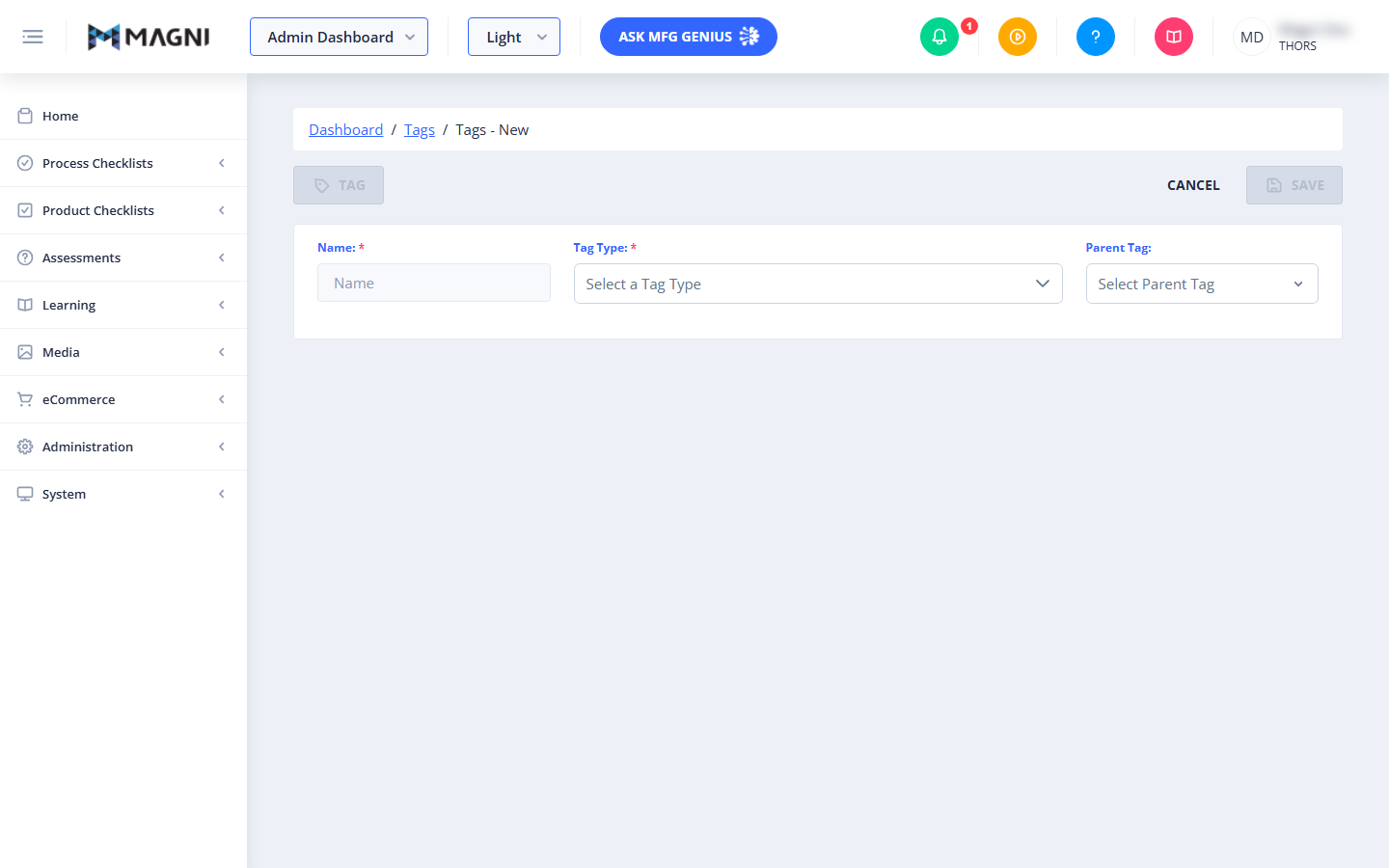
Page Sections
Header Actions
The header bar contains the primary navigation and save controls for the tag creation process.
- Tag Indicator: A non-interactive button on the left that displays a tag icon. It dynamically updates to show the name of your tag as you type it in the form. If no name is entered, it displays "Tag".
- Cancel: Discards your current progress and returns you to the Tags list page.
- Save: Saves the new tag to the system. This button is only active once all required fields are filled out correctly.
👤 Visible to: Users with tag creation and update permissions.
Basic Tag Information
This section contains the core details required to define the tag.
- Name (Required): The display name for the tag. This should be clear and descriptive for both learners and administrators.
- Tag Type (Required): A dropdown menu used to classify the tag's purpose.
- Filtering & Searching: Within the dropdown, you can filter tag types by a specific platform feature or use the search box to find a tag type by name.
- THORS Branding: Tag types associated with THORS content will display a small Magni logo next to their name.
- Parent Tag (Optional): Allows you to establish a hierarchical relationship by nesting this tag under an existing tag. The available options in this dropdown are automatically filtered based on the selected Tag Type.
Conditional Settings (Course Tag Type)
If you select Course as the Tag Type, a tabbed interface appears below the basic information fields to configure additional course-related links.
Hyperlink Tab
- Hyperlink: Enter an external web address (for example,
https://www.magni.ai) that you want to associate with this course tag.
Video Link Tab
- Video Selection: If your account has video features enabled, you can select an associated video using the search and selection tool.
- Upgrade Notice: If your account does not support video features, a warning banner will appear advising you to contact sales@magni.ai to upgrade your subscription.
Conditional Settings (Content Tag Type)
If you select Content as the Tag Type, a tabbed interface appears below the basic information fields to configure content associations.
Content Tab
- Content Selection: If your account has content features enabled, you can search for and select a content asset to link to this tag. Once selected, the asset name is displayed on a button; click the "X" icon on this button to remove the association.
- Upgrade Notice: If your account does not support content features, a warning banner will appear advising you to contact sales@magni.ai to upgrade your subscription.
Common Actions
| Action | How to do it |
|---|---|
| Create a basic tag | 1. Enter a name in the Name field. 2. Select a Tag Type from the dropdown. 3. Click the Save button in the top right. |
| Create a nested (child) tag | 1. Select the appropriate Tag Type first. 2. Click the Parent Tag dropdown. 3. Select the existing tag that will serve as the parent. 4. Complete the remaining fields and click Save. |
| Filter Tag Types by feature | 1. Click the Tag Type dropdown. 2. In the filter header, use the Filter by Feature dropdown to narrow down the list of types. |
| Link a video to a Course tag | 1. Select Course in the Tag Type dropdown. 2. Select the Video Link tab. 3. Use the video selector tool to find and link your video. |
Tips
- Establish Tag Types First: Always select your Tag Type before attempting to select a Parent Tag. The parent tag options are dynamically filtered to match the selected type, so choosing the type first ensures you see the correct hierarchy options.
- Use Hierarchies for Better Organization: Group related tags together using the Parent Tag field. For example, you can create a parent tag called "Safety" and nested child tags called "Fire Safety" and "Chemical Safety" to keep your catalog organized.
- Check Feature Availability: If you cannot see the Video Link or Content tabs, or if you see an upgrade warning, verify your subscription level or contact your system administrator to ensure these features are enabled for your account.