Tags — Detail
Last updated on: 2026-05-26 | Updated by: MAGNI Docs Team
The Tags — Detail page provides a comprehensive view of a specific tag configured within the Magni LMS. Administrators use this page to review tag properties, manage associated media or hyperlinks, and see which questions, quizzes, or checklists are currently using the tag.
Overview
Tags help organize and filter content across the platform. This page acts as a centralized dashboard for an individual tag, showing its classification, parent-child relationships, and any linked learning assets.
Page Sections
Breadcrumbs & Action Buttons
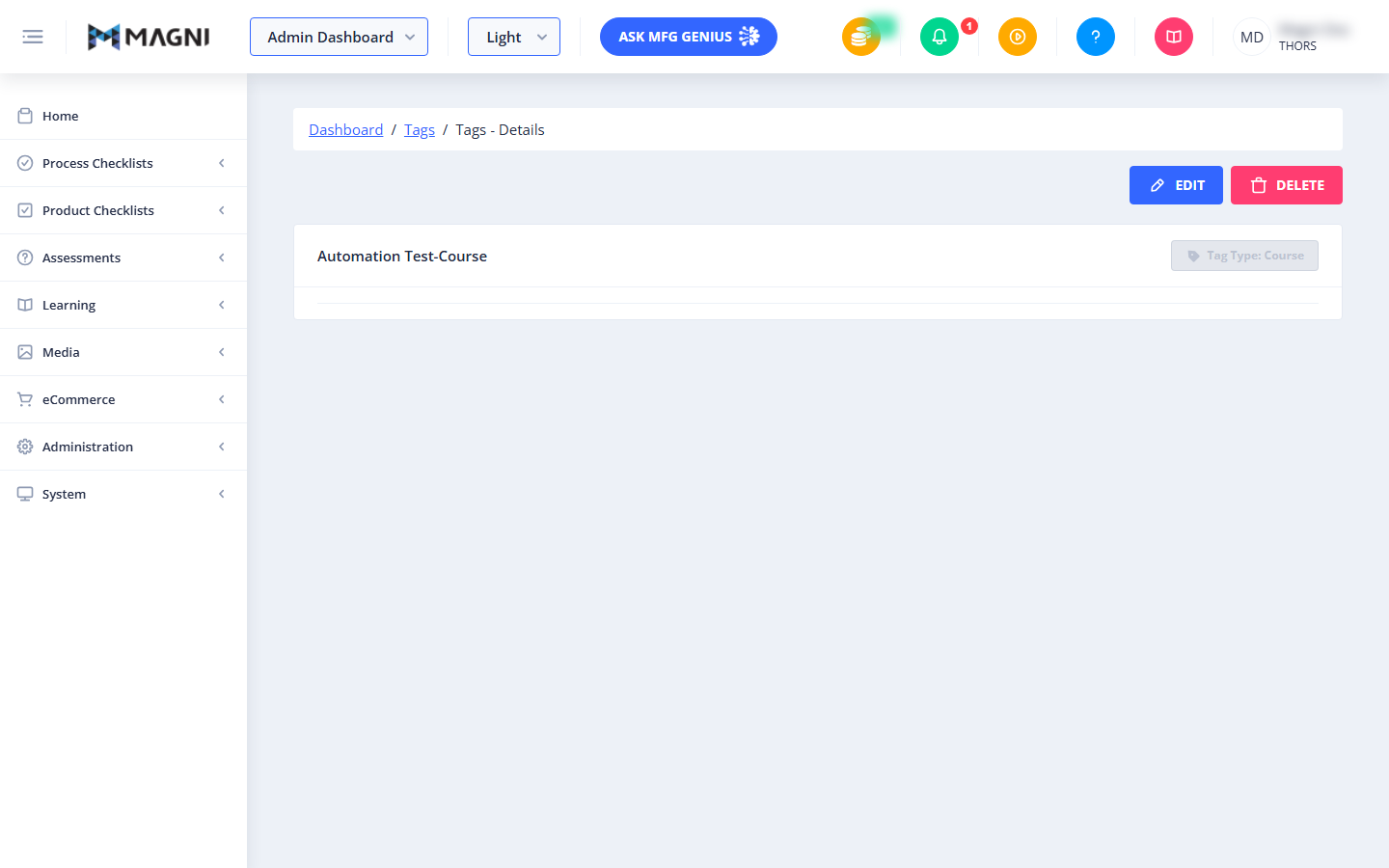
Located at the top of the page, this section allows you to navigate back to the dashboard or the main Tags list. If you have the appropriate permissions, you will also see action buttons to modify or remove the tag.
- Edit Button: Opens the tag edit form to modify its name, type, parent tag, or associated links.
- Delete Button: Triggers a confirmation dialog showing any associated items before permanently deleting the tag.
👤 Permissions: The Edit and Delete buttons are only visible to administrators with tag management privileges.
Tag Header Details
This card header displays the core identifying information for the tag:
- Tag Name: The main label of the tag (e.g., "Automation Test-Course").
- Tag Type: A badge indicating the classification of the tag (e.g., "Tag Type: Course").
- Parent Tag: If this tag is nested under another tag, a badge displaying the parent tag's name will appear here.
Associated Assets & Media
Depending on your subscription features and the tag's configuration, this section displays links to external resources or access controls:
- Hyperlink Button: If a URL is associated with this tag, a full-width button displays the link. Clicking it redirects you to the filtered link destination.
- Video Access Control (VAC): If video features are enabled on your account and a VAC is linked, you will see a button group containing:
- A button to navigate to the Video Access Control detail page.
- A button to navigate directly to the associated video.
- Content Access Control (CAC): If content features are enabled on your account and a CAC is linked, a button will appear to navigate to the Content Access Control detail page.
- Feature Upgrade Alerts: If the tag is configured with video or content access controls but these features are not enabled on your subscription, warning alerts will display with instructions to contact sales at sales@magni.ai to upgrade your account.
Dynamic Tabs
The tabs displayed at the bottom of the page change dynamically based on the tag's feature type:
Questions Tab
This tab is only visible for Assessment-type tags. It displays a list of all assessment questions that currently use this tag.
Quizzes Tab
This tab is only visible for Assessment-type tags. It displays a list of all quizzes that currently use this tag.
Checklists Tab
This tab is only visible for Checklist-type tags. It displays a list of all process or product checklists that currently use this tag.
Common Actions
| Action | How to do it |
|---|---|
| Edit Tag Details | Click the Edit button in the top-right corner to modify the tag's name, type, or associations. |
| Delete a Tag | Click the Delete button in the top-right corner. A confirmation modal will appear listing any associated items. Confirm the deletion to permanently remove the tag. |
| View Associated Questions | Select the Questions tab (available for Assessment tags) to view all questions tagged with this label. |
| View Associated Quizzes | Select the Quizzes tab (available for Assessment tags) to view all quizzes tagged with this label. |
| View Associated Checklists | Select the Checklists tab (available for Checklist tags) to view all checklists tagged with this label. |
Tips
- Check Associations Before Deleting: When you click Delete, Magni will check for any associated items (like questions or checklists) using this tag. Always review this list carefully in the confirmation dialog to avoid accidentally breaking references.
- Leverage Parent Tags: Use parent tags to build hierarchical structures, making it easier to organize and filter complex learning materials.
- Upgrade for Media Features: If you see warning alerts regarding Video or Content Access Controls, contact sales to unlock advanced media tagging capabilities for your organization.