Tags — Edit
Last updated on: 2026-05-26 | Updated by: MAGNI Docs Team
The Tags — Edit page allows administrators to modify the properties of an existing tag within the Magni LMS. Tags are used to categorize, filter, and organize courses, content, and other resources across the platform.
Overview
This page is primarily used by Administrators and Content Managers to update tag details, establish tag hierarchies, and link specific tags to external resources, videos, or content access controls.
Page Sections
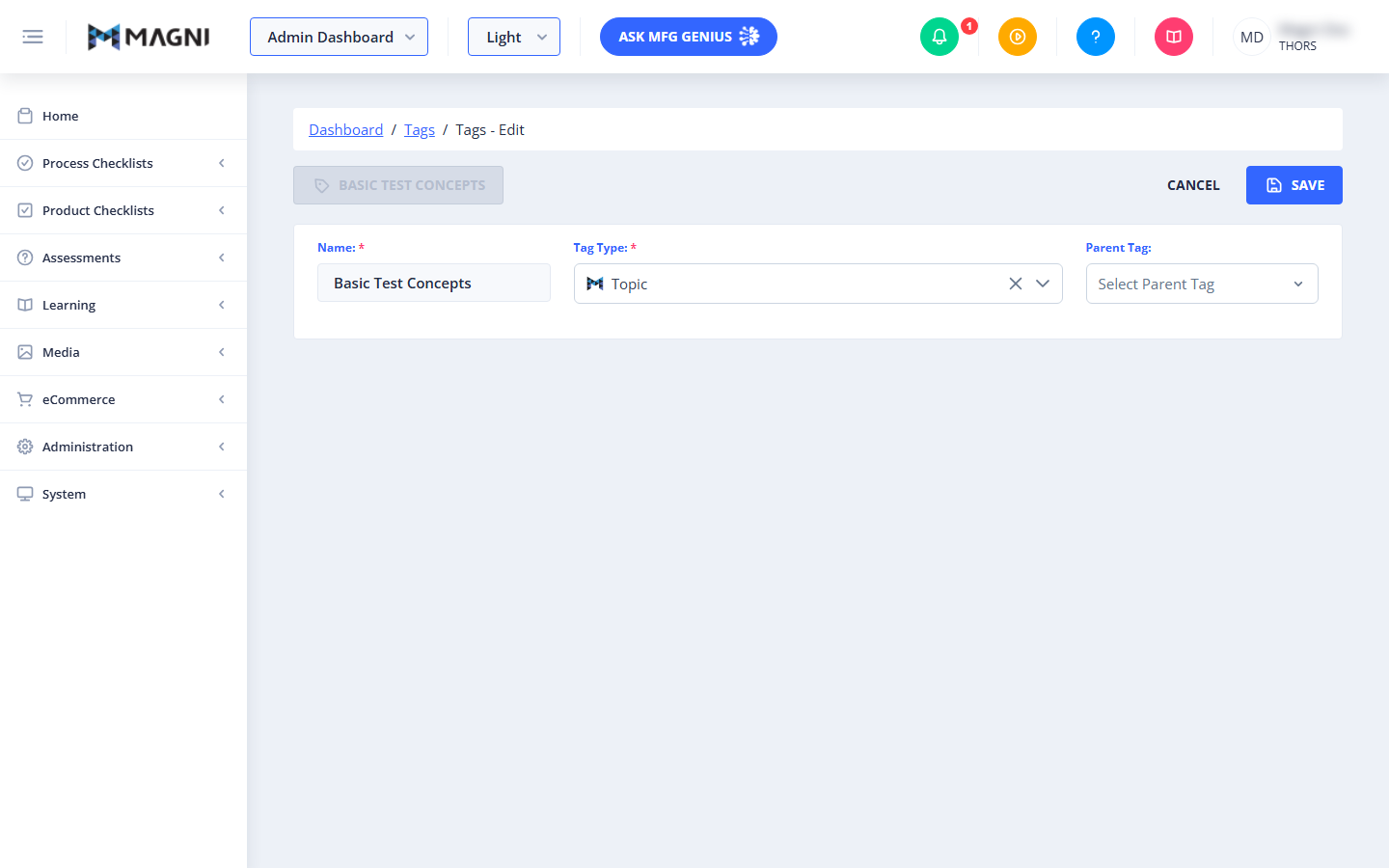
Header Action Bar
The header bar at the top of the page displays the tag's current status and provides primary action buttons.
- Tag Badge: A non-interactive badge on the left displaying the current name of the tag (or "Tag" if the name field is empty).
- Cancel: Click this button to discard any unsaved changes and return to the main Tags list page.
- Save: Click this button to apply and save your changes.
👤 Role Restriction: The Save button is only visible to users with tag update permissions. It remains disabled until all required fields are filled out correctly.
Basic Details Form
This section contains the core fields required to define and organize the tag.
- Name (Required): The display name of the tag. This must be filled in to save the tag.
- Tag Type (Required): The classification category for the tag (e.g., Topic, Course, Content).
- Filtering & Searching: Inside the dropdown, you can filter tag types by their associated feature or use the search bar to find a specific type.
- System Tags: A Magni logo icon appears next to system-provided tag types (such as those managed by THORS).
- Parent Tag (Optional): Allows you to nest this tag under an existing tag of the same type to create a parent-child hierarchy.
Conditional Sections (Based on Tag Type)
Depending on the Tag Type selected, additional configuration tabs will appear at the bottom of the form.
Course Tag Options
This section appears only when the Tag Type is set to Course. It contains two tabs:
- Hyperlink Tab: Allows you to enter an external URL (e.g., https://www.magni.ai) to link the course tag to an external resource.
- Video Link Tab:
- Enabled Video Features: If your account supports video features, you can select and configure video access control settings here.
- Disabled Video Features: If video features are not included in your current plan, a notification badge will appear prompting you to upgrade your account or contact sales@magni.ai.
Content Tag Options
This section appears only when the Tag Type is set to Content. It contains one tab:
- Content Tab:
- Enabled Content Features: If content features are active on your account, you can select and manage content access control (CAC) settings. If a CAC is already selected, you can clear it by clicking the "X" on the content badge.
- Disabled Content Features: If content features are not included in your current plan, a warning alert will appear prompting you to upgrade your account or contact sales@magni.ai.
Common Actions
| Action | How to do it |
|---|---|
| Edit Tag Name | 1. Enter the new name in the Name text field. 2. Click Save in the top right corner. |
| Change Tag Type | 1. Click the Tag Type dropdown. 2. Select a new type (use the feature filter or search bar if needed). 3. Click Save. |
| Set a Parent Tag | 1. Click the Parent Tag dropdown. 2. Select the desired parent tag from the list. 3. Click Save. |
| Link a Course to a Video | 1. Ensure the Tag Type is set to Course. 2. Click the Video Link tab. 3. Select the appropriate video access control option. 4. Click Save. |
| Remove Content Access Control | 1. Ensure the Tag Type is set to Content. 2. Click the Content tab. 3. Click the "X" icon on the active content badge to remove it. 4. Click Save. |
Tips
- Establish Hierarchies: Use the Parent Tag field to create structured, multi-level taxonomies (e.g., nesting "Basic Test Concepts" under a broader "Quality Assurance" parent tag) to make content discovery easier for learners.
- Feature Filtering: When assigning a Tag Type, use the "Filter by Feature" dropdown inside the selector to quickly narrow down your options in systems with numerous custom tag types.
- Check Feature Access: If the Video Link or Content tabs display upgrade warnings, contact your system administrator or the Magni sales team to enable these features for your portal.