Process Checklist Setting — Authorization
Last updated on: 2026-05-26 | Updated by: MAGNI Docs Team
The Process Checklists — Authorization page allows administrators to control access to specific checklists. By enabling authorization, you can restrict checklist access to a selected list of authorized individuals and optionally enable draft sharing among them.
👤 Visible to: Administrators and users with checklist update permissions.
Page Sections
Authorization Settings Header
This section allows you to configure the high-level authorization and sharing settings for the selected checklist.
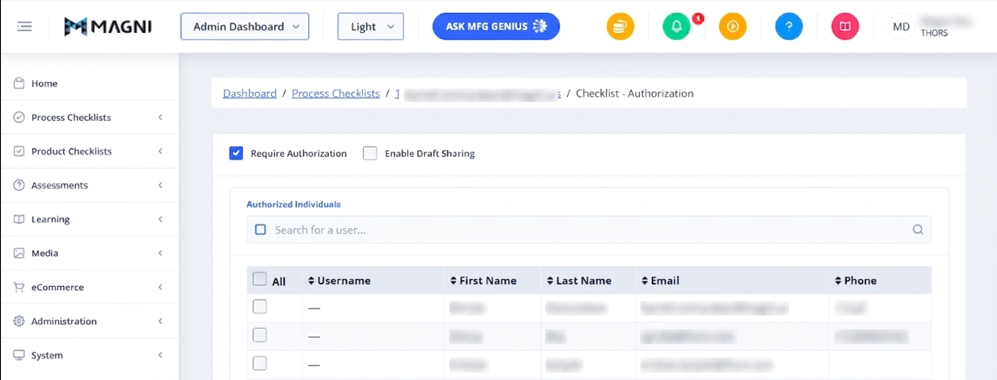
- Require Authorization Checkbox: When checked, this restricts access to the checklist. Only the users selected in the "Authorized Individuals" list below will be able to view and complete this checklist.
- Enable Draft Sharing Checkbox: When checked, authorized users can share in-progress drafts of this checklist. This option is only available and editable when "Require Authorization" is enabled.
- Show Locked Draft Submissions Button: This button appears dynamically at the top right of the header if there are active locked draft submissions that require administrative review.
Feature and Limit Warnings
Depending on your organization's subscription and settings, you may see the following warning banners:
- Feature Not Enabled: Appears if Process Checklists, Product Checklists, or their respective Authorization/Draft Sharing features are disabled at the system level.
- Limit Exceeded: Appears if your organization has reached its limit for authorized checklists or draft-sharing checklists.
Authorized Individuals
This section becomes visible only when the Require Authorization checkbox is enabled. It allows you to search, filter, and select the specific users who should have access to the checklist.

- Toggle Selected Button: Located on the far left of the search bar, this button allows you to filter the list to show only the users who are currently authorized.
- Search Input: Type a user's name, username, or email to filter the list of users.
- User Table: Displays a list of users with the following columns:
- All (Checkbox): Selects or deselects all users currently visible in the list.
- Username: The user's unique login username (sortable).
- First Name: The user's first name (sortable).
- Last Name: The user's last name (sortable).
- Email: The user's registered email address.
- Phone: The user's registered phone number.
Common Actions
| Action | How to do it |
|---|---|
| Enable Checklist Authorization | Check the Require Authorization checkbox at the top of the page. |
| Enable Draft Sharing | 1. Ensure Require Authorization is checked. 2. Check the Enable Draft Sharing checkbox. |
| Authorize a User | 1. Find the user in the Authorized Individuals table (use the search bar if needed). 2. Check the box next to their username. |
| De-authorize a User | 1. Find the user in the Authorized Individuals table. 2. Uncheck the box next to their username. |
| Authorize All Users | Click the checkbox in the header row of the table under the All column to select all listed users. |
| Filter by Authorized Users Only | Click the square checkbox icon on the left side of the Search for a user... input field to toggle between viewing all users and viewing only authorized users. |
Tips
- Quickly Review Access: Use the toggle button on the left of the search bar to quickly filter the table and review exactly who has access to the checklist without scrolling through unauthorized users.
- Draft Sharing Dependency: If you decide to disable "Require Authorization", "Enable Draft Sharing" will automatically be disabled as well, since draft sharing requires a defined group of authorized users.
- Sorting: Click on the Username, First Name, or Last Name column headers to sort the list alphabetically to find users more easily.