Process Checklist — Revisions
Last updated on: 2026-05-26 | Updated by: MAGNI Docs Team
The Process Checklists Revisions page allows administrators and authorized users to view the complete version history of a specific process checklist. Users can track changes over time, see who modified each version, and restore previous versions either as a draft or directly as the active published version.
Page Sections
Breadcrumb Navigation
The breadcrumb trail at the top of the page allows you to easily navigate back to the Dashboard, the main Process Checklists list, or the specific checklist you are currently viewing.
Revisions Table
The revisions table lists all saved historical versions of the checklist, with the active version displayed at the bottom of the list.
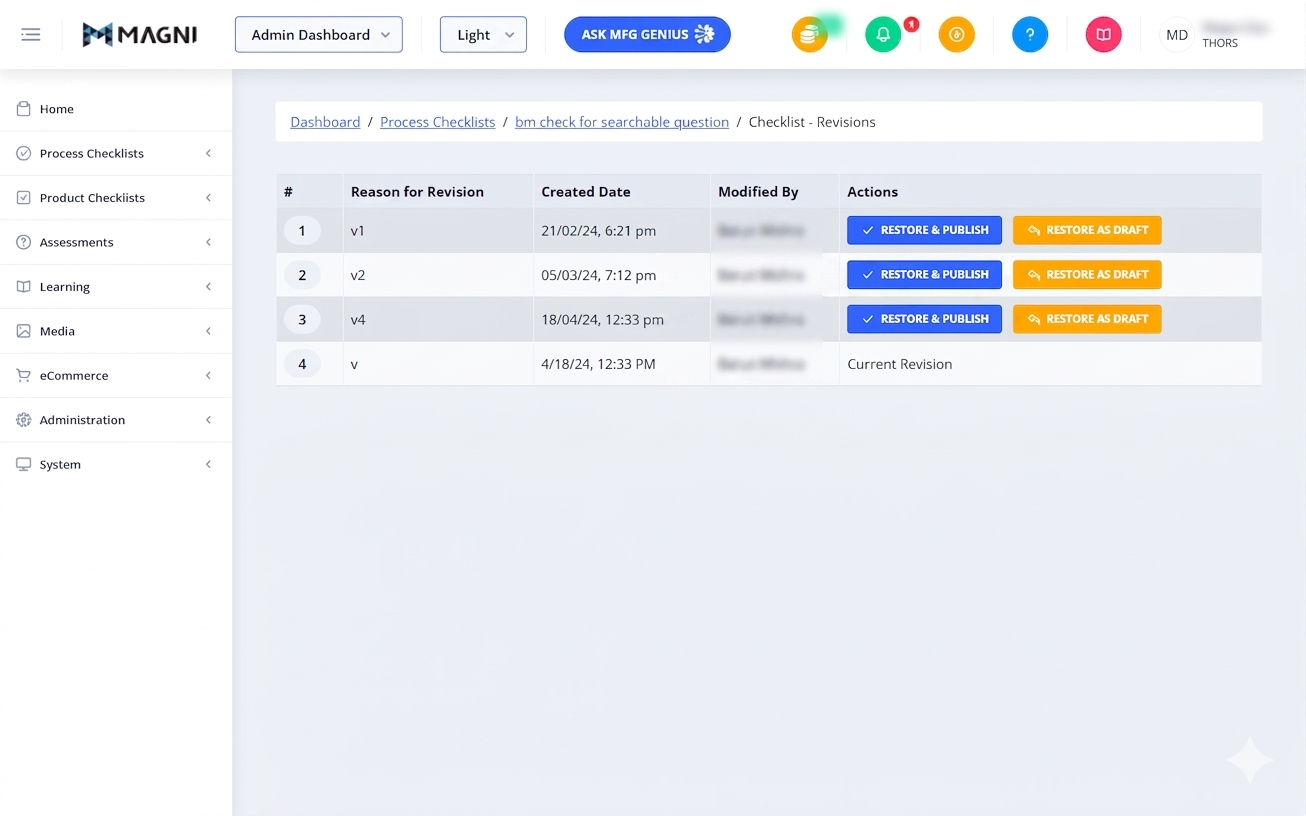
- # (Revision Number): Displays the version number of the checklist. Clicking on the version number tag opens a read-only view of that specific historical version.
- Reason for Revision: Displays the explanation entered by the author when the revision was saved or published.
- Created Date: Displays the date and time when the revision was created.
- Modified By: Displays the first and last name of the user who created the revision.
- Actions: Displays actions available for managing older revisions.
👤 Visible to: Users with checklist update permissions.
- Restore & Publish: Restores the selected historical version and immediately publishes it, overriding the current active checklist.
- Restore as Draft: Restores the selected historical version as a draft. This allows you to make further edits before publishing.
- Note: This button is disabled if a draft version of the checklist already exists. A tooltip reading "Draft already created" will appear when hovering over the disabled button.
- Current Revision: The row representing the currently active checklist displays "Current Revision" instead of action buttons.
System Alerts and Error Messages
- Feature Not Enabled: If process checklists are not enabled for your organization, a "Feature Not Enabled" message will display instead of the revisions table.
- Checklist Limit Exceeded: If you attempt to publish a restored checklist but your account has reached its maximum checklist limit, a red warning alert will appear at the top of the page.
Restore Checklist Dialog
This confirmation dialog appears when you click the Restore as Draft button. It prompts you to confirm that you want to restore the selected version as a draft.
- Restore Button: Confirms the action and redirects you to the checklist builder to edit the newly created draft.
- Cancel Button: Closes the dialog without making any changes.
Restore & Publish Checklist Dialog
This dialog appears when you click the Restore & Publish button. Because publishing overrides the currently active checklist, this action requires confirmation and documentation.
- Reason for Revision Textarea: A required text field where you must enter the reason for restoring and publishing this version. The field supports up to 1024 characters.
- Restore & Publish Button: Overrides the current checklist and publishes the selected version. This button remains disabled until you type a reason in the text area.
- Cancel Button: Closes the dialog without making any changes.
Common Actions
| Action | How to do it |
|---|---|
| View a historical revision | Click the revision number tag in the # column to open the read-only historical view of that version. |
| Restore a version as a draft | Click Restore as Draft next to the desired revision, then click Restore in the confirmation dialog. |
| Restore and immediately publish a version | Click Restore & Publish next to the desired revision, enter a reason for the revision in the text area, and click Restore & Publish to confirm. |
Tips
- Check for Existing Drafts: If the Restore as Draft button is greyed out, it means an active draft already exists for this checklist. You must either publish or delete the existing draft before you can restore another historical version as a draft.
- Review Before Restoring: Always click the revision number in the # column to review the contents of an older version before restoring it. This ensures you are restoring the correct version.
- Write Clear Revision Reasons: When restoring and publishing, write a descriptive reason in the dialog box. This helps other administrators understand why an older version was reinstated when they review the revision history in the future.