Process Checklist — Edit
Last updated on: 2026-05-26 | Updated by: MAGNI Docs Team
The Process Checklists — Edit page allows administrators and checklist managers to modify existing process checklists within the Magni LMS. Users can update general checklist information, organize sections, define questions, configure answers, and manage labels to ensure standard operating procedures are accurately captured.
👤 Visible to: Administrators and Checklist Managers
Page Sections
Breadcrumb & Toolbar
Located at the top of the page, this section provides navigation back to the checklist list and action buttons to manage your progress.
- Breadcrumb Navigation: Displays the current path and allows you to quickly navigate back to the main Process Checklists list.
- Save Draft Button: Saves the current changes to the database without publishing them. This button is disabled while a save operation is in progress.
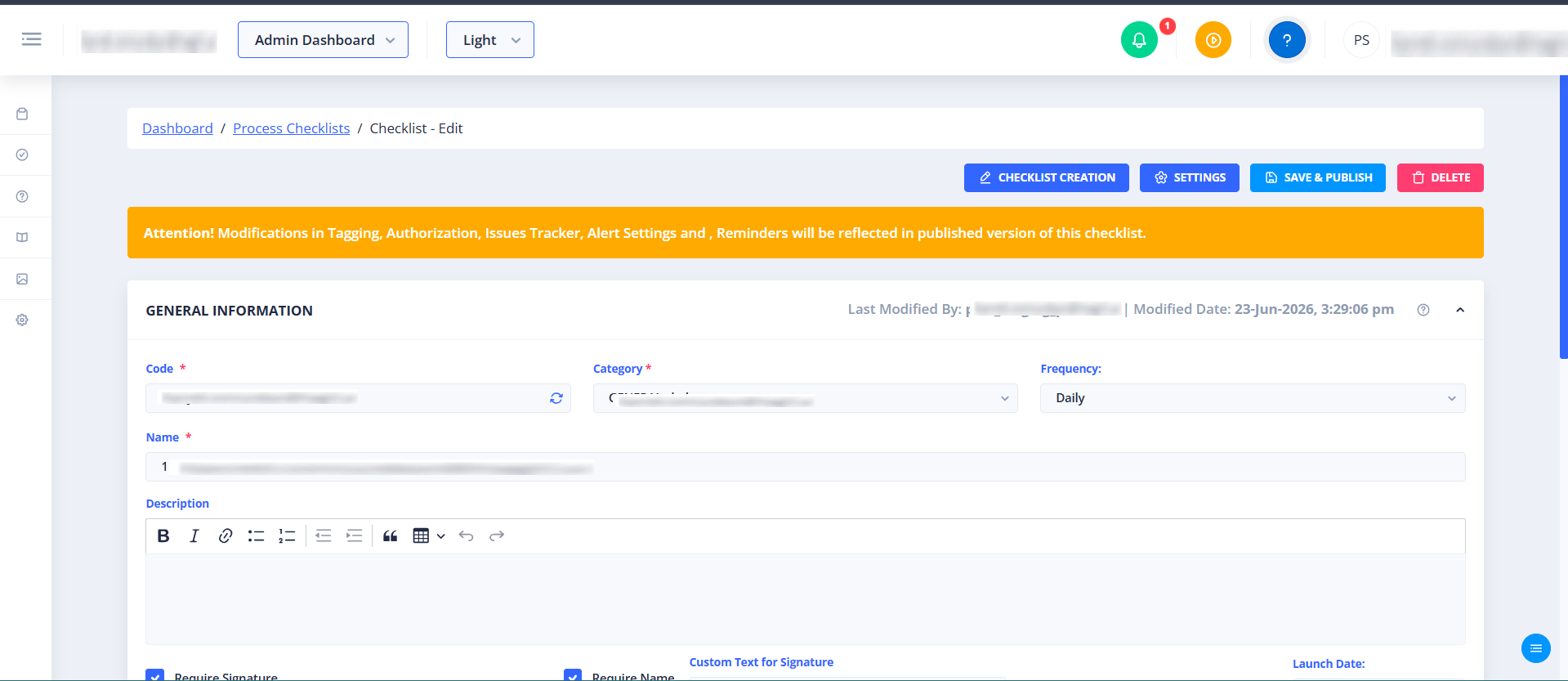
Checklist Header (General Information)
This section contains the core identification and configuration fields for the process checklist.
- Code (Required): A unique alphanumeric identifier or code for the checklist.
- Name (Required): The descriptive title of the checklist.
- Description (Optional): A brief explanation of the checklist's purpose or instructions for completion.
- Footer (Optional): Custom text that appears at the bottom of the checklist.
- Footer Position (Optional): Determines where the footer text is displayed relative to the signature line (defaults to "Before Signature").
- Signature Name (Optional): The label or name for the signature field if a signature is required upon completion.
Checklist Labels
This section allows you to manage and translate labels used throughout the checklist. You can select your preferred language to view and edit translations for all checklist elements.
Checklist Metadata
This section contains classification details to help organize and filter checklists across the system.
- Category: Assigns the checklist to a specific organizational category.
- Tags: Allows you to add searchable tags to the checklist.
- Template Toggle: Mark this checklist as a template to allow it to be copied and reused for other processes.
Checklist Sections & Questions
The main body of the checklist where you build the structure of your process check.
- Sections: Group related questions together. You can add, remove, or reorder sections to match your workflow.
- Questions: Individual items or tasks that the user must complete or answer.
- Answers: Define the acceptable input types or choices (such as Yes/No, text input, or multiple choice) for each question.
Feature Not Enabled State
If the Checklists feature is disabled for your organization, the editing form will be hidden, and a "Feature Not Enabled" message will be displayed instead.
Question Settings
Clicking the settings icon on a question opens the Question Settings dialog, where you can configure how that question behaves and what actions it triggers.
- Alerts & Tracking:
- Alert: When enabled, alerts contacts on unexpected input for this question.
- Enable Issue Tracker: When enabled, unexpected responses to this question automatically create an entry in the Issue Tracker.
- Response Options (User Instructions):
- Required Samples: Sets the number of samples an operator must record for this question.
- Critical To (CT): Marks the question as critical to a specific outcome (for example, "Breakdown"). Marking a question as Critical To also unlocks the Symbols option described below.
- Allow Mode of Check: When enabled, lets the operator select a mode of check (such as "Visual") while responding.
- Allow Gauge/Instrument: When enabled, lets the operator record the name of the gauge or instrument used.
- Comments & Attachments (User Actions):
- Allow Comments: Lets the operator add free-text comments to their response, with an optional comment prompt.
- Allow Photos Upload: Lets the operator attach photos to their response. Includes a Force Camera option to require a live photo instead of a gallery upload.
- Allow Audio Recording: Lets the operator attach an audio recording to their response.
- Allow Documents Upload: Lets the operator attach documents to their response.
- Symbols:
- *Only available when the question contains Critical To (CT).
- Click Select Symbols to open the Media picker and attach symbol images to the question. See Symbols for Critical To (CT) Questions below for the full workflow.
Symbols for Critical To (CT) Questions
When a question is contains Critical To (CT), a Select Symbols button becomes available in the Question Settings dialog. This lets you attach visual symbols to the question, which are later shown wherever that CT question's outcome is communicated. Media Picker — My Media Tab
- Search for an Image: Filter existing media by keyword.
- Filter Tags: Narrow the media results using tags.
- Grid / Table View: Toggle between a visual grid and a tabular list of available symbols.
- Select at Most 5 Images: You can select a maximum of 5 symbols for a single question.
- Confirm Selected: Click this button to attach the selected symbols to the question. The button shows a running count of your current selection, e.g., Confirm Selected (0).
Media Picker — Upload New Media Tab
- Choose Files: Upload a new symbol image from your device.
- Accepted formats:
.png,.jpg,.jpeg. - Maximum file size: 20 KB.
- Save: Uploads the selected file and adds it to your media library, making it available for selection under the My Media tab.
Once symbols are confirmed for a CT question, they are surfaced across all CT-related touchpoints wherever that question's outcome is referenced, including Issue Creation emails, On-Submission emails, Non-Conformance emails, Issues Tracker detail page, Reports, Report Scheduler emails
Common Actions
| Action | How to do it |
|---|---|
| Save Progress | Click the Save Draft button in the top toolbar to save your current changes. |
| Change Footer Position | Select your preferred option from the Footer Position dropdown in the header section. |
| Add a Signature Requirement | Enter a name in the Signature Name field to require a signature upon checklist completion. |
Tips
- Use Templates for Consistency: If you have multiple processes that share similar steps, save your checklist as a template. This allows you to quickly duplicate and modify it for other departments or workflows.
- Save Drafts Frequently: Click Save Draft periodically while building long checklists to ensure you do not lose your progress.