Process Checklist Setting — Reminder Edit
Last updated on: 2026-05-26 | Updated by: MAGNI Docs Team
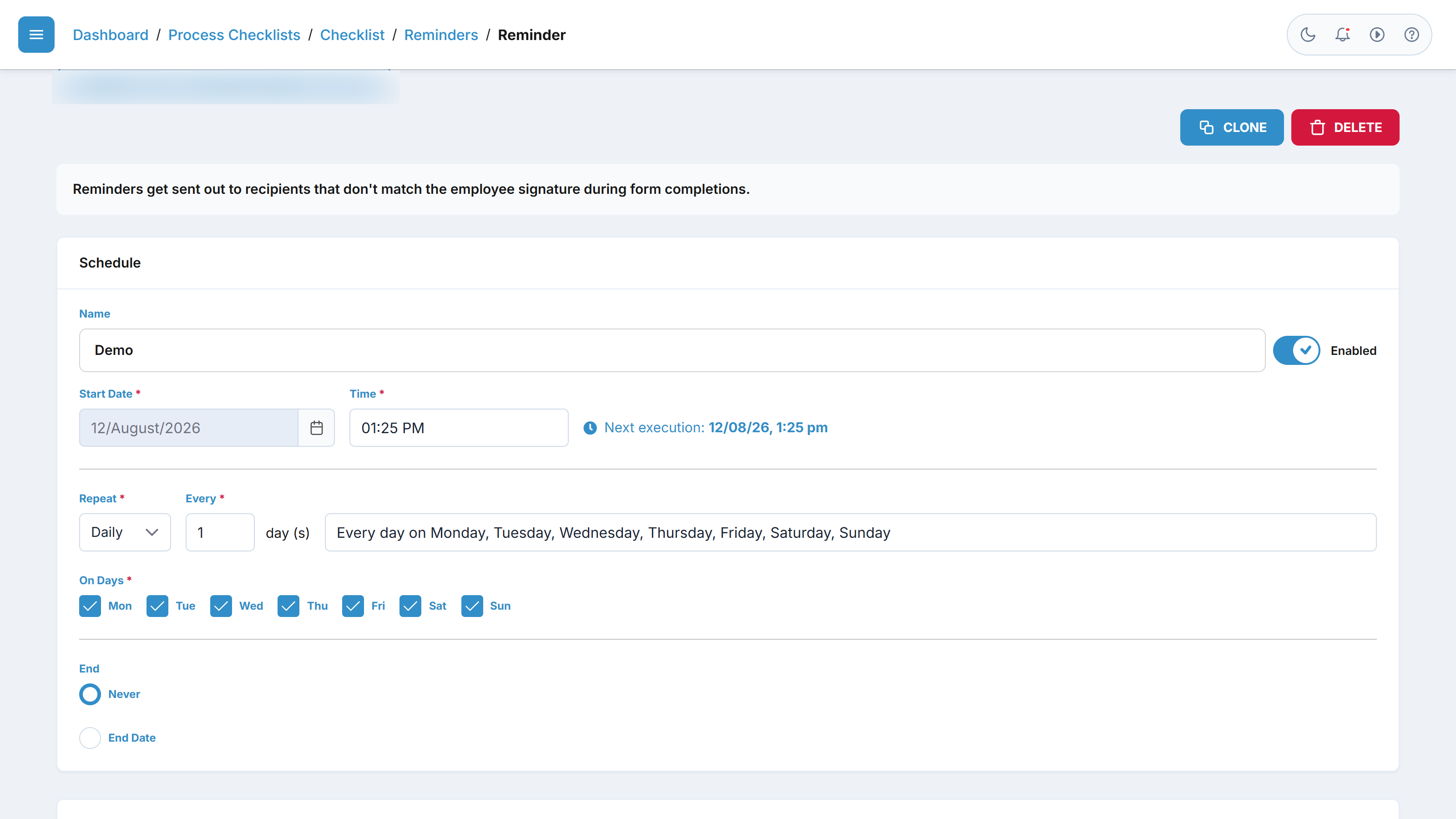
This page allows administrators to configure and manage automated reminder notifications for specific Process Checklists. These reminders help ensure timely completion of checklists by prompting assigned users who have not yet completed their required forms or signatures.
Overview
The Process Checklists — Reminders page is used by system administrators and managers to schedule automated notifications. Reminders are sent out to checklist recipients when form completions do not match the required employee signatures. This ensures that process checklists are completed on time and compliance standards are maintained.
Page Sections
The page consists of breadcrumb navigation, administrative controls, and a detailed scheduling card.
Breadcrumb Navigation
Located at the top of the page, this path allows you to quickly navigate back to the main Dashboard, the Process Checklists list, or the specific checklist associated with this reminder.
Action Controls
Depending on your permissions, you will see administrative actions at the top right of the page.
- Delete Button: Permanently removes the current reminder configuration.
👤 Visible to: Users with Checklist Delete permissions.
Information Alert
A helpful banner is displayed below the action controls to remind you of the system behavior:
- “Reminders get sent out to recipients that don't match the employee signature during form completions.”
Schedule Card
This section contains all configuration options for scheduling and customizing the reminder.
⚠️ Permission Restriction: All fields in this section are read-only if you do not have Checklist Update permissions.
- Name (Required): A text field to define a unique name for the reminder. Maximum length is 100 characters.
- Enabled / Disabled Toggle: A switch to quickly activate or deactivate the reminder without deleting its configuration.
- Start Date: Select the date when the schedule should begin running. This is a required field.
- Time: Specify the exact time of day the report should be generated and emailed. This is a required field.
- Repeat: Select the frequency interval (e.g., Daily, Weekly, Monthly) from the dropdown menu. This is a required field.
- Every: Enter a number to define the interval multiplier (e.g., repeat every "1" day or every "2" days). This is a required field and must be at least 1.
- On Days: Checkboxes for Monday through Sunday. Select the specific days of the week you want the schedule to run.
- End: Choose when the schedule should stop running:
- End Date: Select a specific date. The end date must be on or after the Start Date.
- Never: The schedule will run indefinitely.
Common Actions
| Action | How to do it |
|---|---|
| Enable/Disable a Reminder | Toggle the switch next to the Name field to either Enabled or Disabled. Changes save automatically on blur. |
| Change Schedule Frequency | Enter a number in the Repeat Every field and select an interval type (e.g., Day, Week) from the adjacent dropdown list. |
| Select Active Days | Click the circular weekday buttons (S, M, T, W, T, F, S) to toggle which days the reminder should be sent. A checkmark icon indicates selected days. |
| Delete a Reminder | Click the red Delete button in the top right corner of the page. |
Tips
- Set Realistic End Dates: Always configure an End Date for reminders associated with seasonal or temporary process checklists to prevent automated messages from being sent indefinitely.
- Coordinate Start Times: Set the Start Time during standard working hours to ensure recipients receive notifications when they are most likely to act on them.
- Use Descriptive Names: Give your reminders clear, descriptive names (e.g., "Weekly Safety Checklist - Final Notice") so other administrators can easily understand their purpose from the checklist summary view.