Process Checklist Submissions — List
Last updated on: 2026-05-26 | Updated by: MAGNI Docs Team
The Process Checklists Responses page allows administrators and managers to view, track, and analyze all completed submissions for a specific process checklist. Using this page, you can filter submissions by date ranges, search for specific answers to key questions, and review any bypass reasons provided by operators.
Overview
This page serves as an audit trail and reporting hub for checklist activity. It enables administrators to monitor compliance, verify that checklists are being completed on schedule, and drill down into individual submission details.
Page Sections
Search and Filter Panel
The search panel at the top of the page allows you to narrow down the list of submissions using date ranges and specific question-and-answer criteria.
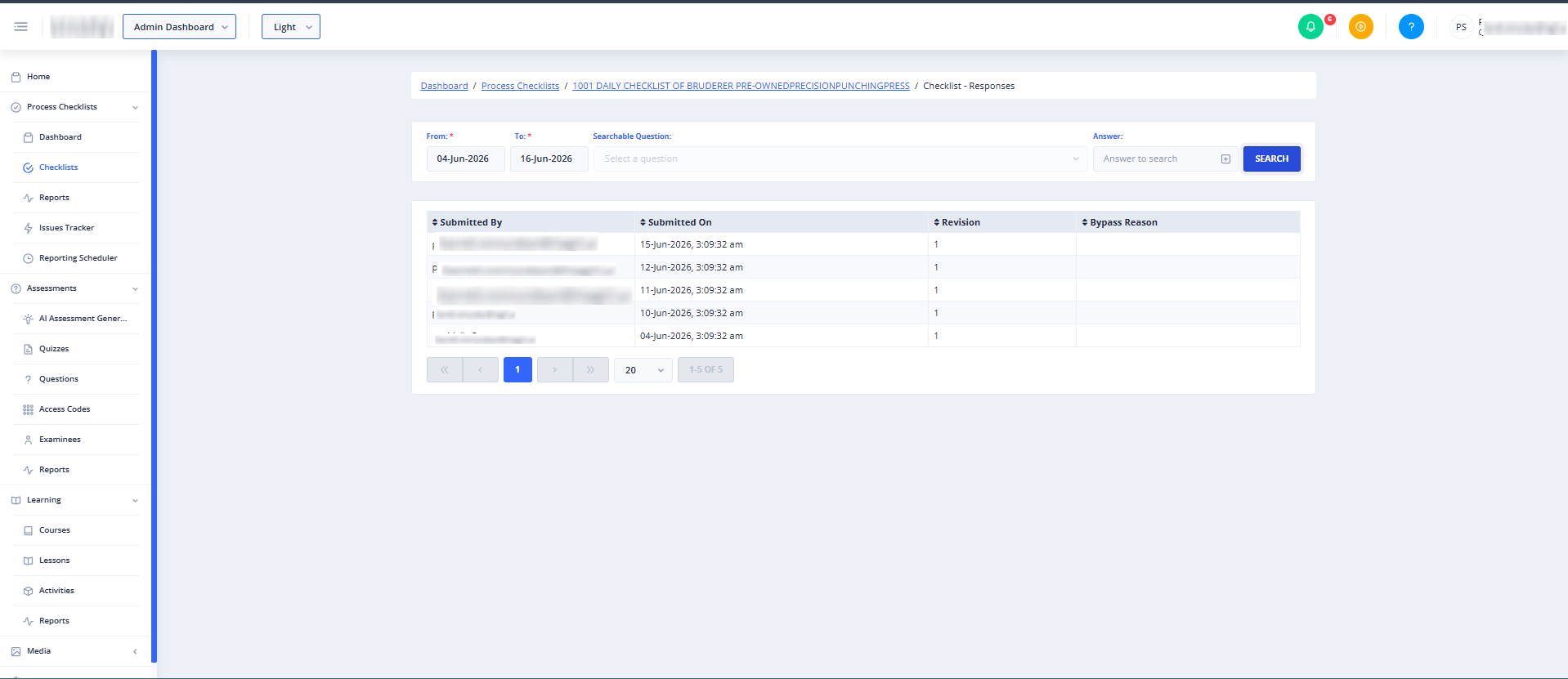
- From (Required): The start date for your search range. You can type a date or use the calendar picker. This date cannot be later than the "To" date.
- To (Required): The end date for your search range. You can type a date or use the calendar picker. This date cannot be earlier than the "From" date.
- Searchable Question: A dropdown menu that lists all questions in the checklist that have been configured as searchable. Questions are grouped by their respective checklist sections. If no questions are configured as searchable, this dropdown will display "No searchable question found."
- Answer: A text input field where you can type the specific answer value you want to find.
- Add Filter Button: Located next to the Answer field, clicking this button (marked with a plus icon) adds your selected question and answer criteria as an active filter tag below the panel.

- Search Button: Applies your date criteria and active filters to update the responses table. This button is disabled if the date range is invalid.
Active Filters
When you add a question-and-answer filter, it appears as a tag below the search panel. You can apply multiple filters at once to narrow your results. To remove an active filter, click the "x" icon on its tag.
Responses Table
The table displays all checklist submissions that match your active search and filter criteria. If no submissions match, the table displays "No records found!".
- Submitted By: Displays the name of the user who completed and submitted the checklist. If an automated email notification failed to send for a submission, an alert icon may appear next to the user's name.
- Submitted On: The date and time when the checklist was submitted.
- Revision: The specific revision version of the checklist that was completed.
- Bypass Reason (Conditional): Displays the reason entered by the operator if they bypassed a mandatory step. This column is visible for all Process Checklists.
Common Actions
| Action | How to do it |
|---|---|
| Filter by Date Range | 1. Select a start date in the From field. 2. Select an end date in the To field. 3. Click Search. |
| Filter by Specific Answers | 1. Select a question from the Searchable Question dropdown. 2. Enter the target answer text in the Answer field. 3. Click the Add Filter (plus) button. 4. Click Search. |
| Clear a Question Filter | Click the "x" icon on the active filter tag below the search panel, then click Search to refresh the list. |
| Sort Submissions | Click any column header with a sort icon (such as Submitted By, Submitted On, or Revision) to toggle between ascending and descending order. |
| View Submission Details | Click anywhere on a submission's row in the table to open its detailed response view. |
Tips
- Configure Searchable Questions: If you frequently need to audit specific checklist items (like temperature readings or safety confirmations), ensure those questions are marked as "Searchable" in the checklist builder so they appear in the dropdown filter.
- Check for Bypasses: Sort the table by the Bypass Reason column to quickly group and review all submissions where operators skipped steps or requirements.
- Date Range Validation: If the Search button is greyed out, double-check your From and To dates to ensure the start date is not set after the end date.