Last updated on: 2026-05-26 | Updated by: MAGNI Docs Team
Process Checklists — Detail
The Process Checklists Detail page allows administrators to create, view, and edit process checklists within the Magni platform. This page is used to define checklist structures, including sections, questions, answers, metadata, and footer configurations.
👤 Visible to: Administrators and System Administrators
Overview
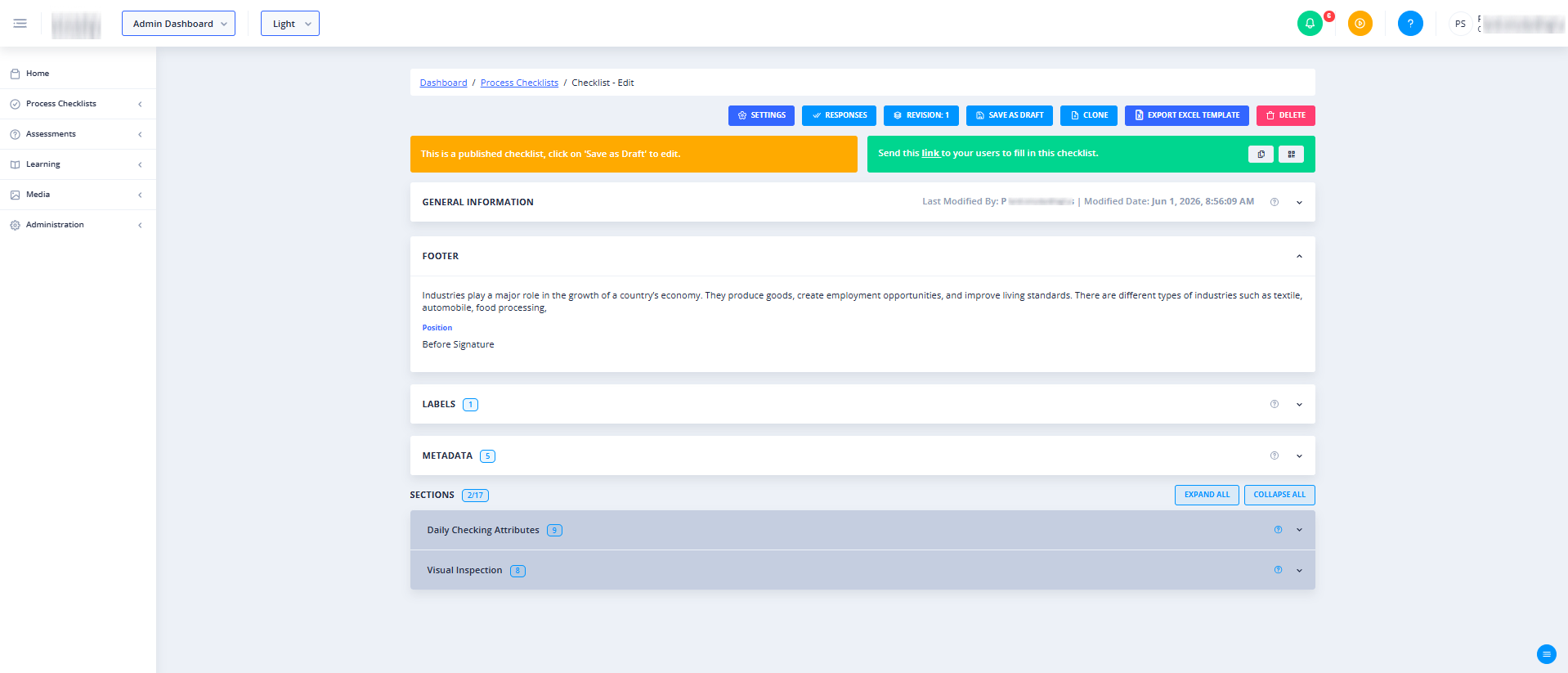
This page provides a comprehensive interface for managing all aspects of a process checklist. Administrators can configure basic information, translate labels for multi-language support, organize questions into sections, define acceptable answers, and set up footer or signature requirements.
Page Sections
Feature Availability Check
If the Checklists feature is not enabled for your organization's account, the checklist editor will be hidden, and a "Feature Not Enabled" message will display.
Checklist Toolbar
Located at the top of the editor, this toolbar provides quick access to high-level actions:
- Save As Draft: Saves your current progress without publishing the checklist.
- Clone: Allows the user to duplicate an existing checklist. The cloned checklist is an exact copy of the original, which can then be modified independently without affecting the source checklist.
General Information
This section contains the core details of the checklist:
- Code (Required): A unique alphanumeric identifier for the checklist.
- Name (Required): The display name of the checklist.
- Description: An optional description explaining the purpose or scope of the checklist.
Labels & Languages
This section allows you to manage localized translations for the checklist. You can define how checklist titles, section headers, and questions appear to users operating in different preferred languages.
Metadata
Use this section to classify and organize your checklist:
- Category: Assign the checklist to a specific operational category.
- Tags: Add searchable tags to help organize and filter checklists across the platform.
Sections & Questions
This is the core builder area where you define the checklist structure:
- Sections: Group related questions together. You can add, reorder, and label sections.
- Questions: Add specific questions or tasks to be completed within each section.
- Answers: Define the input types and acceptable answers for each question (e.g., Pass/Fail, text inputs, or multiple-choice options).
Footer Configuration
This section defines what appears at the bottom of the checklist:
- Footer Text: Custom text, instructions, or legal disclaimers displayed at the end of the checklist.
- Footer Position: Determines where the footer text is positioned relative to the signature area (defaults to "Before Signature").
- Signature Name: An optional field to specify the name or role of the required sign-off authority.
Common Actions
| Action | How to do it |
|---|---|
| Save Progress | Click Save As Draft in the top toolbar to save your changes. |
| Add Sections/Questions | Expand the Sections & Questions area to add new groups or individual checklist items. |
| Configure Signatures | Expand the Footer section and enter a name in the Signature Name field. |
Tips
- Use Unique Codes: Establish a consistent naming convention for your checklist Codes to make them easier to search and filter as your checklist library grows.
- Organize with Sections: For long checklists, group questions into logical sections to make the checklist less overwhelming and easier to complete for field operators.