Process Checklist Submission — Detail
Last updated on: 2026-05-27 | Updated by: MAGNI Docs Team
The Process Checklists — Response Detail page displays the detailed answers, metadata, and compliance outcomes for a completed checklist submission. This page serves as an audit record, allowing administrators, supervisors, and operators to verify compliance, review audit scores, and track corrective actions.
Overview
This page provides a comprehensive view of a single checklist submission. Depending on your user role, you can review operator answers, check for system-generated alerts or warnings, export the response data, or delete incorrect submissions.
Page Sections
Navigation Breadcrumbs
The path displayed at the top of the page adapts dynamically based on your user role and how you navigated to the response:
- Administrators: Dashboard → Process Checklists → [Checklist Name] → Responses → Checklist - Response
- Operators: Dashboard → Checklists → Checklist Submissions → Checklist - Response
- Report Viewers: Dashboard → Checklist Reports → Checklist - Response
- Supervisors: Dashboard → Checklist - Submissions → [Checklist Name] → Checklist - Response
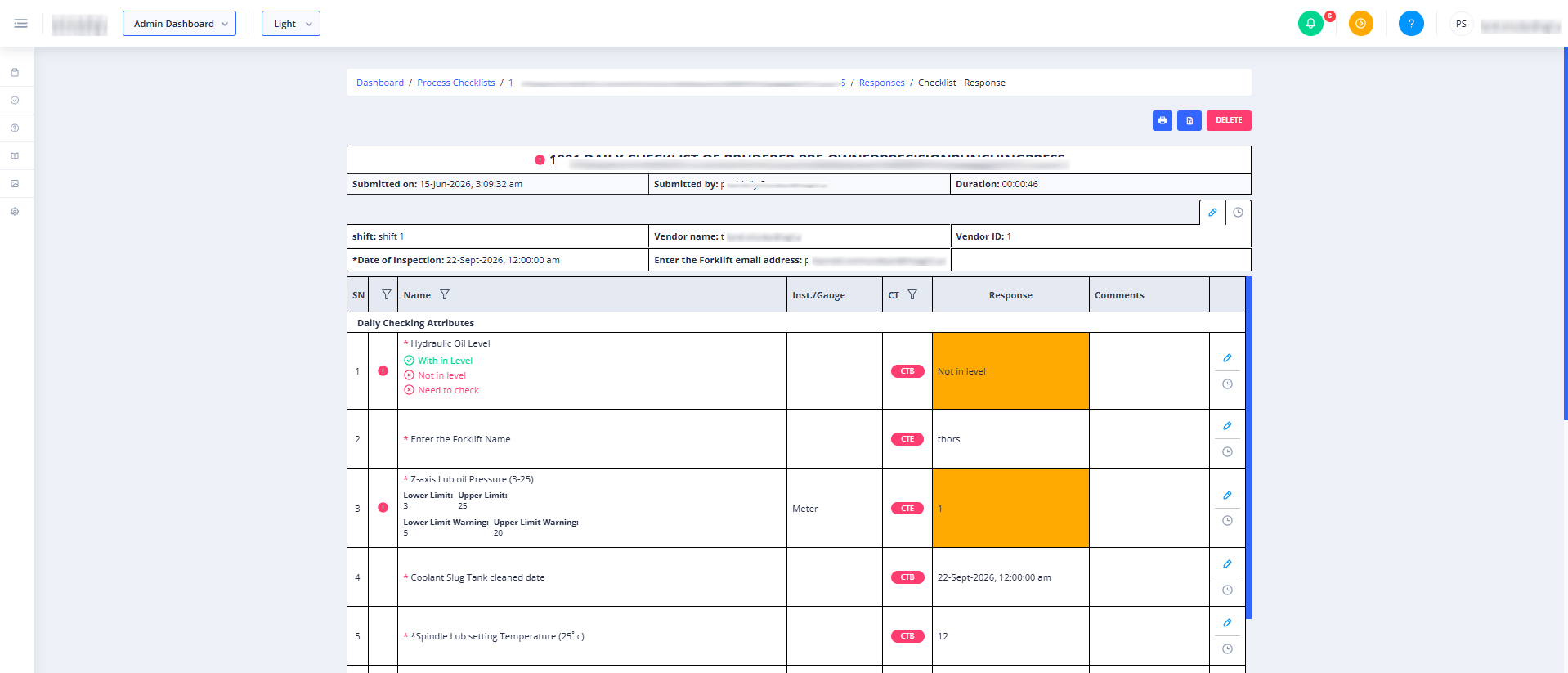
Action Bar
Located at the top-right of the page, this section contains tools for managing, printing, and exporting the submission data.
- Print Button: Click the printer icon to print the response details or save them as a PDF. This button is disabled while the print view is loading and is not available if the submission was bypassed.
- Export to Excel Button: Click the Excel icon to download the response data as an Excel spreadsheet. This button is not available if the submission was bypassed.
- Delete Button: Permanently deletes the checklist submission from the system.
👤 Visible to: Administrators only.
Checklist Submission Header
This section displays the high-level metadata and compliance indicators for the submission.
- Alert and Warning Badges:
- A red alert icon appears if the submission triggered a critical compliance alert.
- A yellow warning icon appears if the submission triggered a non-critical warning.
- Email Status Indicator: A red envelope icon appears if the automated notification email failed to send upon submission.
- Checklist Name and Description: Displays the official name of the checklist and any introductory instructions or descriptions.
- Audit Score Tag: If the checklist is categorized as an audit, a status tag displays the calculated audit score.
- Submitted On: Displays the exact date and time the operator submitted the checklist.
Response Details and Sections
This area displays the questions grouped by their respective sections, along with the answers provided during submission. Depending on the checklist's configuration, this section may also display:
- Comments: Written notes provided by the operator for specific questions.
- Voice Comments: Audio recordings attached to answers.
- Documents and Images: Uploaded files, photos, or reference materials attached to questions.
- History: A log of changes or previous revisions for the response.
Common Actions
| Action | How to do it |
|---|---|
| Print Checklist Responses | Click the Printer icon in the top-right action bar to open your browser's print dialog. |
| Export to Excel | Click the Excel icon in the top-right action bar to download the response data as a spreadsheet. |
| Delete a Submission | 1. Click the red Delete button in the top-right action bar. 2. Confirm the deletion in the confirmation dialog. |
Tips
- Watch for Alert Icons: When reviewing a large volume of responses, look for the red alert and yellow warning icons in the header to quickly identify submissions that require immediate corrective action.
- Check the Email Status: If a supervisor claims they did not receive an automated notification for a submission, check the header for the red envelope icon to verify if the email failed to send.
- Export for Offline Audits: Use the Export to Excel feature to compile offline compliance reports or to share submission data with external auditors who do not have access to Magni.