Users — List
Last updated on: 2026-05-26 | Updated by: MAGNI Docs Team
The Users page allows administrators to manage and monitor all user accounts within the Magni LMS. From this central hub, you can search for specific accounts, view user statuses, export user lists, and access bulk import tools.
👤 Visible to: Administrator, System Administrator
Page Sections
Search and Action Controls
This section at the top of the page provides tools for finding users, exporting data, and managing bulk imports.
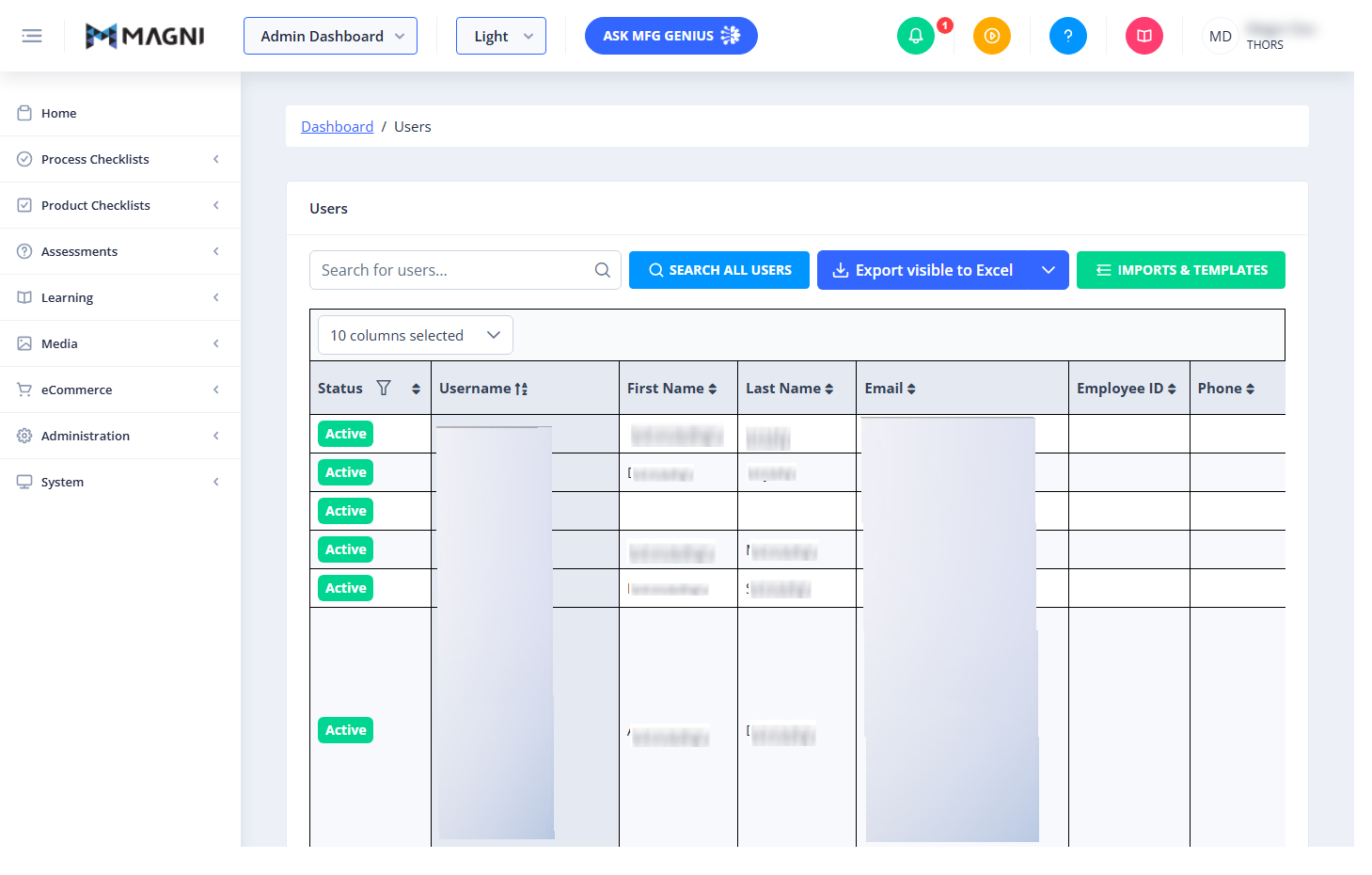
- Search Input: Type a username, name, or email address to quickly find a specific user.
- Search All Users Button: Executes the search query across the entire user database.
- Export visible to Excel: Downloads the currently displayed list of users as an Excel spreadsheet.
- Imports & Templates: Opens the interface for importing users in bulk and downloading import templates.
Users Table
The main table displays a customizable list of user accounts and their primary details.
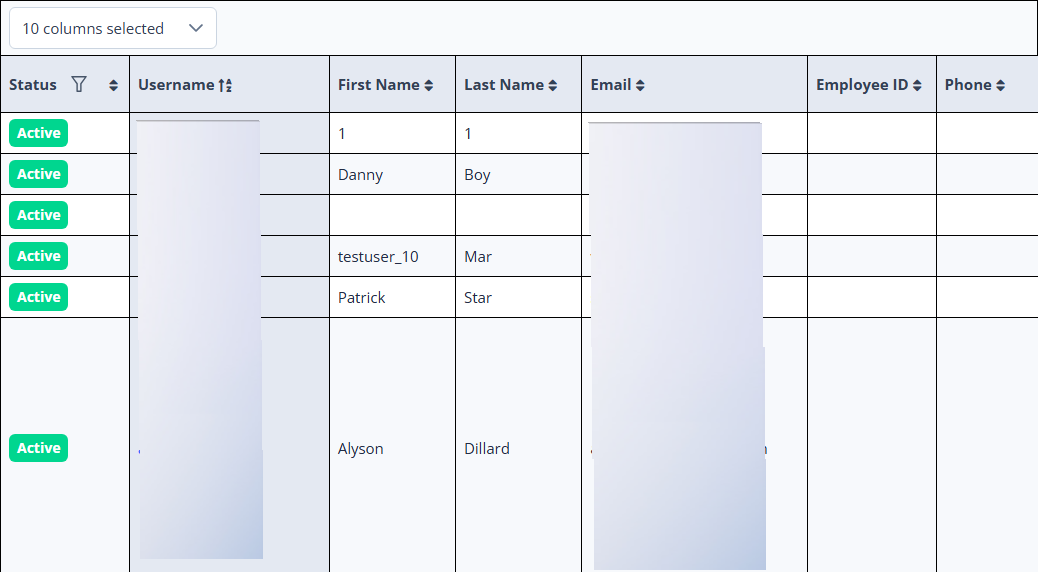
- Column Selector Dropdown: Located above the table (labeled "10 columns selected" by default). Click this to check or uncheck columns to customize your table view.
- Status Column: Displays whether the user account is Active or Inactive. Click the filter icon next to the column header to filter the list by status.
- Username Column: Displays the unique username for each account. Click any blue username link to view or edit that user's full profile.
- First Name & Last Name Columns: Display the user's first and last names. You can sort these columns alphabetically using the up/down arrows.
- Email Column: Displays the user's registered email address.
- Employee ID Column: Displays the user's unique employee identification number, if assigned.
- Phone Column: Displays the user's contact phone number, if provided.
Common Actions
| Action | How to do it |
|---|---|
| Search for a user | Type a name, username, or email into the Search for users... field and click SEARCH ALL USERS. |
| View or edit a user profile | Click on the blue link in the Username column for the user you want to manage. |
| Filter users by status | Click the filter icon next to the Status column header and select the desired status (e.g., Active). |
| Export user list | Click the Export visible to Excel button to download the currently filtered list. |
| Import users in bulk | Click the IMPORTS & TEMPLATES button to upload a user list or download a template. |
| Sort the user list | Click the up/down arrows next to any column header (such as Username, First Name, or Last Name) to sort the table. |
Tips
- Tailor Your View: Use the column selector dropdown to hide columns you don't need, such as Phone or Employee ID, to make the table easier to read on smaller screens.
- Filter Before Exporting: If you only need a list of active users, filter the Status column to "Active" first before clicking Export visible to Excel to keep your spreadsheet clean.
- Use Templates for Bulk Uploads: When adding multiple users at once, always click IMPORTS & TEMPLATES to download the official template first. This ensures your data is formatted correctly and prevents import errors.