Users — Edit Quizzes
Last updated on: 2026-05-26 | Updated by: MAGNI Docs Team
The Users — Assign page allows administrators to manage quiz assignments for a specific user. From this page, you can assign new quizzes or remove existing quiz assignments to customize the user's learning path.
Page Sections
Breadcrumbs and Action Header
The top of the page displays breadcrumbs showing your current path: Dashboard > Users > [User's Name] > Assign Quizzes.
To the right of the breadcrumbs, the following action buttons are available:
- Cancel: Discards any pending assignment changes and returns you to the user's profile page.
- Save: Saves all quiz assignment additions and removals. This button is only enabled when you have made at least one change (selected or deselected a quiz) and have not yet submitted the form.
👤 Role Restriction: The Save button is only visible to administrators with user update permissions.
Assign Quizzes Search and Filters
Use this section to quickly locate the quizzes you want to assign or remove.

- Search Bar: Type a quiz name in the "Search for a quiz..." input field to filter the list dynamically.
- Tag Type: Filter quizzes by selecting a specific category of tags from this dropdown menu.
- Tags: Narrow down the list further by selecting specific tags associated with the quizzes.
- Expand Button: Click the blue expand icon on the far right of the search bar to expand the search panel view.
Quiz Tabs and Selection Table
The main table displays all available quizzes. You can toggle between two tabs to find quizzes:
- My Quizzes: Displays custom quizzes created by your organization.
- System Quizzes: Displays pre-configured quizzes provided by the Magni system.
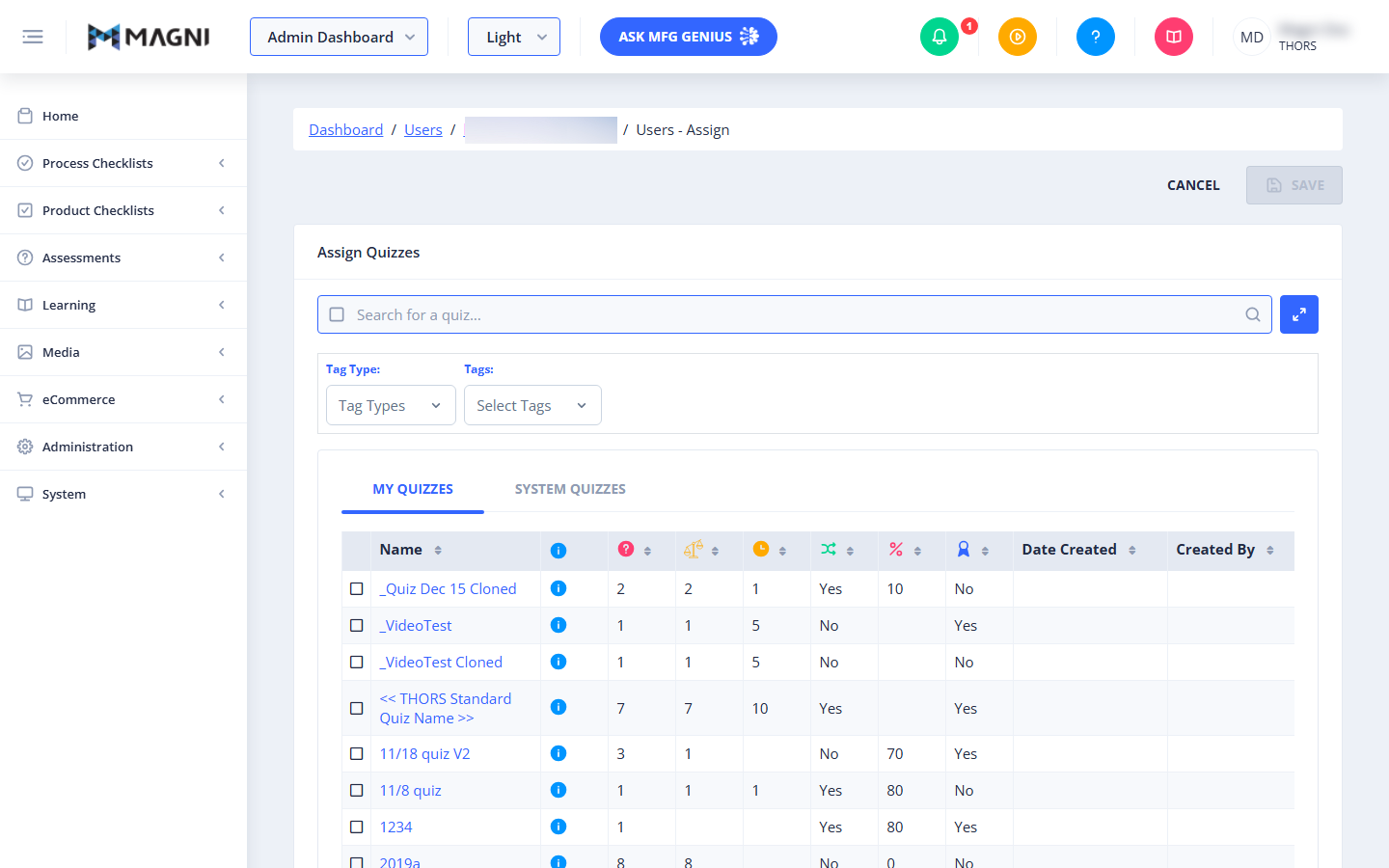
The selection table contains the following columns:
- Selection Checkbox: Click the checkbox next to a quiz to select it for assignment. Uncheck the box to remove an assigned quiz.
- Name: The title of the quiz. Clicking the quiz name link opens the quiz details.
- Info Icon (i): Displays additional metadata or description details for the quiz when hovered over or clicked.
- Questions (Question Mark Icon): The total number of questions included in the quiz.
- Weight (Scales Icon): The grading weight or points assigned to the quiz.
- Time Limit (Clock Icon): The duration (in minutes) allowed for completing the quiz. If blank, there is no time limit.
- Randomize (Shuffle Icon): Indicates whether the question order is randomized for the user (Yes/No).
- Passing Score (Percentage Icon): The minimum percentage score required to pass the quiz.
- Certificate/Mandatory (Ribbon Icon): Indicates whether completing the quiz awards a certificate or is marked as mandatory (Yes/No).
- Date Created: The date the quiz was created.
- Created By: The name of the administrator who created the quiz.
Common Actions
| Action | How to do it |
|---|---|
| Assign a quiz | 1. Locate the quiz using the search bar, filters, or tabs. 2. Check the box next to the quiz name. 3. Click Save in the top-right corner. |
| Remove a quiz assignment | 1. Locate the assigned quiz in the table. 2. Uncheck the box next to the quiz name. 3. Click Save in the top-right corner. |
| Filter quizzes by tags | 1. Click the Tag Type dropdown and select a category. 2. Click the Tags dropdown and select one or more tags to filter the table. |
| Cancel changes | Click the Cancel button in the top-right corner to return to the user's profile without saving. |
Tips
- Check Both Tabs: If you cannot find a quiz, make sure you are looking in the correct tab (My Quizzes for custom organization content, or System Quizzes for built-in Magni content).
- Batch Your Changes: You can select multiple new quizzes and deselect multiple existing quizzes at the same time. The Save button will apply all changes at once when clicked.
- Use Filters for Large Catalogs: If your organization has a large number of quizzes, use the Tag Type and Tags filters to quickly isolate relevant assessments instead of scrolling through multiple pages.