Users — Edit Courses
Last updated on: 2026-05-26 | Updated by: MAGNI Docs Team
The Users — Courses page allows administrators to manage course assignments for a specific user within the Magni LMS. From this page, administrators can assign new courses, update existing course settings, or remove course assignments for the selected user.
Page Sections
Breadcrumbs and Actions
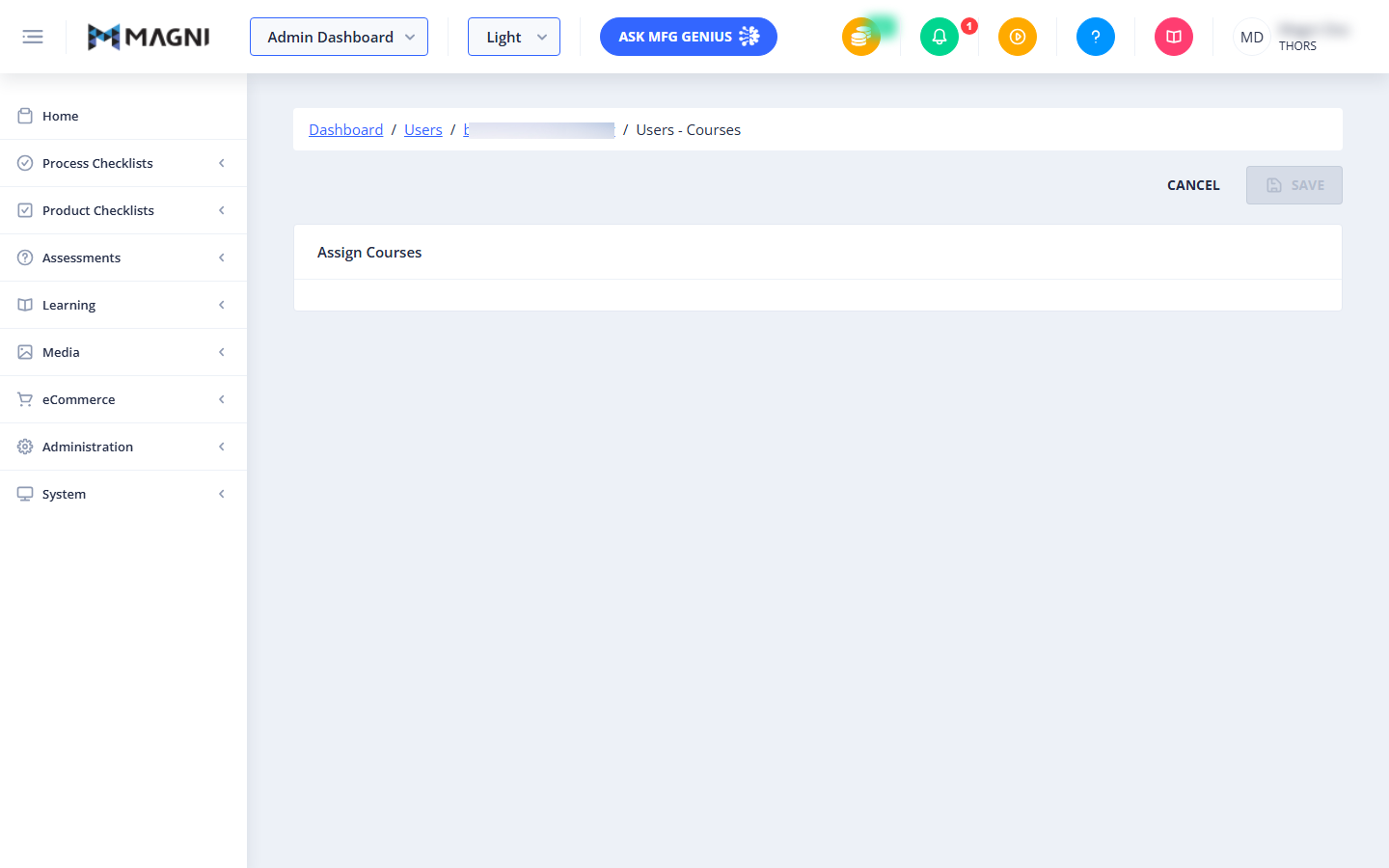
The top of the page features a breadcrumb navigation path and primary action buttons:
- Breadcrumbs: Navigate back to the Dashboard, the main Users directory, or the specific user's profile page. The user's name is dynamically appended to the breadcrumb path for easy reference.
- Cancel Button: Discards any pending changes and returns you to the user's profile page.
- Save Button: Commits all pending course additions, updates, or removals.
👤 Visible to: Administrators with user update permissions. ℹ️ Note: The Save button remains disabled until at least one change (assigning, updating, or unassigning a course) is made on the page and the form is not currently submitting.
Assign Courses Card
This section displays the interactive course management list where you can view, search, and modify the user's course assignments.
- Search Bar: Allows you to quickly find courses by typing a course name.

- Course List Selection: Check or uncheck courses to assign or unassign them for this user.
- Course Settings: Allows you to manage individual settings for each assigned course, such as custom due dates or completion rules. Global settings are hidden on this page to focus purely on user-specific configurations.
Un-assigning Course(s) Dialog
When you unassign one or more courses from a user, a warning dialog may appear to confirm the action.
- Alert Icon and Message: Warns you about the implications of unassigning the selected course(s).
- I Understand Button: Click this button to acknowledge the warning and close the dialog to proceed with your changes.
Common Actions
| Action | How to do it |
|---|---|
| Assign a course | 1. Use the search bar to locate the course. 2. Select the checkbox next to the course. 3. Click the Save button. |
| Unassign a course | 1. Locate the assigned course in the list. 2. Deselect the checkbox next to the course. 3. Acknowledge the unassign warning dialog if prompted. 4. Click the Save button. |
| Update course settings | 1. Locate the assigned course in the list. 2. Modify the user-specific settings for the course. 3. Click the Save button. |
| Discard changes | 1. Click the Cancel button to ignore all pending changes and return to the user's profile. |
Tips
- Batch Your Changes: You can assign multiple courses, unassign others, and update settings all in a single session. The system will process all additions, updates, and removals simultaneously when you click Save.
- Use Search to Filter: If your organization has a large catalog, use the search bar to quickly find specific courses instead of scrolling through the entire list.
- Verify Before Saving: Always review your selected courses before clicking Save, as unassigning courses may impact the user's progress tracking or completion history for those modules.