Users Exam — Report
Last updated on: 2026-05-27 | Updated by: MAGNI Docs Team
This page allows Administrators and System Administrators to view detailed quiz and assessment reports for individual users. From this page, you can analyze a user's performance across multiple attempts, review competency breakdowns, and access recommended learning materials tailored to their quiz results.
👤 Visible to: Administrators, System Administrators
Page Sections
Breadcrumbs and Header Actions
The top section of the page provides navigation breadcrumbs and key action buttons to manage and view different quiz attempts.
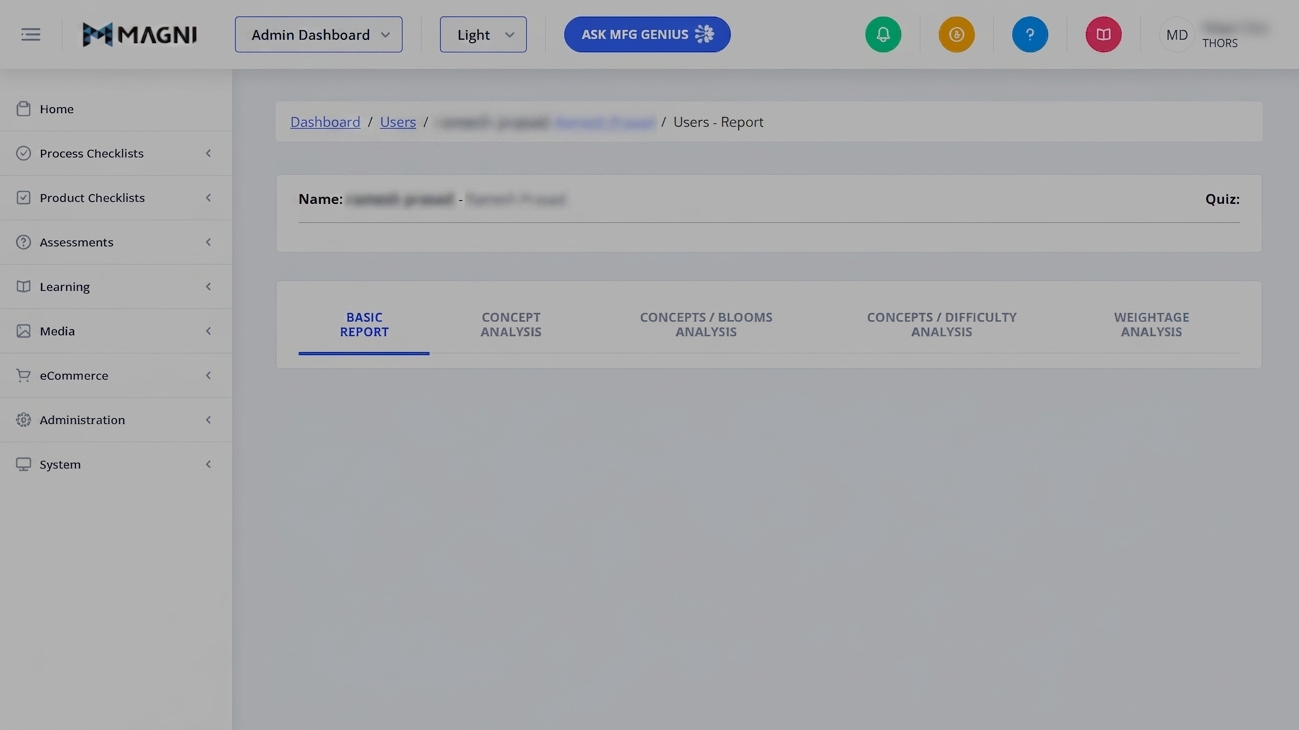
- Breadcrumbs: Navigate back to the Dashboard, the main Users list, or the specific user's profile page.
- Attempt Selector: A dropdown menu that allows you to switch between different attempts of the quiz. Each option displays the attempt number and the completion date. If there are more than 10 attempts, a "More..." option will appear at the bottom of the list to load additional attempts.
- Print Button: Click the printer icon to generate a printable version of the report. This button is temporarily disabled while the print preview is loading.
- Viewer/Award Button: Click the award icon to open the detailed quiz attempt inside the learner viewer, allowing you to see the exact questions and answers from the learner's perspective.
Quiz Summary Card
This card displays high-level metadata about the selected quiz attempt:
- Name: The full name of the user.
- Quiz: The title of the quiz or assessment.
- Date: The start and end date/time of the attempt.
- Duration: The total time taken by the user to complete the quiz.
- Score: The final percentage score achieved on this attempt.
Recommendations Section
This section only appears if there are recommended learning materials available based on the user's quiz performance. It contains up to four tabs:
- Suggested Courses: Displays a table of courses recommended for the user based on the specific questions they answered incorrectly. It lists the course name and the number of incorrect questions associated with that course topic. Clicking a course link will open the course in the learner player or an external link.
- Related Courses: Lists general courses related to the quiz topic.
- Related Contents: Lists additional learning content resources related to the quiz topic.
- Suggested Contents: Lists specific learning content suggested for review based on incorrect answers.
Analysis Tabs
The bottom half of the page features five tabs to analyze the user's performance from different pedagogical perspectives:
- Basic Report: Displays a summary table of the quiz results, including the total number of questions, correct answers, incorrect answers, unanswered questions, and the final percentage score.
- Concept Analysis: Displays a competency assessment report mapping the user's performance against specific learning concepts.
- Concepts / Blooms Analysis: Displays an advanced report mapping performance across concepts categorized by Bloom's Taxonomy cognitive levels.
- Concepts / Difficulty Analysis: Displays an advanced report mapping performance across concepts categorized by question difficulty levels.
- Weightage Analysis: Displays weightage assessment reports broken down by Concept, Bloom's Category, and Difficulty.
Common Actions
| Action | How to do it |
|---|---|
| Switch Quiz Attempts | Click the Attempt dropdown in the top-right header, then select the desired attempt from the list. |
| Print the Report | Click the Print (printer icon) button in the top-right header. |
| View Learner's Quiz Details | Click the Viewer (award icon) button in the top-right header to inspect individual questions and answers. |
| Access Recommended Courses | Navigate to the Recommendations card, select the Suggested Courses or Related Courses tab, and click on any course link to open it. |
| Analyze Concept Performance | Click on the Concept Analysis or Weightage Analysis tabs to see which specific topics the user struggled with. |
Tips
- Targeted Remediation: Use the Suggested Courses tab under Recommendations to quickly assign or suggest specific training modules to users who failed to meet passing criteria on key concepts.
- Track Progress Over Time: Use the Attempt dropdown to compare a user's score and duration across multiple attempts to verify if their comprehension is improving.
- Print to PDF: When using the Print button, you can select "Save as PDF" in your browser's print dialog to archive a digital copy of the user's report for external compliance records.