Users — Detail
Last updated on: 2026-05-26 | Updated by: MAGNI Docs Team
Overview
The Users — Detail page provides administrators with a comprehensive view of an individual user's profile, system status, training progress, and organizational assignments. From this dashboard, administrators can manage user details, assign or modify course and quiz enrollments, and view custom profile fields.
👤 Access Control: This page is visible to Administrators and users with User Update permissions.
Page Sections
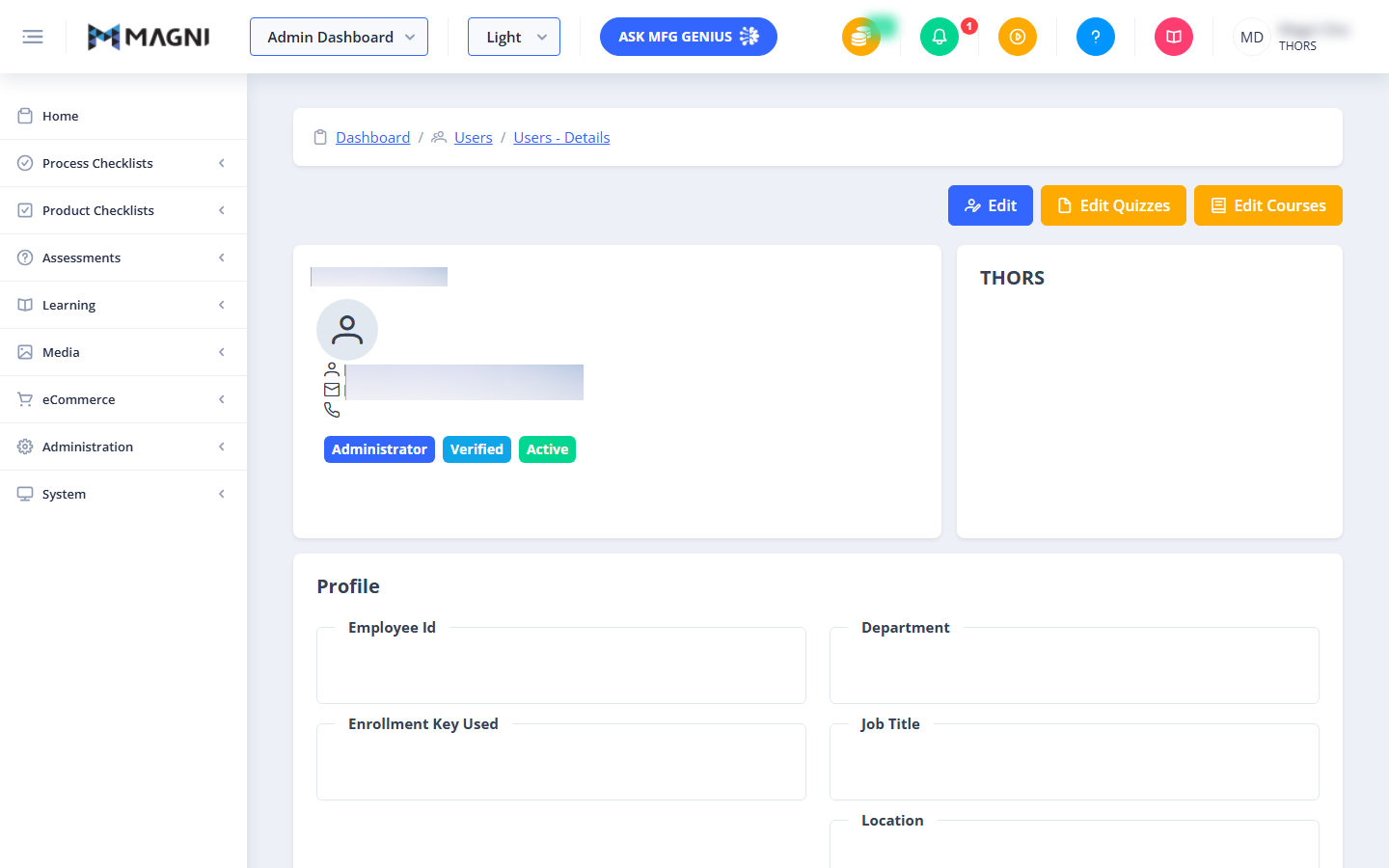
Header and Action Buttons
The top of the page features a breadcrumb trail for quick navigation back to the Dashboard or the main Users list. On the right side, a set of action buttons allows you to modify the user's account and training assignments:
- Edit: Opens the user update form to modify basic details, contact information, or status. This button is only visible if you have permission to edit this user.
- Edit Quizzes: Opens the quiz assignment interface. This button is only visible if assessments are enabled for your organization.
- Edit Courses: Opens the course assignment interface. This button is only visible if Learning Management System (LMS) features are enabled for your organization.
User Info Card
The left-hand card displays the user's primary identity and contact details:
- Name: The user's full name is displayed as the card header.
- Username: The unique system identifier used by the user to log in.
- Email: The user's registered email address.
- Phone: The user's contact phone number (if provided in their profile).
- Status Tags: Located at the bottom of the card, these tags indicate the user's system privileges and state:
- Administrator: Appears only if the user has administrative access.
- Verified / Not Verified: Indicates whether the user has verified their email address.
- Active / Inactive: Indicates whether the user is currently permitted to log into the system.
Customer Card
The right-hand card displays the name and logo of the customer organization to which the user belongs.
⚠️ THORS Administrators: If you are logged in as a THORS administrator, this card acts as a shortcut. Clicking anywhere on the card will navigate you directly to the Customer Details page. For all other roles, this card is read-only.
Profile Details
This section displays organizational metadata associated with the user's profile:
- Employee Id: The user's unique internal company identification number.
- Enrollment Key Used: The registration key the user used to create their account or join the organization (if applicable).
- Department: The department the user is assigned to.
- Job Title: The user's official professional title.
- Location: The physical facility or geographic location where the user is based.
- Custom Fields: This section appears dynamically at the bottom of the Profile card only if your organization has configured custom metadata fields for user accounts. It displays any custom key-value pairs assigned to this specific user.
Tabs Section
The bottom portion of the page contains tabbed panels that organize the user's system permissions and training records.
Assigned Roles Tab
Displays a list of all security and access roles currently assigned to the user, defining what actions they can perform within Magni.
Quizzes Tab
Only visible if assessments are enabled.
This tab tracks the user's quiz assignments and performance. It is divided into three sub-tabs: Not Started, In Progress, and Completed.
- Search Bar: Allows you to quickly filter assigned quizzes by name.
- Reassign All Button: If your customer account has quiz reassignment enabled, this button allows you to reset and reassign all quizzes to the user simultaneously.
- Quiz Table Columns:
- Quiz: The name of the quiz (click the column header to sort alphabetically).
- Attempt #: The current attempt number the user is on.
- Questions: The total number of questions in the quiz.
- Time Limit: The time allocated for the quiz.
Courses Tab
Only visible if LMS features are enabled.
Displays a list of all courses currently assigned to the user, along with progress indicators, completion dates, and status tracking.
Groups Tab
Only visible if assessments or LMS features are enabled.
Lists all user groups that this individual is currently a member of. Group membership is often used to automate course and quiz assignments.
Common Actions
| Action | How to do it |
|---|---|
| Edit User Profile | Click the blue Edit button in the top right corner of the page to modify the user's name, email, phone, or status. |
| Assign/Remove Quizzes | Click the orange Edit Quizzes button to manage the user's assessment assignments. |
| Assign/Remove Courses | Click the orange Edit Courses button to manage the user's learning path enrollments. |
| Reset All Quizzes | Navigate to the Quizzes tab and click Reassign All to clear progress and allow the user to retake their assigned quizzes. |
| View Organization Details | Click on the Customer Card (THORS Administrators only) to jump to the associated customer management page. |
Tips
- Quick Status Check: Use the colored tags at the bottom of the User Info card to quickly audit whether a user is active and verified before troubleshooting login issues.
- Track Custom Metadata: If your organization uses custom fields (like "Cost Center" or "Manager Name"), scroll to the bottom of the Profile section to view these specialized details.
- Sort Training Records: In the Quizzes and Courses tabs, click on the table column headers (such as Quiz or Attempt #) to sort the records and find specific training data faster.