Users — Edit
Last updated on: 2026-05-26 | Updated by: MAGNI Docs Team
The Users — Edit page allows administrators to manage and update user account details, profile information, customer associations, and assigned system roles within the Magni LMS. This page is essential for maintaining accurate user records, managing security permissions, and organizing users within your company structure.
👤 Visible to: Administrators and System Administrators with user management permissions.
Page Sections
Breadcrumbs and Action Buttons
The top of the page features navigation breadcrumbs and primary action buttons to save or discard your changes.
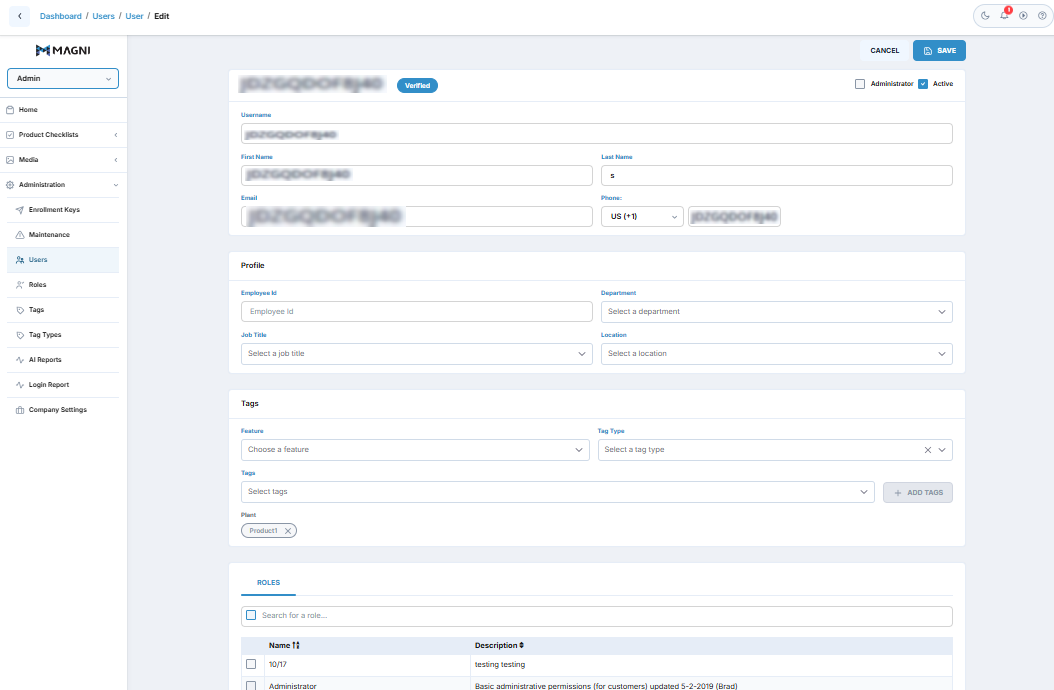
- Breadcrumbs: Provide a quick path to navigate back to the Admin Dashboard, the associated Customer profile, or the main Users list.
- Cancel Button: Discards any modifications made on this page and returns you to the previous screen.
- Save Button: Saves all updates made to the user's profile. This button is only enabled when all required fields contain valid information and you have the necessary permissions to edit the user.
- Permission Alert: If you do not have permission to edit the selected user, a red alert banner stating "You do not have permission to edit this user" will appear at the top of the page, and the Save button will be hidden.
User Account Information Card
This card contains the core login credentials, contact details, and account status toggles for the user.
- Verification Tag: Displays a blue Verified tag if the user has confirmed their account, or a yellow Not verified tag if they have not yet completed verification.
- Administrator Checkbox: Grants or revokes administrator privileges for the user.
- Note: You cannot modify this checkbox for your own account.
- Active Checkbox: Toggles the user's account status. Inactive users are blocked from logging into the platform.
- Note: You cannot deactivate your own account.
- Username: The unique identifier the user enters when logging in.
- First Name / Last Name: The user's personal name details.
- Email: The primary email address associated with the account.
- Phone: A country code selector (featuring country flags and international calling codes) paired with a numeric input field for the user's phone number.
Profile Card
The Profile card contains organizational metadata that helps categorize the user within your company's structure.
- Employee ID: An optional text field to record the user's internal company identification number.
- Department: A searchable dropdown menu used to assign the user to an organizational department. If department updates are restricted for your role or customer tier, this field will display as read-only text.
- Job Title / Location: Searchable dropdown menus to assign the user's professional title and physical work location.
Customer & Roles Tabs
The tabbed section at the bottom of the page manages the user's organizational alignment and system permissions.
- Customer Tab: Displays the customer organization the user belongs to. The system enforces a limit of one customer per user account. You can remove the current customer association by clicking the X icon on the customer tag.
- Roles Tab: Allows you to view, assign, or remove specific security and access roles for the user, determining what features they can access across the Magni LMS.
Tags Card
The Tags card controls which checklists a user can be assigned to. It is available for users with one of these roles: QA Supervisor, Manufacturing Supervisor, QA Manager.
- Feature: Select the feature the tag applies to. Currently, tags are used only for the Production Checklist.
- Tag Type: Select the tag category (for example, Plant). This field can be cleared.
- Tags: Select one or more tag values under the chosen tag type.
- Add Tags Button: Adds the selected tags to the user.
- Tag Chips: Added tags appear below the form, grouped by tag type (for example,
Product1under Plant). Click the X on a chip to remove it.
How tags work: A user appears in the User dropdown on the Product Checklist Execution and Workflow pages only if they have the same tag as the checklist.
| Checklist Tag | User Tag | Shown in dropdown? |
|---|---|---|
| Plant: Product1 | Plant: Product1 | Yes |
| Plant: Product1 | Plant: Product2 | No |
Common Actions
| Action | How to do it |
|---|---|
| Deactivate a User | Uncheck the Active checkbox in the top-right corner of the User Account Information card, then click Save. |
| Promote a User to Admin | Check the Administrator checkbox in the top-right corner of the User Account Information card, then click Save. |
| Update Contact Information | Edit the Email or Phone fields, then click Save. |
| Change Department or Job Title | Click the Department or Job Title dropdown in the Profile card, search for or select the new value, then click Save. |
| Remove a Customer Association | Under the Customer tab, click the X icon on the customer tag, then click Save. |
Tips
- Use Dropdown Filters: When assigning Departments, Job Titles, or Locations, type directly into the dropdown fields to quickly filter through large lists of organizational tags.
- Prevent Self-Lockouts: The system automatically disables the Active and Administrator checkboxes when you view your own profile to prevent you from accidentally deactivating yourself or removing your own admin rights.
- Verify Email Addresses: Always double-check the user's email address before saving. Critical system notifications, password resets, and course enrollment alerts rely entirely on this address being accurate.