Users Quick Edit
Last updated on: July 22, 2026 | Updated by: MAGNI Docs Team
The Quick Edit Users page provides administrators and user managers with a streamlined, spreadsheet-like interface to rapidly update user profiles and account statuses. Instead of navigating into individual user profiles one by one, you can perform inline edits on multiple fields directly from this grid, saving time during routine directory maintenance.
👤 Visible to: Administrator, User Manager, System Administrator
Page Sections
Header and Navigation
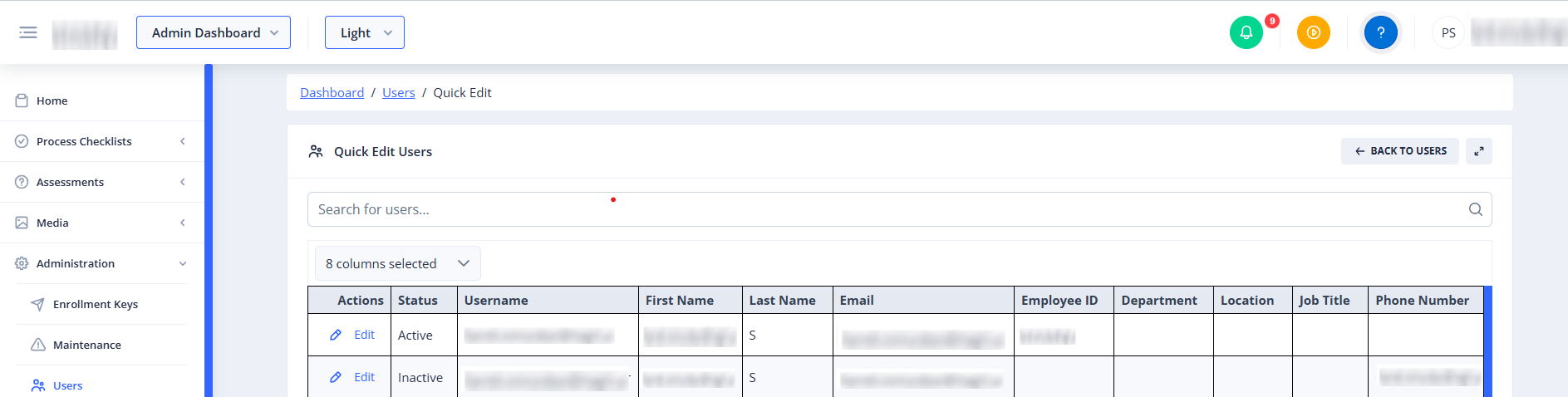
The top of the page features breadcrumb navigation to help you quickly jump back to the Dashboard or the main Users directory.
The card header contains the page title along with two utility buttons:
- Back to Users: Returns you to the main Users management list.
- Maximize/Minimize: Expands the user grid to fill the entire screen for a larger workspace, or restores it to the standard view.
Search Bar
Located directly above the grid, the search bar allows you to filter the user list. Typing a name, username, or email address will dynamically narrow down the records displayed in the table.
User Grid (Table)
The central grid displays your users and their profile details in a tabular format.

- Choose Columns: A multi-select dropdown menu that lets you customize your workspace by choosing which profile fields are visible. Available columns include:
- First Name
- Last Name
- Email (Read-only)
- Employee ID
- Department
- Location
- Job Title
- Phone Number
- Actions: Contains the controls to modify rows:
- Edit: Puts the selected row into edit mode.
- Save (Checkmark icon): Saves your changes to the user's profile.
- Cancel (Cross icon): Discards any unsaved changes and reverts the row to its original state.
- Lock Icon: Appears on protected System Administrator accounts. These accounts cannot be modified from this screen.
- Status: Displays whether the user account is "Active" or "Inactive". When editing, this field turns into a dropdown menu.
- Username: Displays the user's login username. This field is read-only.
- Dynamic Columns: Depending on your selections in the "Choose Columns" menu, additional editable fields (such as First Name, Last Name, Department, Location, etc.) will appear as columns.
Common Actions
| Action | How to do it |
|---|---|
| Search Users | Type a search term into the "Search for users..." bar and press Enter. |
| Maximize Workspace | Click the Maximize button (expand icon) in the top-right corner of the card to view the grid in full-screen mode. Click it again to minimize. |
| Show or Hide Columns | Click the Choose Columns dropdown, check the boxes next to the fields you want to display, and uncheck those you want to hide. |
| Edit a User | Click the Edit button in the Actions column for the desired user. The row's fields will turn into editable inputs. |
| Save Changes | After making edits to a row, click the Save (checkmark) button in the Actions column. |
| Cancel Edits | If you make a mistake before saving, click the Cancel (cross) button in the Actions column to revert your changes. |
Tips
- Maximize for Large Screens: If you are editing multiple columns simultaneously (such as Department, Location, and Employee ID), use the Maximize button to expand your workspace and avoid horizontal scrolling.
- System Admin Lock: If you see a lock icon instead of an "Edit" button, the account belongs to a protected System Administrator and cannot be modified using the Quick Edit tool.
- Dropdown Filters: When editing fields like Department, Location, or Job Title, the dropdown menus feature built-in search filters to help you quickly find the correct tag.