Product Checklist — Detail
Last updated on: 2026-05-26 | Updated by: MAGNI Docs Team
This page allows administrators and quality managers to view, create, and edit product-specific checklists. These checklists are used to standardize quality control, compliance, and inspection procedures for products within the Magni platform.
Overview
The Product Checklists — Detail page provides a comprehensive interface for managing all aspects of a product checklist. Here, you can define the checklist's basic information, set up custom labels, organize questions into sections, configure answer options, and customize the footer and signature requirements.
⚠️ Feature Access: This page is only accessible if the "Product Checklists" feature is enabled for your organization. If this feature is disabled, a "Feature Not Enabled" message will be displayed instead of the checklist editor.
Page Sections
The checklist editor is organized into several expandable sections to help you manage complex checklist configurations easily.
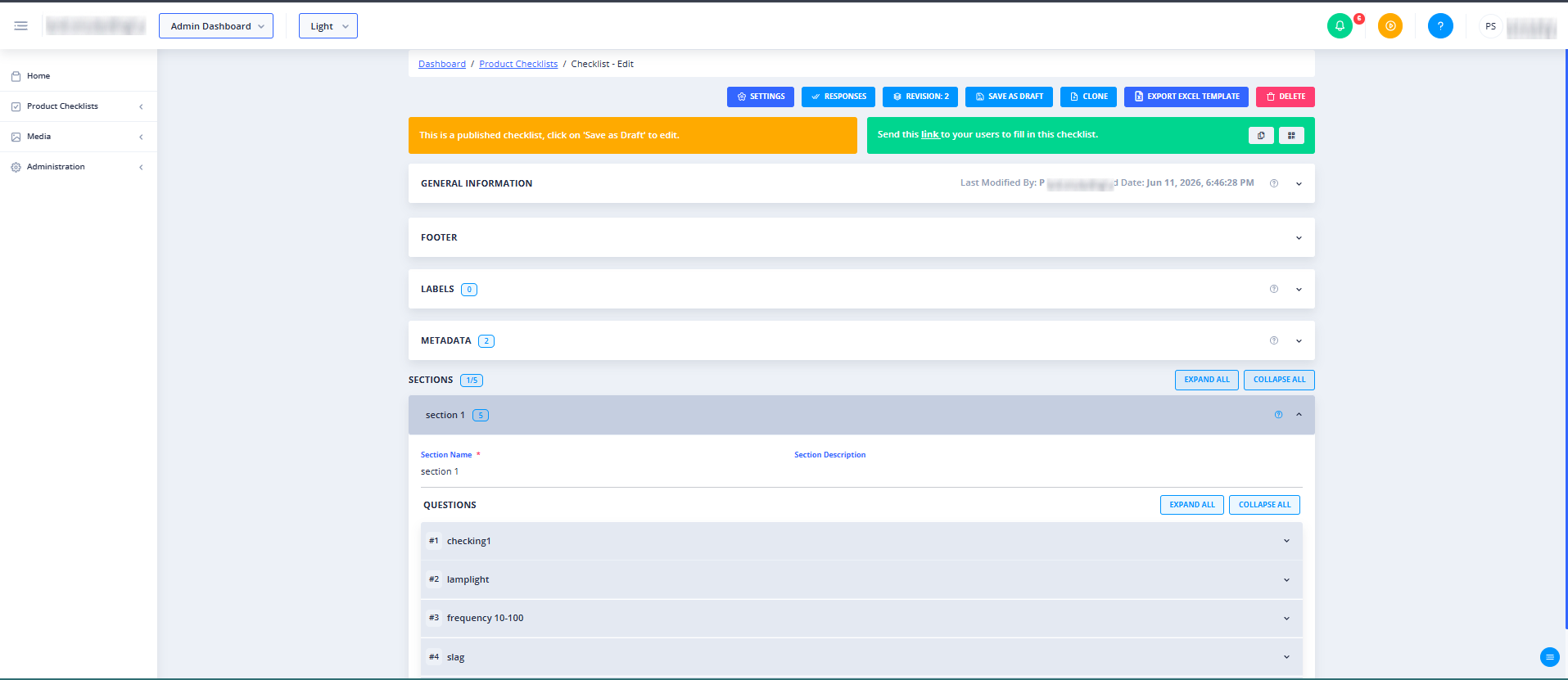
Toolbar
Located at the top of the page, the toolbar provides quick access to global actions for the checklist.
- Save Draft: Saves your current progress without publishing the checklist.
General Information
This section contains the core identifying details and configuration settings for the checklist.
- Code (Required): A unique alphanumeric code used to identify the checklist within the system.
- Name (Required): The display name of the checklist.
- Description: A text field to provide instructions or context for users filling out the checklist.
- Sample Size (Required): The specific number of product samples that must be evaluated when using this checklist. This field is mandatory for all product-type checklists.
Labels
This section allows you to manage localized labels and translations for the checklist, ensuring that users can complete inspections in their preferred language.
Metadata
Use this section to configure advanced properties, tags, and system-level metadata associated with the checklist for better categorization and reporting.
Sections & Questions
This is the core builder of your checklist where you define the actual inspection criteria.
- Sections: Group related questions together (e.g., "Visual Inspection", "Functional Testing").
- Questions: Add individual inspection points within each section.
- Answers: Define the response types for each question, such as Pass/Fail, multiple-choice, or text input.
Footer
Customize the bottom portion of the checklist form.
- Footer Text: Custom text, terms, or closing instructions to display at the end of the checklist.
- Footer Position: Choose where the footer text is positioned relative to the signature field (defaults to "Before Signature").
- Signature Name: Specify a label for the signature field if a sign-off is required to complete the checklist.
Common Actions
| Action | How to do it |
|---|---|
| Save Progress | Click the Save Draft button in the top toolbar to save your changes. |
| Define Sample Size | Expand the General Information section and enter the required number of samples in the Sample Size field. |
| Configure Signatures | Expand the Footer section, enter a Signature Name, and select your preferred Footer Position. |
| settings | General • Minimum Estimated Execution Duration (Minutes): Defines the minimum expected time required to complete and submit the checklist. For example, if the value is set to 15 minutes, the checklist is expected to be completed and submitted within the configured duration. • Allow Sample Status Change for Inspector: • Enabled: The Inspector cannot change the Sample Status (e.g., Pass, Rework, Scrap) for the first time execution. • Disabled: The Inspector can change the Sample Status (e.g., Pass, Rework, Scrap). • Allow Inspection Status Change for Inspector: • Enabled: The Inspector cannot change the Inspection Workflow Status (e.g., Approved, Final Approved, Rejected). • Disabled: The Inspector can change the Inspection Workflow Status (e.g., Approved, Final Approved, Rejected). |
Tips
- Set Clear Sample Sizes: Ensure your Sample Size matches your standard operating procedures, as this field is required to validate and save any product checklist.
- Use Sections for Structure: Break long checklists down into logical sections to make them easier for inspectors to navigate on mobile devices or tablets.